Framework
Overview
Framework is a standardized set of analytical procedures used consistently for a specific entity. It includes inputs, calculations, and output metrics. Refer framework registry section for details.
Enabling framework for a policy
-
After the policy is created, follow the below-mentioned steps to enable framework:
-
Click on Edit and click on Framework tab
-
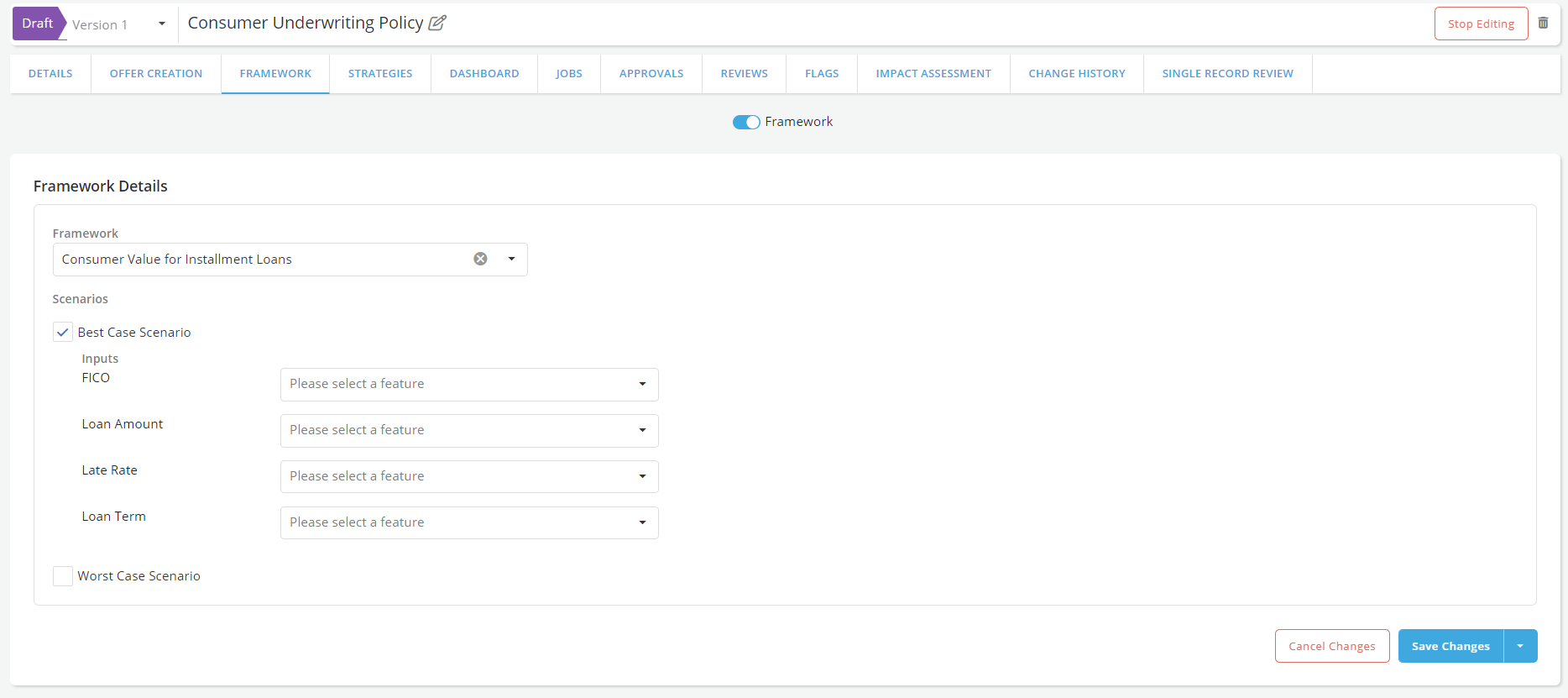
Framework toggle: Specify whether the policy will use a loan valuation framework or not by switching on the Framework toggle.
-
Framework Details: If the framework toggle is set to ON then the framework that has been attached to the selected product will appear in an expandable tab. Open the Framework tab and select the framework execution scenario(s) and the input variables that correspond to them.
-
Scenarios: These are the possible scenarios under which the framework can be executed. Examples of scenarios is Expected, Worst Case, etc. Framework Scenarios are defined at the time of Framework creation in the Product and Framework module. Users can select multiple scenarios to run during the framework execution process.
-
Inputs: These are the inputs needed to execute the framework. For instance, an Consumer Value for Installment Loans framework requires at least four inputs to run: a FICO, a loan amount, an interest rate and a loan term. These inputs are what is required to define and configure the product that the framework applies to. To specify a input:
-
Click on the input field, select among the data elements, features and models the variable that will provide the input value to the selected basic input.
-
When doing optimization, the basic inputs should be mapped to the iteration variables that are all prefixed with potential (e.g. potential_loan_amount). These variables are system generated variables; they are not mapped or derived from any data element. They are used during the iteration process to generate possible values of the basic inputs.
-
Once the inputs are specified, click on Save Changes to save the specification before moving to the next steps. To stop editing the policy, scroll up and click on the Stop Editing button. Any information entered without saving will be lost.
-