Offer Creation
Overview
The outcome of most policy decisions are product offers. While registering a policy users are allowed to specify the potential offers that can be generated using the Offer Creation tool.
Creating offers in a policy
-
After the policy is created, follow below mentioned steps to create offers
-
Click on Offer Creation tab and Edit to start configuring the policy offers
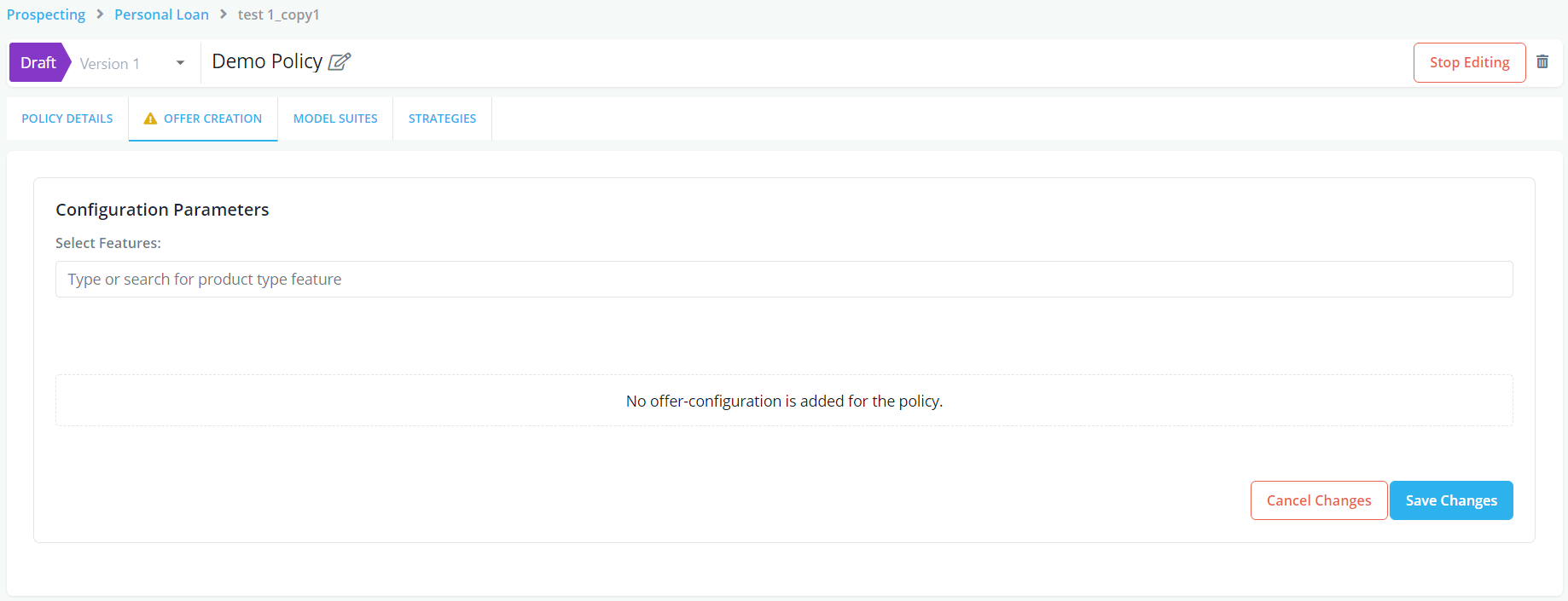
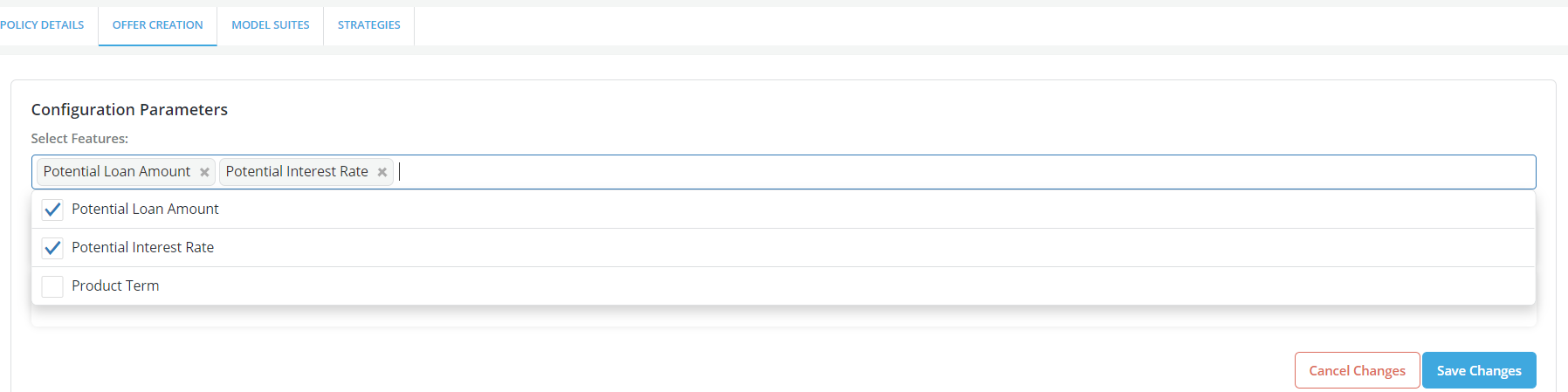
- Select the product parameters to be set in the policy
- Click on Save Changes
- Notification is displayed for successful save
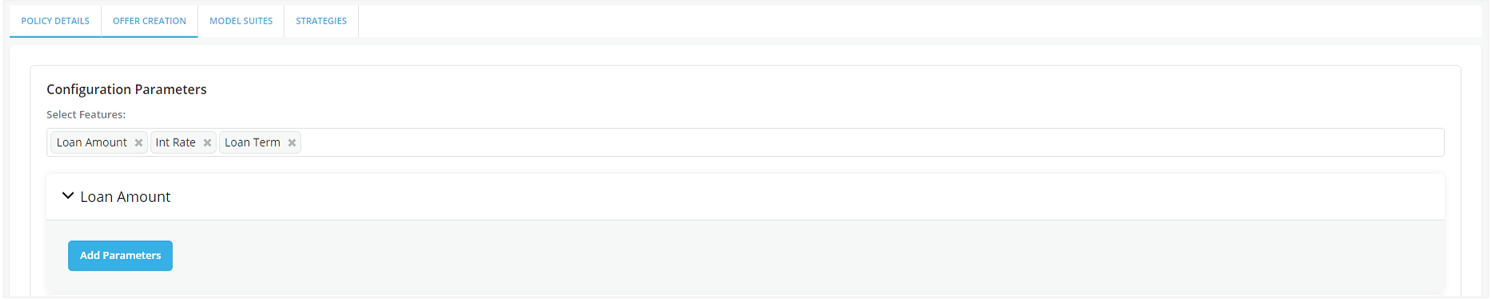
- To define the values that a given product parameter can take, open the tab of that product parameter and click on Add Parameter.
Configuration options
-
System allows multiple ways to specify the values that a product configuration can take
-
Choose and add following parameters as appropriate: Default, Action Rule, List, Absolute Range, Relative Range, Custom. These parameters have some limitations described below.
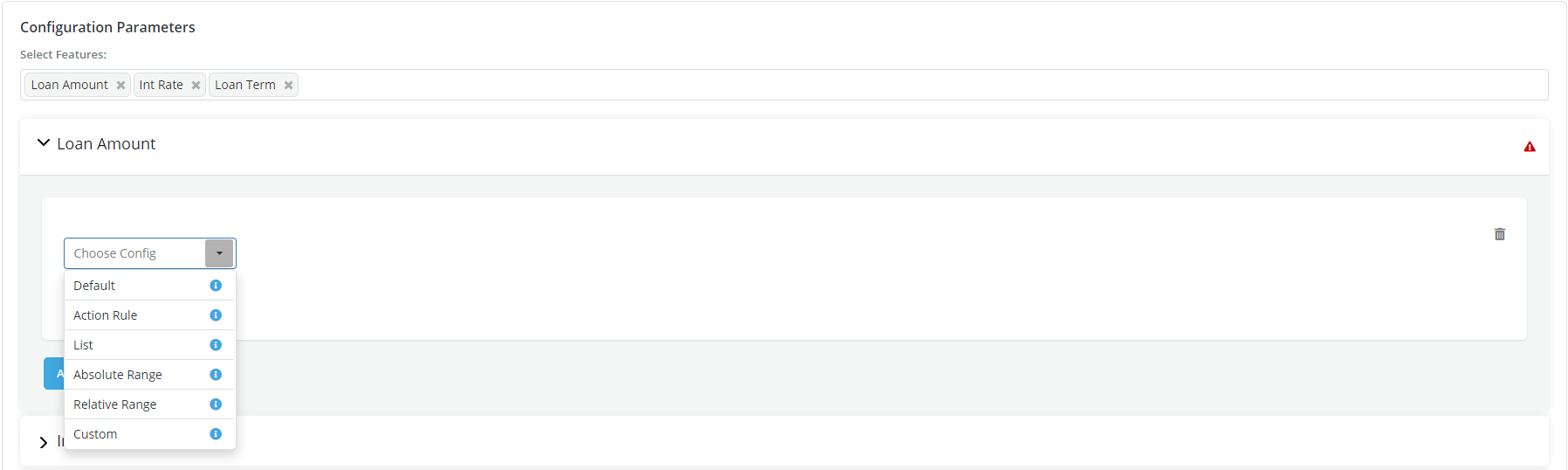
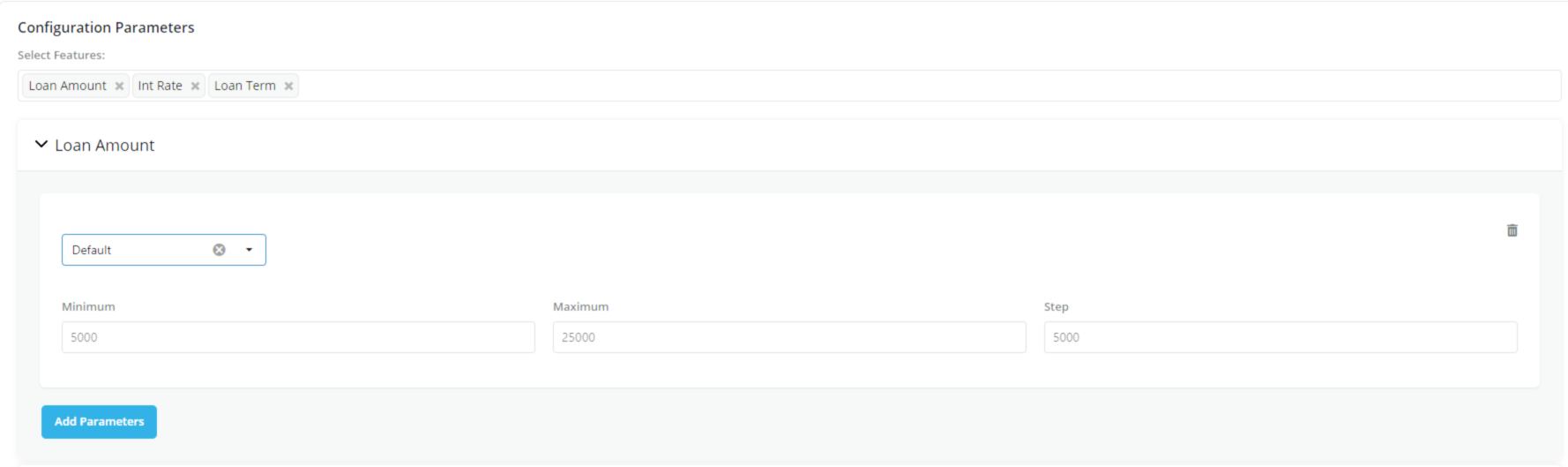
Default
Populates values from the Product Configuration (default values of the product's configuration parameter). These values are not editable.
- Furthermore, additional parameters can be added from the dropdown
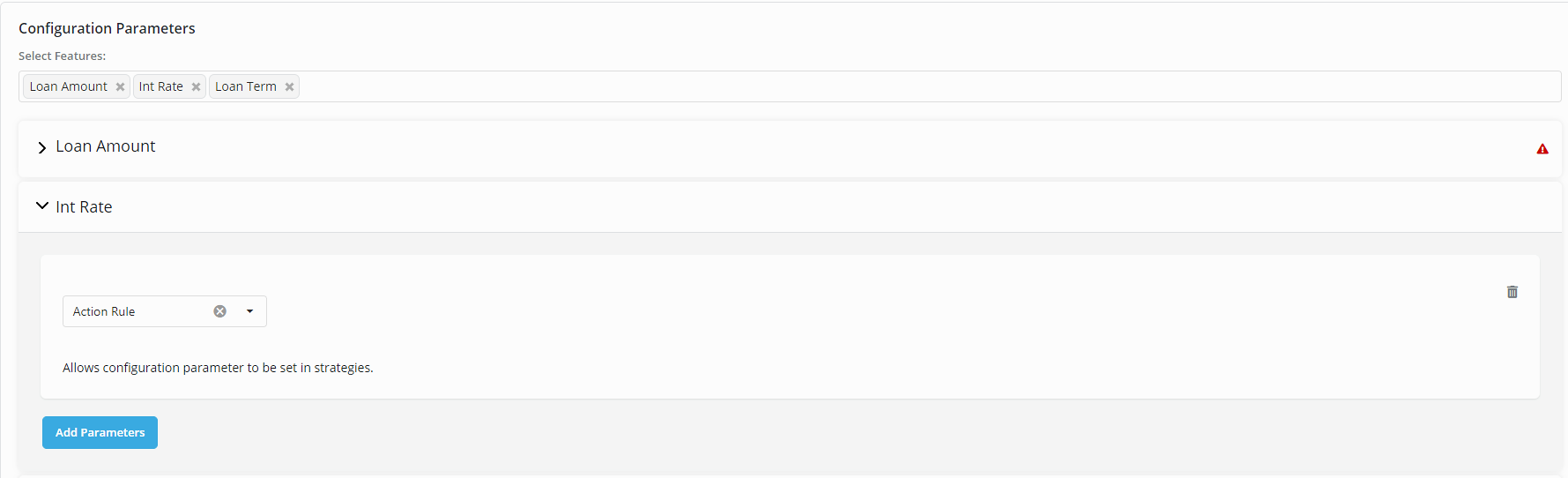
Action Rule
The product parameter will be assigned a value using an Action Rule that is written within the policy * The Action Rule option cannot be combined with any of the other options * If the parameter is not set using the Action Rule as a first option, this does not appear in the dropdown list of the parameter
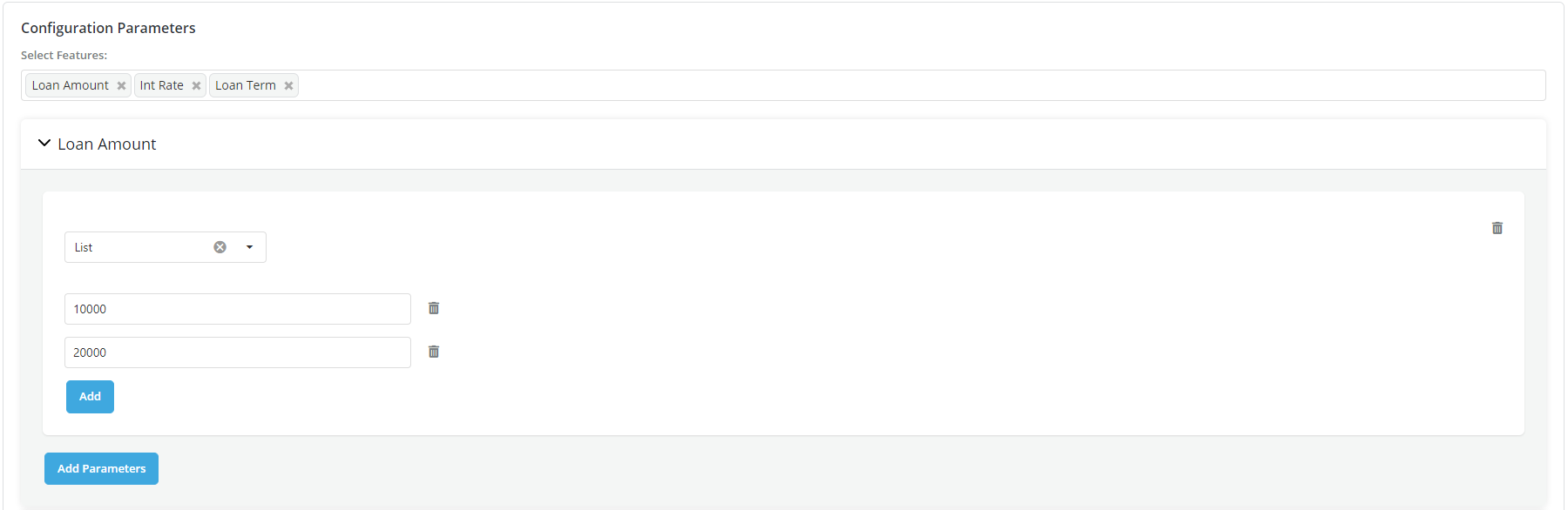
List
List one by one of all possible values of the product configuration
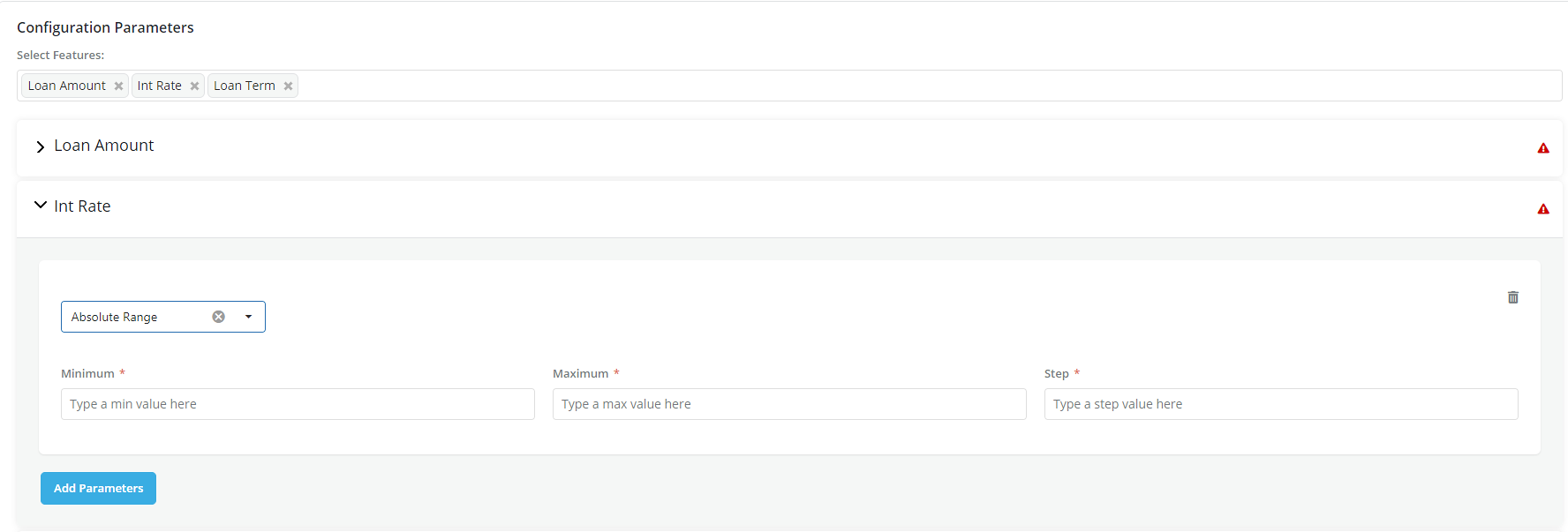
Absolute Range
Specify a range of possible values for the product configuration. In this option, a range of value that the parameter can take is defined as: * Minimum- Define the minimum value for the parameter * Maximum: Define the maximum value for the parameter * Steps: Define how to move between the maximum and minimum range in steps.
Info
This option is shown only for numerical configuration_
Relative Range
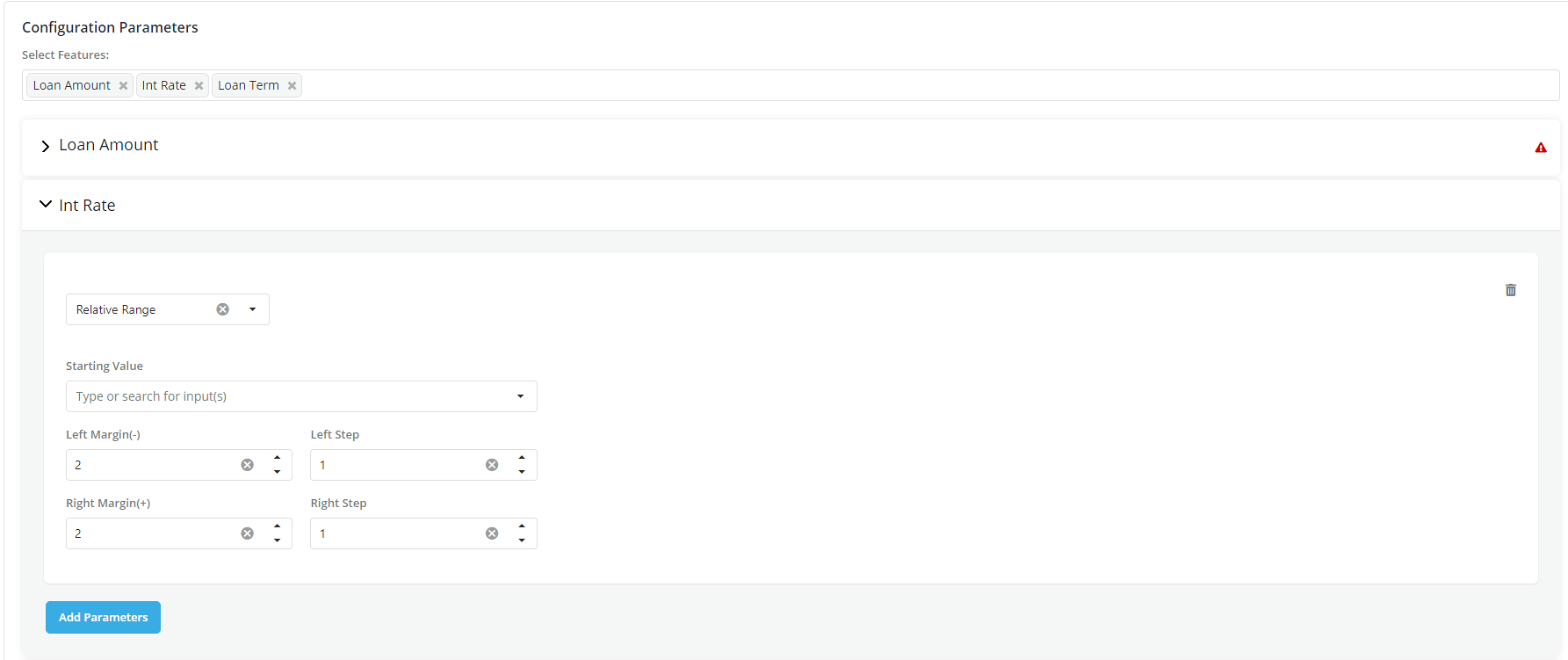
A range around a specific value * Starting Value: Can be either a number or a formula (i.e., feature) * Left/Right Margin: Defines the range above and below the starting value
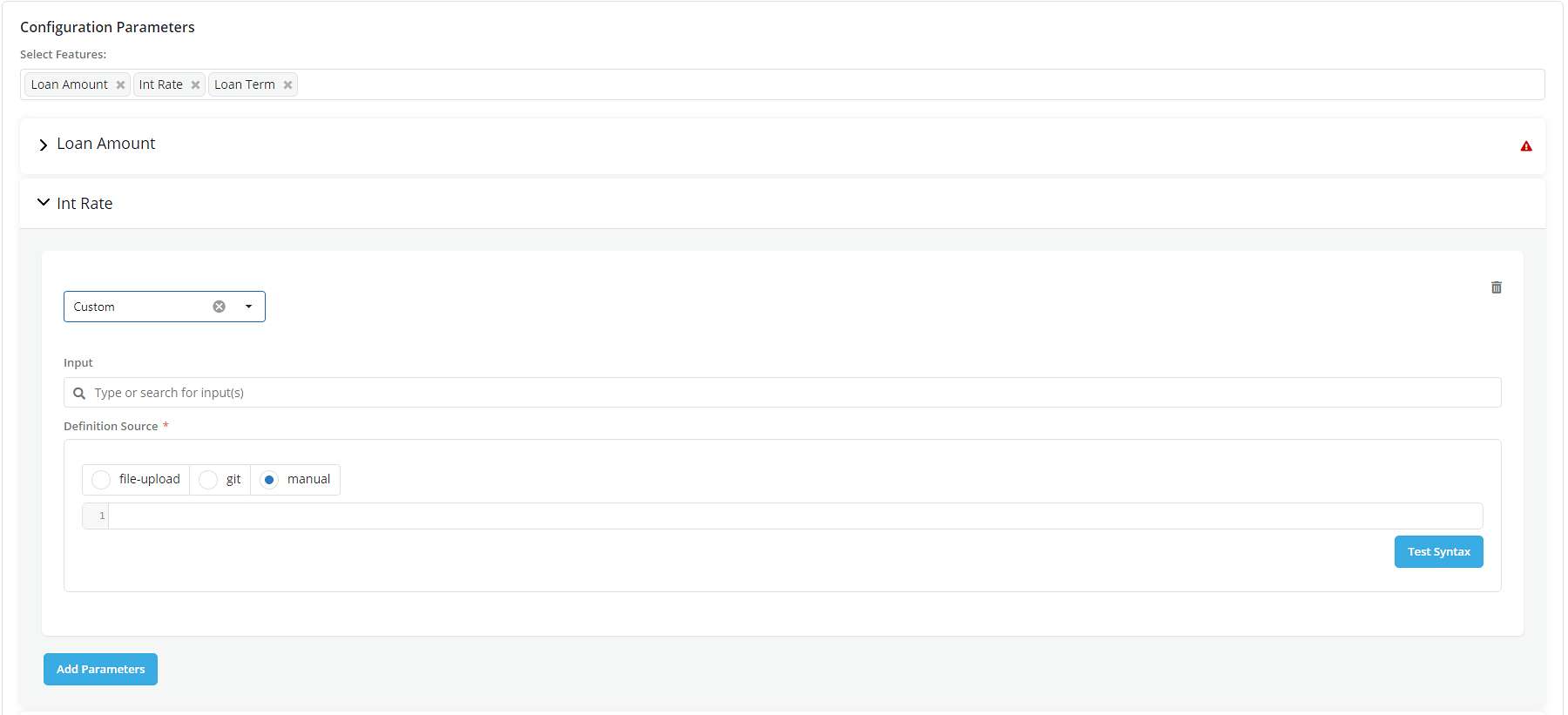
- Custom: Possible values are calculated using a Python code
- Custom option can be added only once within a parameter
-
The actual code can be added in 3 ways:
-
File Upload: Using this option a file containing the custom logic can be uploaded
- Git: Click on git to import the code from Github
- Manual: Use this option to manually enter the custom logic code
- After setting up the parameters, click on Save Changes.
Set up Offer Display
Although the set of valid offers created by evaluating the strategies can be offered to the customer. Oftentimes, out of all the valid offers, there could be a smaller subset of offers that are preferred to be shown first.
Offer Display, as the final step of policy evaluation, enables to set up a piece of python logic which can be used to flag the subset of offers to be displayed out of all the valid offers. The valid offers are created from the Strategy evaluation step.
Offer Display logic is optional, if it’s not set up. The set of valid offers generated from Strategy evaluation will be the final output for the policy.
-
Offer Display is a piece of python logic you can define to flag the offers to be displayed. This piece of python logic will then be run by the platform to evaluate all the valid offers generated from the Strategy evaluation step.
-
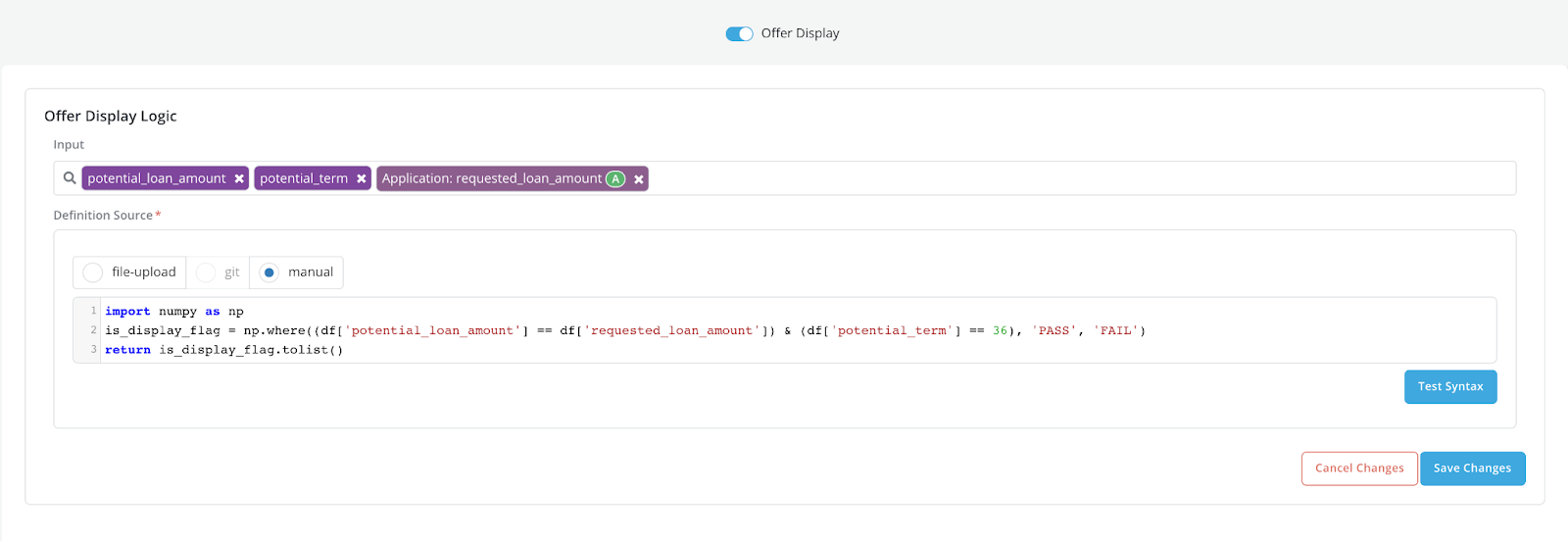
To set up offer display logic, switch on the Offer Display slider button. To make sure the Offer Display logic can be evaluated by the platform, a set of rules should be followed while writing the logic:
Input:
- Variable df will be made available in the Offer Display context for the logic writer to use
- df is of type pandas dataframe containing all the valid offers for a single opportunity. Each row in df represents one valid offer
- Each input selected in the input selection box corresponds to one column in the df
Output:
- Output should be a list containing string ‘PASS’ or ‘FAIL’
- Each string in the output list flags one offer in df dataframe, therefore the number of items in the output list should match the number of offers in the df dataframe
- The offers corresponds to ‘PASS’ will be displayed, the offers corresponds to ‘FAIL’ will be filtered out
Other:
- Common python libraries can be imported. For instance: pandas, numpy, math, etc.
-
Click on Test Syntax. A notification message is displayed if the formula contains errors; if not, the successful validation message will be displayed
-
Click on Save Changes
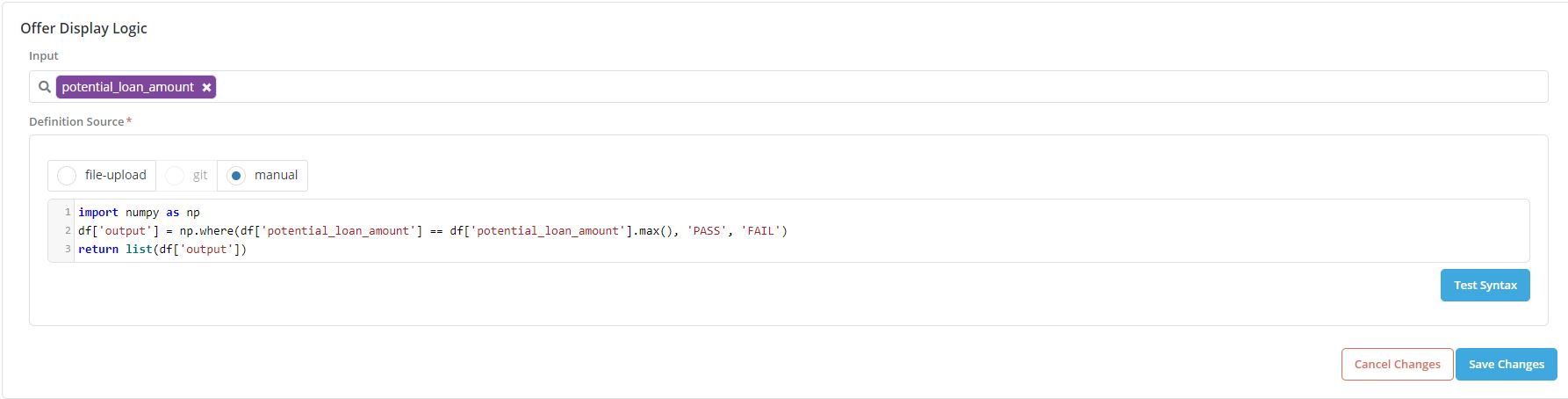
- Scroll up and click on Stop Editing.

Example
Offer Display Logic
Input Definition:
| potential_loan_amount | potential_term | requested_loan_amount |
|---|---|---|
| 7000 | 36 | 8000 |
| 8000 | 36 | 8000 |
| 9000 | 36 | 8000 |
| 10000 | 36 | 8000 |
| 7000 | 48 | 8000 |
| 8000 | 48 | 8000 |
| 9000 | 48 | 8000 |
| 10000 | 48 | 8000 |
- The columns of df correspond to the inputs selected in the input box. Both the offer level information(potential_loan_amount, potential_term) and the opportunity level information(requested_loan_amount) can be accessed through the df dataframe
Output:
The logic in Offer Display takes in the df(the set of valid offers), and flags all the offers with below 2 conditions as ‘PASS’: * potential_loan_amount = requested_loan_amount * potential_term = 36
- Output returned by the Offer Display logic would be:
[ ’FAIL’, ‘PASS’, ’FAIL’, ’FAIL’, ’FAIL’, ’FAIL’, ’FAIL’, ’FAIL’]
- The output of the Offer Display logic indicates that offer #2 would be the only offer displayed for the opportunity.