Policy Management Procedure
Overview
A policy is a set of rules and processes that use incoming data elements, features, models’ outputs and in some cases optimization functions to generate decisions such as approving an account, assigning a loan amount or an interest rate, routing an application for verification, etc. The platform allows users to create deploy and maintain policies in a fully integrated way.
A policy is made of separate strategies that execute one after another, in sequence. For instance, a typical underwriting policy will be comprised of a Minimum Requirement strategy (i.e. how to decide which applications are too risky for the issuer to approve even at the highest possible price), a Pricing strategy (i.e., how to decide which price to assign to a loan) and a Limit strategy (i.e., How to cap or floor the loan amount, debt ratios, etc. to keep them within a reasonable range).
In order to design a policy a User will need to:
-
Describe the policy for documentation purposes.
-
Specify what models and evaluation framework they want to use (if any).
-
Design the strategies that they want to include in the policy, simulate and tweak the strategies until they get the desired outcome.
-
Request approval from the right authority and then proceed to activation.
-
Once the policy is activated, the User can proceed to track the outcome using the validation tool.
A policy can be managed using any of the modules, as appropriate:
Registering a policy
Refer to the section Registering a policy for details
Sending policy for approval
Once a Policy has been created and has been at least simulated once, users can proceed to request approval for it. Without approval, a Policy cannot be used in any downstream process such as getting activated.
Editing a policy
Refer to the section on Edit for details.
When a policy has edited, all use of the older version of the Policy will not change unless the user manually updates each one of them to refer to the newer version, re-simulates and re-approves. On all modules, the Policy will appear with its name when in the newer version or in the format Name of Policy (older-version - vN) if an older version is still being used.
Copying a policy
Copying a Policy allows a user to create a new Policy using information from the existing one. The new Policy will be an exact copy of the original Policy with a new name of the format oldname_copyX. Unlike cloning, the new Policy name as well as all other details can now be changed by the user and saved independently of the original Policy. Refer to the section on Copy for details.
Cloning a policy
Cloning a Policy allows a user to create a new version of it. The new version will be a copy of the Policy being cloned with the same name and same configuration. The Policy name of the clone cannot be changed but the user can proceed to change other details and/or definitions and create a new version.
Policy Activation
Execution Portal
This option allows the user to activate a policy for a given product, set up A/B testing using different policies and evaluate the active policies on various sample test cases.
The tab will show all the policies that are registered and approved within the platform. All policies are grouped by product and, within a product, by version. To see all policies specific to a product, click on the expandable > tab with the name of that product. To see the policies with respect to a specific version of the product click on the Version X button on the right of the page that has opened and choose that version.
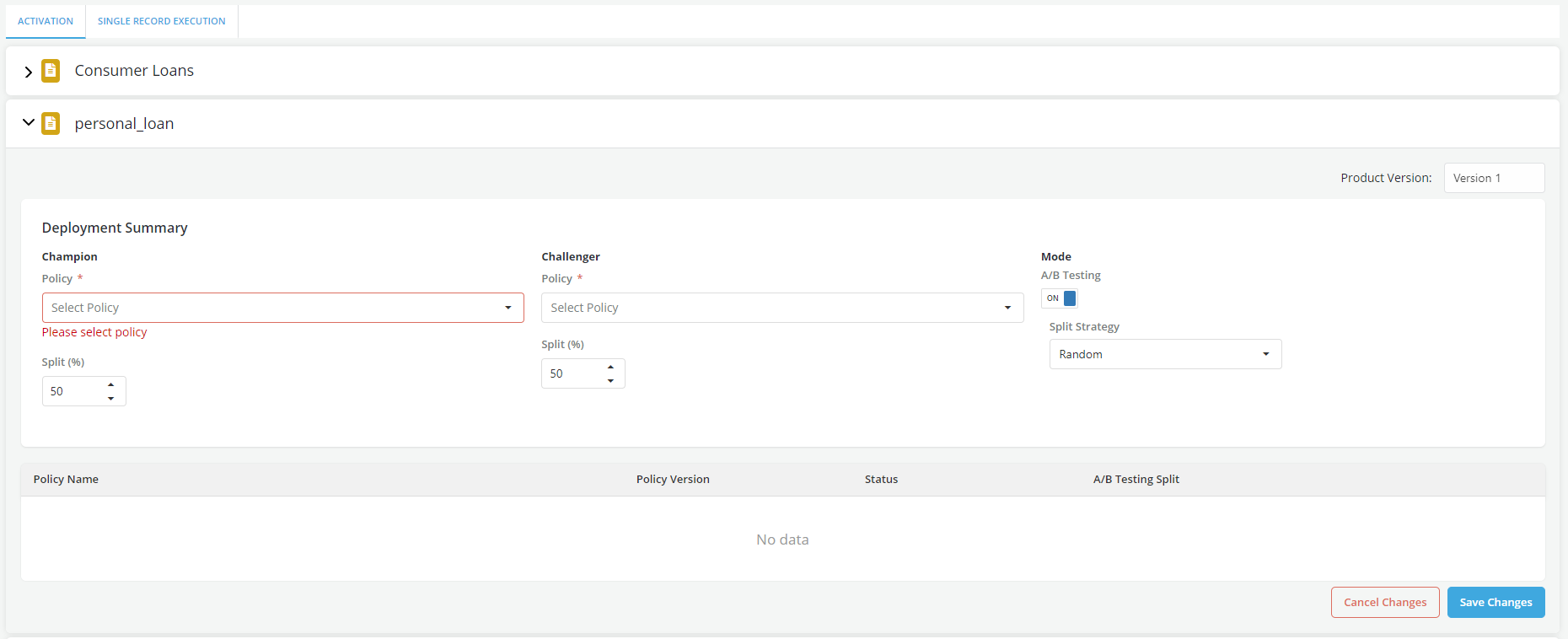
To activate a Single Policy for a product refer Single Policy activation section.
Single Record Execution
This is the same as Single record review but it’s only available for activated policies.
Validation
The validation functionality allows users to either validate predictions or monitor the enforcements of usage controls such as permissible use. Currently, the user can only track permissible purpose violations for each policy registered in the platform using the Validation Tab. Tracking of policy predictions will be added as functionality in upcoming releases.
Once the user clicks on the Validation tab, an Alert tab will open displaying a list of all the latest approved versions of the policies that have been registered on the platform, along with a count of the number of permissible purpose violations.
Policies with no violations will have a green-colored callout with a 0 count of alerts while policies with violations will have a red-colored callout with the count of the number of violations.