Global Functions
Overview
Global function give the ability to the user to execute a set of analytical operations multiple times using different objects as inputs without having to rewrite those operations every time. Global functions are available when creating DE aggregates, Features, Models and new Global Functions.
Creating Global Functions
- Click on the Resources button on the Home page
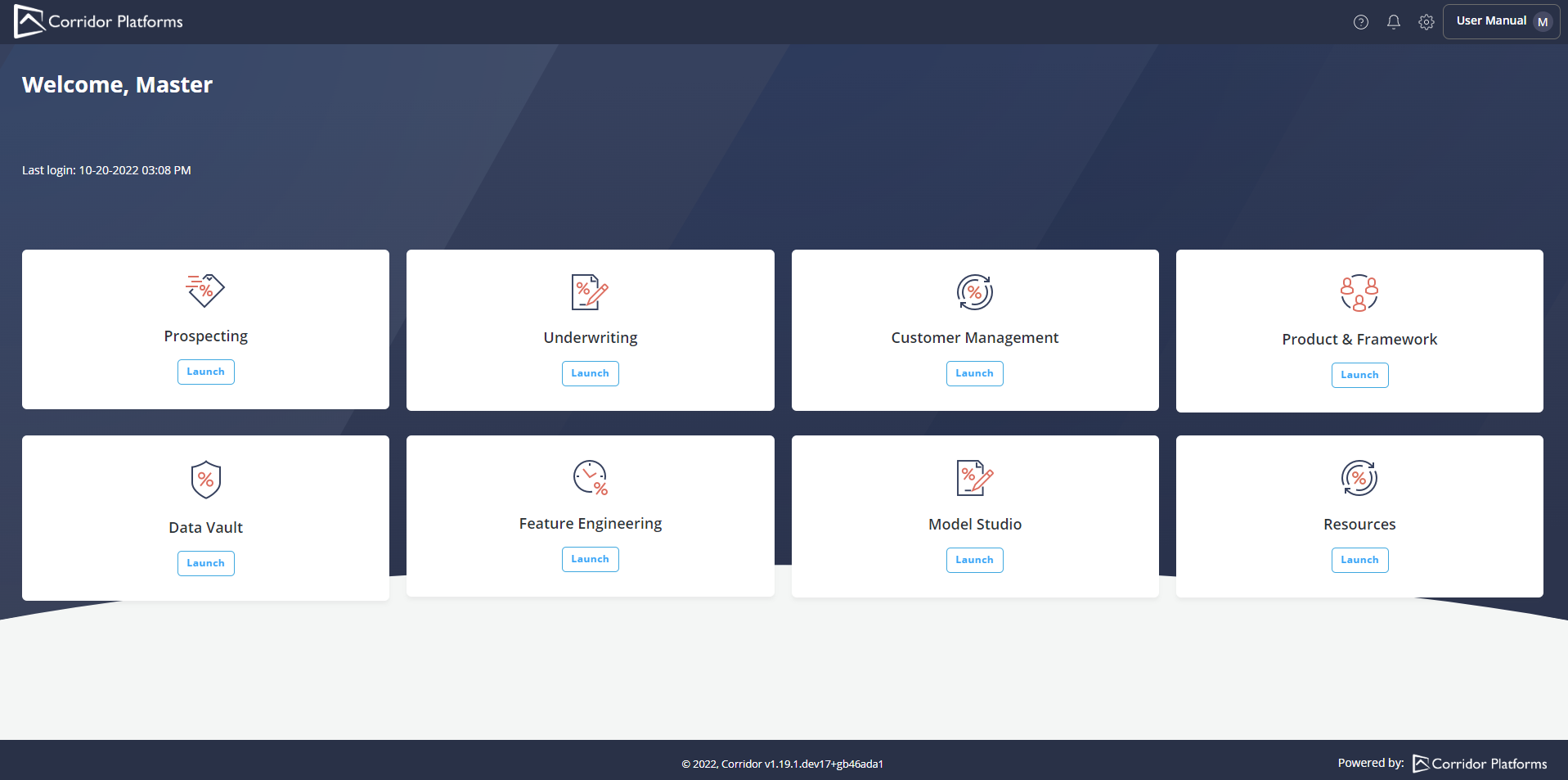
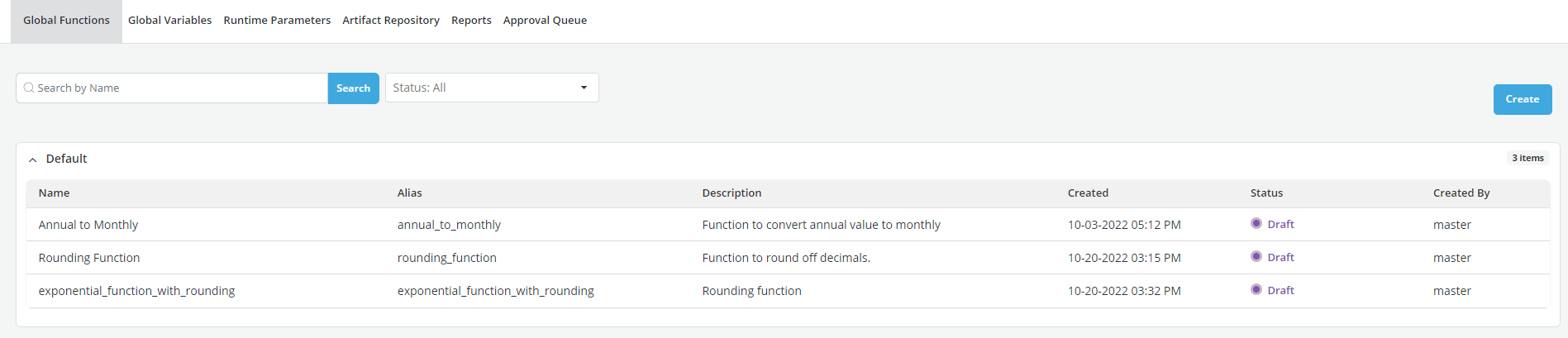
- Global Function window opens by default
- Click on Create
- Optionally select Output Type to restrict the return type of the Global Function
- Enter required fields (marked with * )
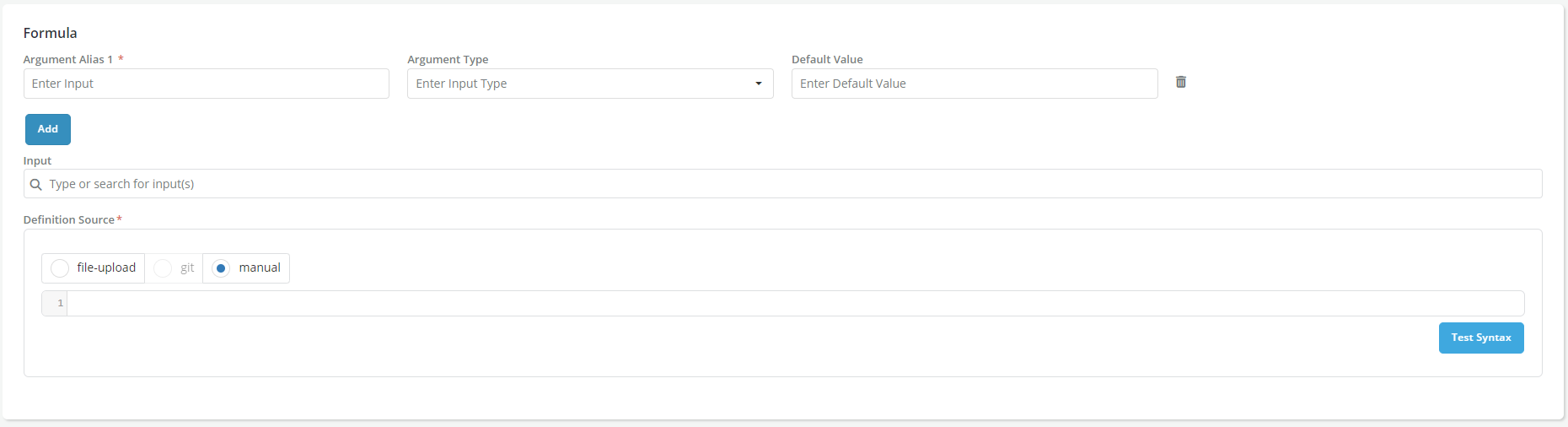
- Update the Formula section
- Click on Add to add the arguments for the function and update the Definition Source with the code.
- Optionally define default arguments for the function by selecting Argument Type and Default Value
- Select input Global Function(s) / Runtime Parameter(s) from list of existing registered items using the Input dropdown to be used within the function definition
- Click on Test Syntax and click on Create
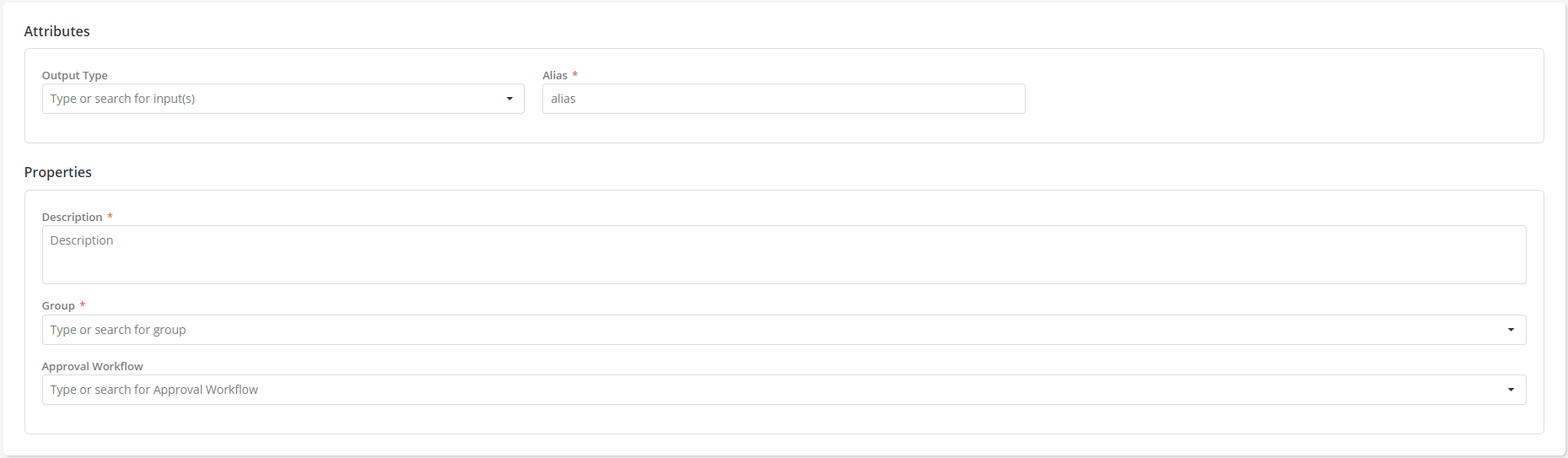

- A pop-up message displayed for successful record save. Send the function for approval.
- Go to Approvals tab and click on Request Review to send the global function for approval
- A flag can be added to a Global Function. Refer Flags for details.
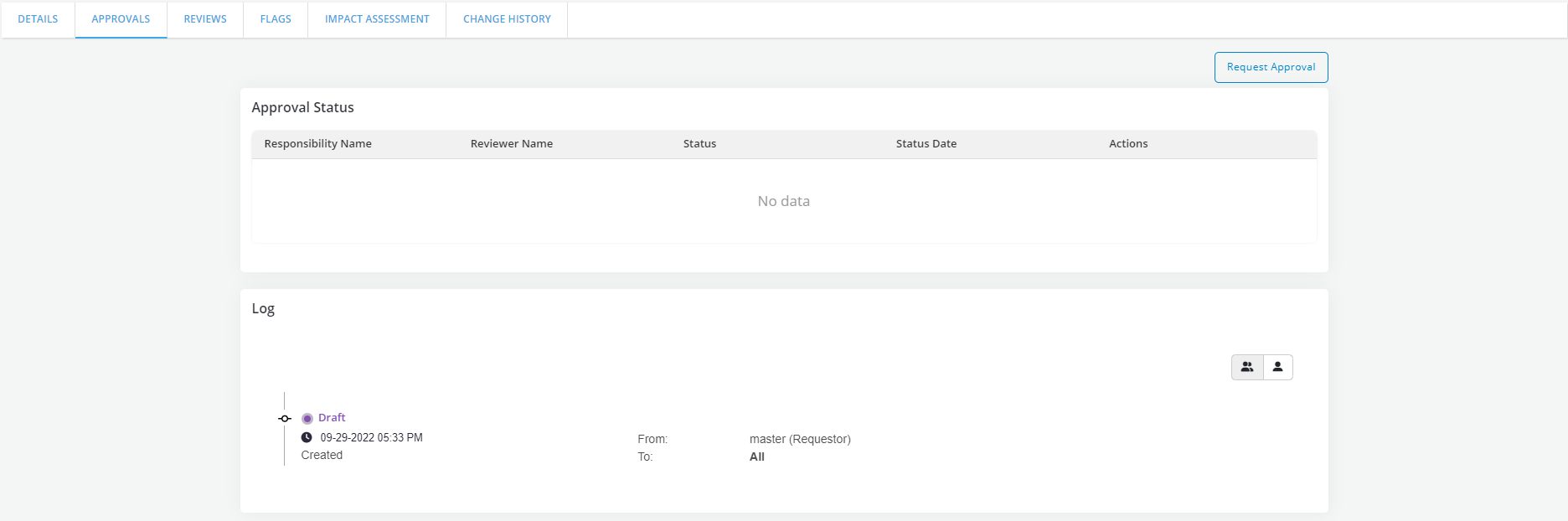
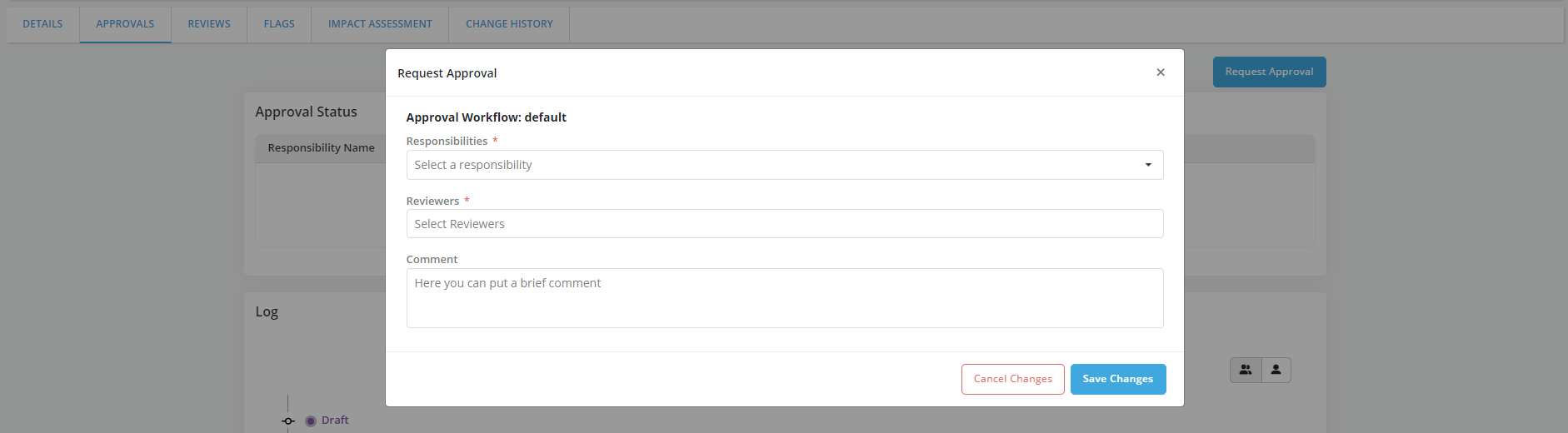
- Capture required details and click on Save Changes
- Refer Approval Workflow for details.
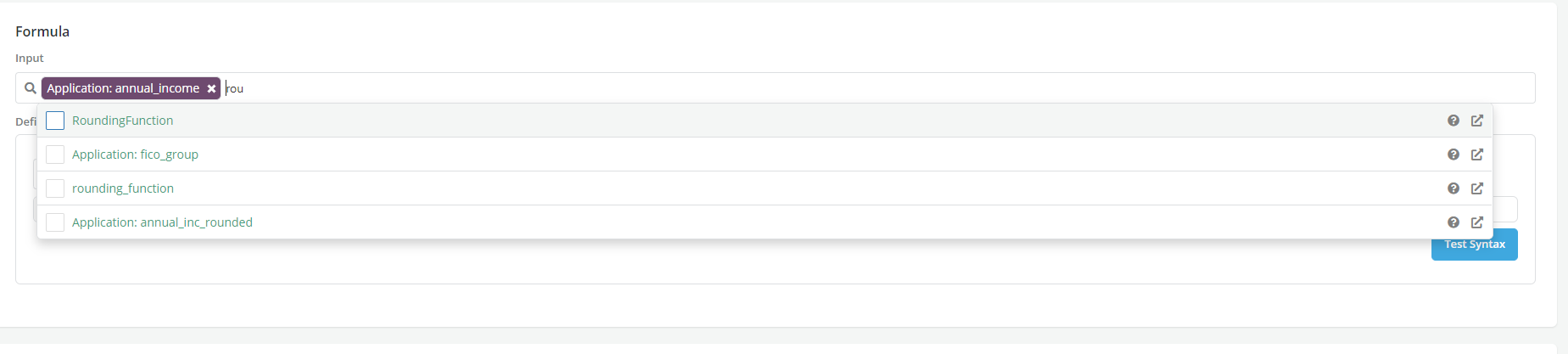
- Once a Global function is defined, it becomes available to use when creating or defining an object. User can select the function from the Input list
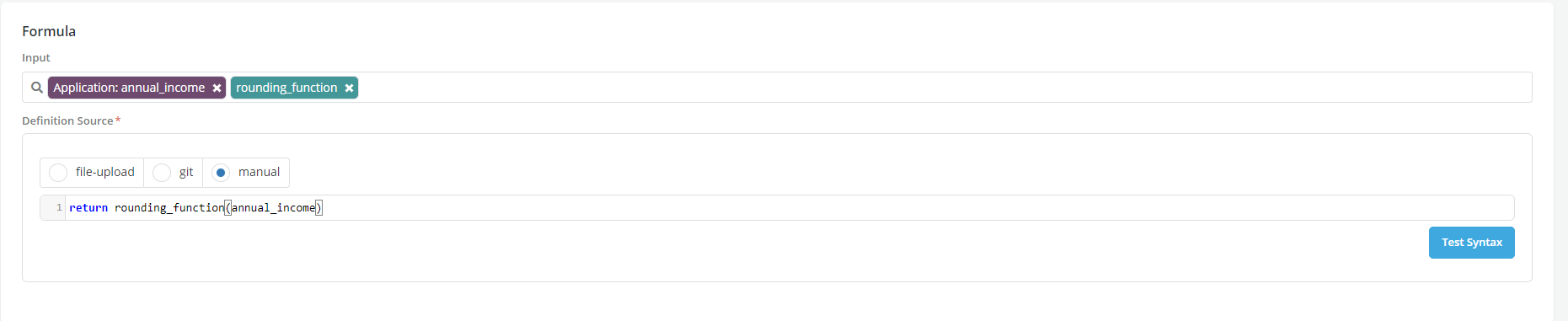
- And write a formula using the function
Advantage of using Global Functions
- Creates a whole library of standardized, fully tested code
- Global Functions are accessible throughout the platform(DE, Feature, Model, Policy etc), also in the notebook, and no passing around copies of code needed
- Integrated access and approval workflow control