Reports
Overview
- When a job is completed the output is stored in a dataset usually referred to as the job output data.
- A Report is a summary of a job output data.
-
A Report is comprised of two parts:
- The computation of the summary
- The visualization of the summary
-
Once a Report is created it can be included in a dashboard view to be automatically produced every time a job using the the dashboard view is completed.
- Reports give the ability to the user to define a set of visualizations which may be used while running jobs for the objects.
Creating Reports
- Click on the Resources button on the Home page
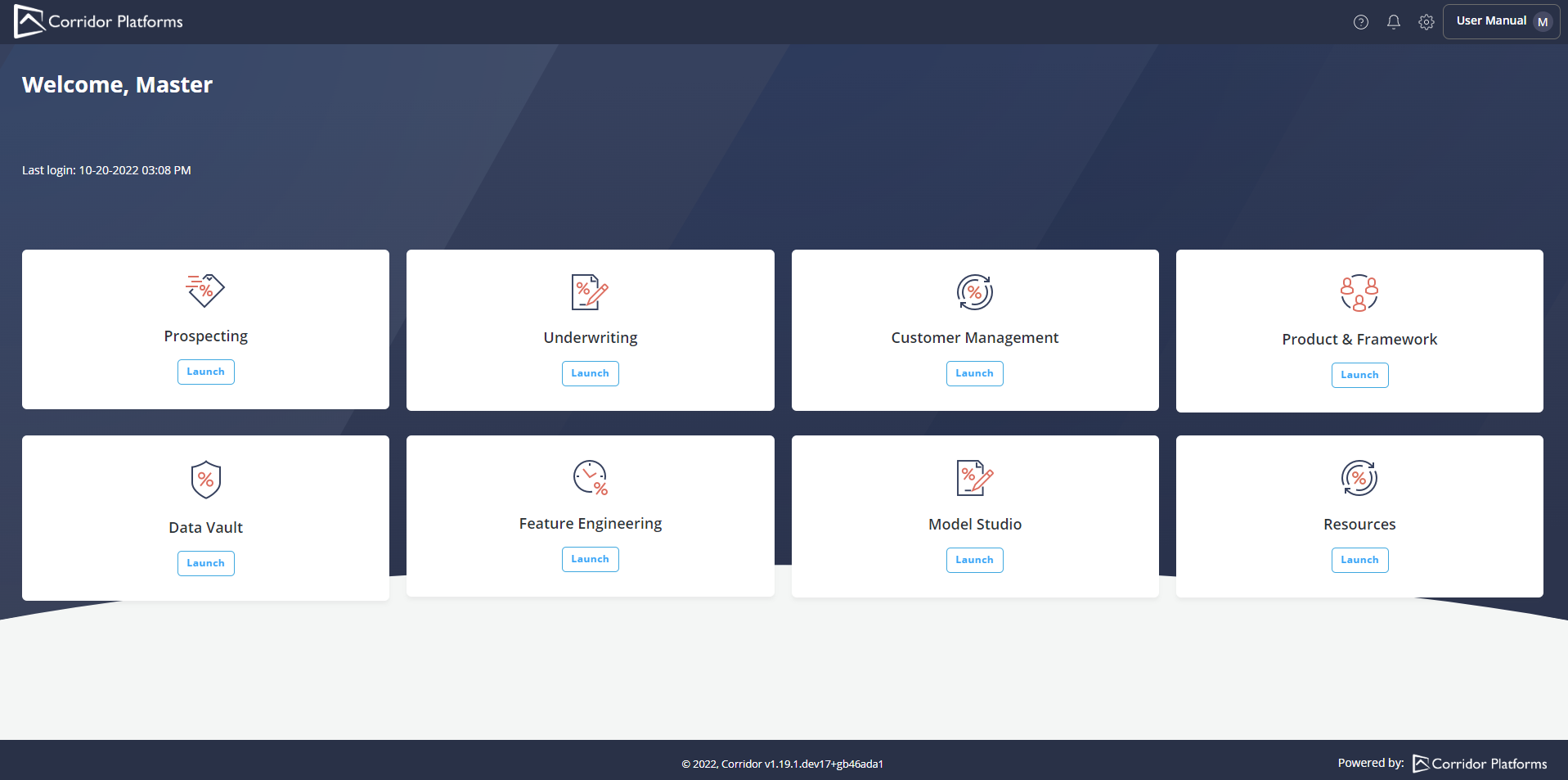
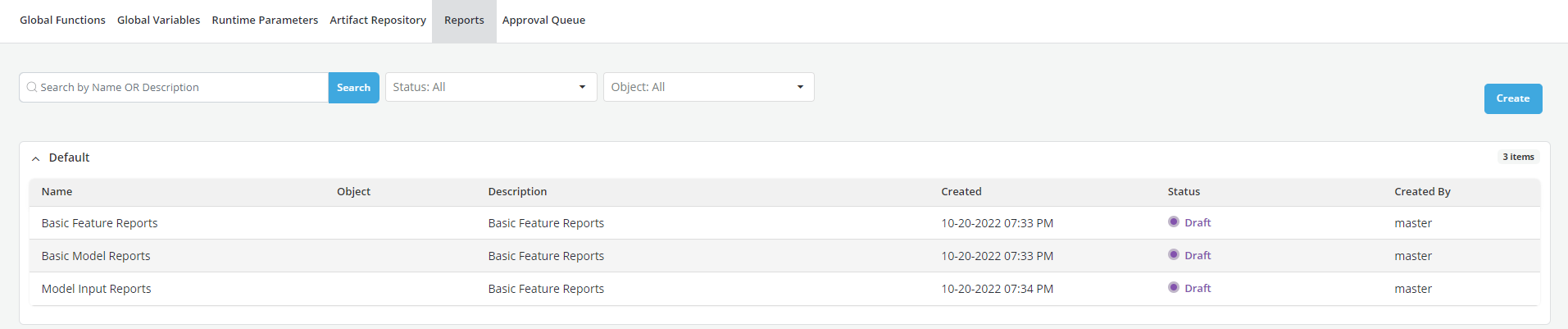
- Global Function window opens by default when you first open Resources
- click on the Reports tab.
- Click on Create
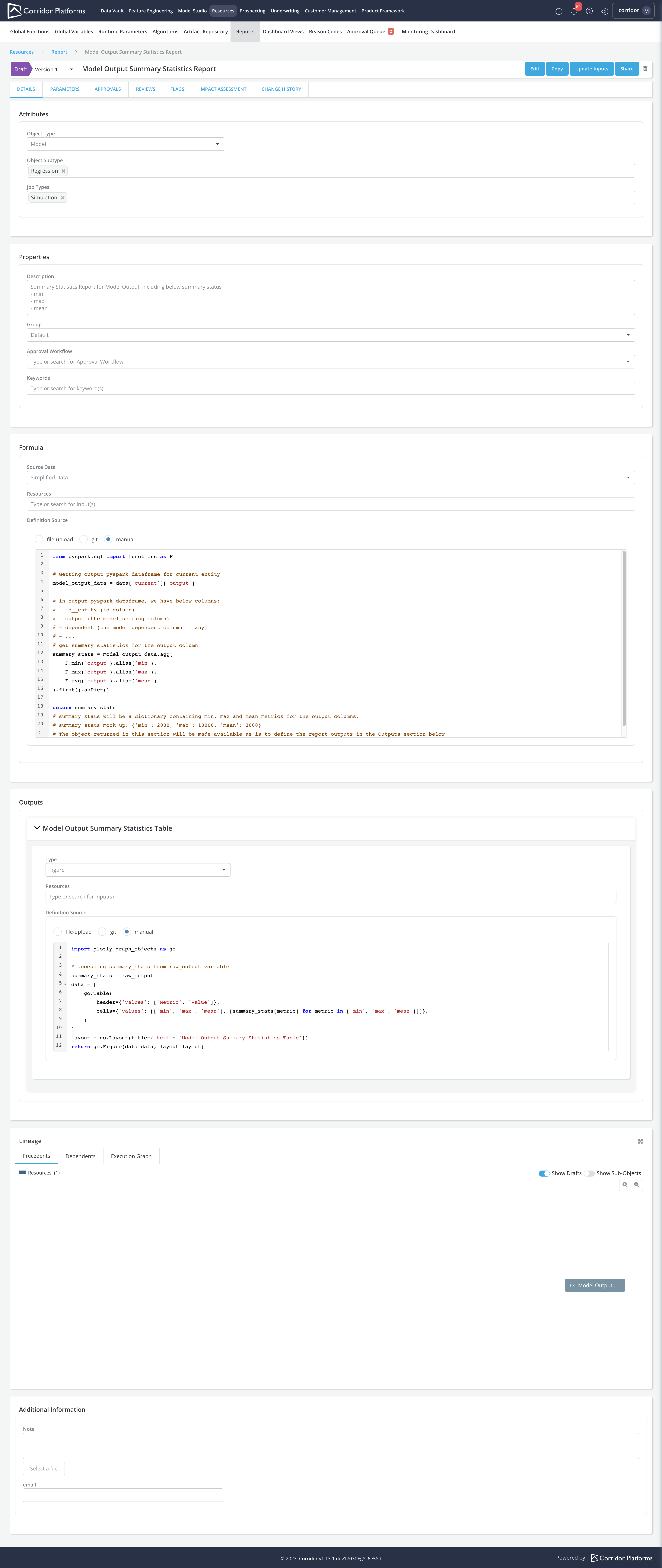
- Select Object Type and Object Subtype from the dropdown
- Select Job Types to specify the type of jobs this report is designed to run for, the report will automatically get skipped for all unselected job types
-
Enter required fields (marked with * )
-
Update the Formula section with report computation logic. It is provided with the following arguments:
-
job: A Corridor Job object containing Object related metadata.- Please note that users have the ability to retrieve comprehensive metadata of a strategy, segment, or rule by utilizing the in-built function
get_registered_object_by_colnameof a job object. This can be achieved by passing the simplified column name as an argument. The metadata includes information such as the name and sort order.
- Please note that users have the ability to retrieve comprehensive metadata of a strategy, segment, or rule by utilizing the in-built function
-
data: Dictionary containing job result data.-
The first level key for the data dictionary indicates which entity the job result data belongs to.
-
When Job Type is Simulation, data is of structure:
# for non-recurring job data = {'current': result_data_for_current} # for recurring job # iteration 1: There is no result_data for previous iterations. only current result_data will be available data = {'current': result_data_for_current} # iteration 2: There are result_data for iteration 1 and 2. # Key for historical iterations will be appended with _iter_{iteration_number}. data = { 'current_iter_1': result_data_for_current iteration1 'current': result_data_for_current } # iteration 3: There are result_data for iteration 1, 2 and 3. # Similarly Key for historical iterations will be appended with _iter_{iteration_number}. data = { 'current_iter_1': result_data_for_current iteration1 'current_iter_2': result_data_for_current iteration2 'current': result_data_for_current } ... -
When Job Type is Comparison, data is of structure:
# for non-recurring job
data = {
    'current': result_data_for_current,
    'challenger_1': result_data_for_challenger1,
    'challenger_2': result_data_for_challenger2,
    ...

    }

# for recurring job
# iteration 1: There is no result_data for previous iterations. only current and challenger result_data will be available
data = {
    'current': result_data_for_current,
    'challenger_1': result_data_for_challenger1,
    'challenger_2': result_data_for_challenger2,
    ...

    }

# iteration 2: There are result_data for iteration 1 and 2.
# Key for historical iterations will be appended with _iter_{iteration_number}.
data = {
    'current_iter_1': result_data_for_current_iter_1,
    'challenger_1_iter_1': result_data_for_challenger1_iter_1,
    'challenger_2_iter_1': result_data_for_challenger2_iter_1,
    'current': result_data_for_current,
    'challenger_1': result_data_for_challenger1,
    'challenger_2': result_data_for_challenger2,
    ...
    }
Note:
- challenger_1, challenger_2 will be dynamically rendered to be the challenger names provided when running comparison job -
When Job Type is Validation, data is of structure:
# for non-recurring job
data = {
    'current': result_data_for_current,
    'benchmark_1': result_data_for_benchmark1,
    'benchmark_2': result_data_for_benchmark2,
    ...
    }

# for recurring job
# iteration 1: There is no result_data for previous iterations. only current and benchmark result_data will be available
data = {
    'current': result_data_for_current,
    'benchmark_1': result_data_for_benchmark1,
    'benchmark_2': result_data_for_benchmark2,
    ...
    }

# iteration 2: There are result_data for iteration 1 and 2.
# Key for historical iterations for current entity will be appended with _iter_{iteration_number}.
data = {
    'current_iter_1': result_data_for_current_iter_1,
    'current': result_data_for_current,
    'benchmark_1': result_data_for_benchmark1,
    'benchmark_2': result_data_for_benchmark2,
    ...
    }
Note:
- benchmark_1, benchmark_2 will be dynamically rendered to be the benchmark names provided when running validation job - Benchmark result data are taken from existing job that has completed, therefore for recurring jobs, benchmark result_data won't have historical data. - Report writers are expected to handle the cases where the report parameters differ for current simulation and benchmark simulations. For example: Running a validation job with a weight, while using a benchmark simulation without any weight needs to be handled explicitly by the report writer; otherwise the report execution will fail. -
When Job Type is Verification, data is of structure:
# for non-recurring job
data = {'current': result_data_for_current}

# for recurring job
# iteration 1: There is no result_data for previous iterations. only current result_data will be available
data = {'current': result_data_for_current}

# iteration 2: There are result_data for iteration 1 and 2.
# Key for historical iterations will be appended with _iter_{iteration_number}.
data = {
    'current_iter_1': result_data_for_current iteration1
    'current': result_data_for_current
    }
...
Note:
- The first level data structure for Verification and Simulation job are the same.
- For verification job, you can find truth_data in the result_data dictionary when using All Data as the Source Data. Please see below for more details
-
-
Within result_data, the Second level key indicates what type of content the corresponding pyspark dataframe has. The set of available dataframe within result_data depends on the Source Data chosen when registering the report.
-
When Source Data is Simplified Data, result_data is a dictionary of structure:
# Second level result_data structure
result_data = {'input': pyspark_dataframe, 'output': pyspark_dataframe}

# Combine it together, data structure
# using non-recurring simulation as an example
data = {
    'current': {'input': pyspark_dataframe, 'output': pyspark_dataframe}
}
Note:
- Input, Output pyspark dataframes are the cleaned job result data. - The cleaning process includes renaming column names to indicate the resulting column's component type. - That way in the report definition, columns can be referred by components instead of aliases which might vary from job to job. - For instance, We have registered Default Model with Input Fico, Loan Amount and Dependent Default within 18 Month. - After running simulation job for the Default Model, we will have: - Input (include below columns): - id__entity - fico: stores fico column - loan_amount: stores loan amount column - Output (include below columns): - id__entity - output: stores model scoring result - dependent: stores default within 18 month result To see a sample of the Input, Output data for the specific job. You can download the data from the Job Details page by clicking the Download Data Button. To access the full pyspark dataframe of the Input, Output data for the specific job. You can copy the python code from Job Details page and explore the data in Notebook. - Simplified Data is the recommended source data to be used for report creation. -
When Source Data is Final Data, result_data is a pyspark dataframe:
# Second level result_data structure
# result_data is a pyspark_dataframe

# Combine it together, data structure
# using non-recurring simulation as an example
data = {'current': pyspark_dataframe}
Note:
- Final Data pyspark dataframe includes all the columns created when running the job. - Column names are not cleaned - Final Data option will be deprecated in the coming releases -
When Source Data is All Data, result_data is a dictionary of structure:
Note:# Second level result_data structure result_data = {'input': pyspark_dataframe, 'output': pyspark_dataframe, 'final_data': pyspark_dataframe, 'truth_data': pyspark_dataframe, ....} # Combine it together, data structure # using non-recurring simulation as an example data = { 'current': {'input': pyspark_dataframe, 'output': pyspark_dataframe, 'final_data': pyspark_dataframe, 'truth_data': pyspark_dataframe, ....} }- All Data dictionary includes all the dataframes created when running the job. - Column names are cleaned only for input and output dataframe - All Data option can be used as a fallback if the columns needed are not included in input and output dataframe - For Verification job, truth_data can be accessed from the All Data dictionary
-
-
-
-
Click on Resources to add relevant Global Function inputs and update the Definition Source with the code
- Click on Test Syntax to validate formula definition
- Update the Outputs section with visualization logic.
- Enter the name for output and select Type as one of Figure, Metric or Downloadable File
- Click on Resources to add relevant Global Function inputs and update the Definition Source with the code
- Outputs Definition Source is provided with the following argument
job: A Corridor Job object containing Object related metadata.- Please note that users have the ability to retrieve comprehensive metadata of a strategy, segment, or rule by utilizing the in-built function
get_registered_object_by_colnameof a job object. This can be achieved by passing the simplified column name as an argument. The metadata includes information such as the name and sort order.
- Please note that users have the ability to retrieve comprehensive metadata of a strategy, segment, or rule by utilizing the in-built function
raw_output: The object returned in the Formula section is accessible as is with the variable namedraw_outputin the Outputs section.
-
Expected return results from Output Definition differ by Output Type.
- When type is Figure, output can return figure object from either Plotly, Seaborn or Matplotlib
The platform support Plotly figure by default. To create report using Seaborn or Matplotlib, additional python packages are required to be installed and configured. Required packages by plot library:Seaborn: matplotlib, seaborn.Matplotlib: matplotlib.
- When type is Downloadable File, output should return a Byte object
-
When type is Metric, output should return a dictionary, the key of the dictionary indicates which entity the metric belongs to. for instance:
- When type is Figure, output can return figure object from either Plotly, Seaborn or Matplotlib
-
Click on Add Output to create placeholder for additional outputs
-
Click on Create
-
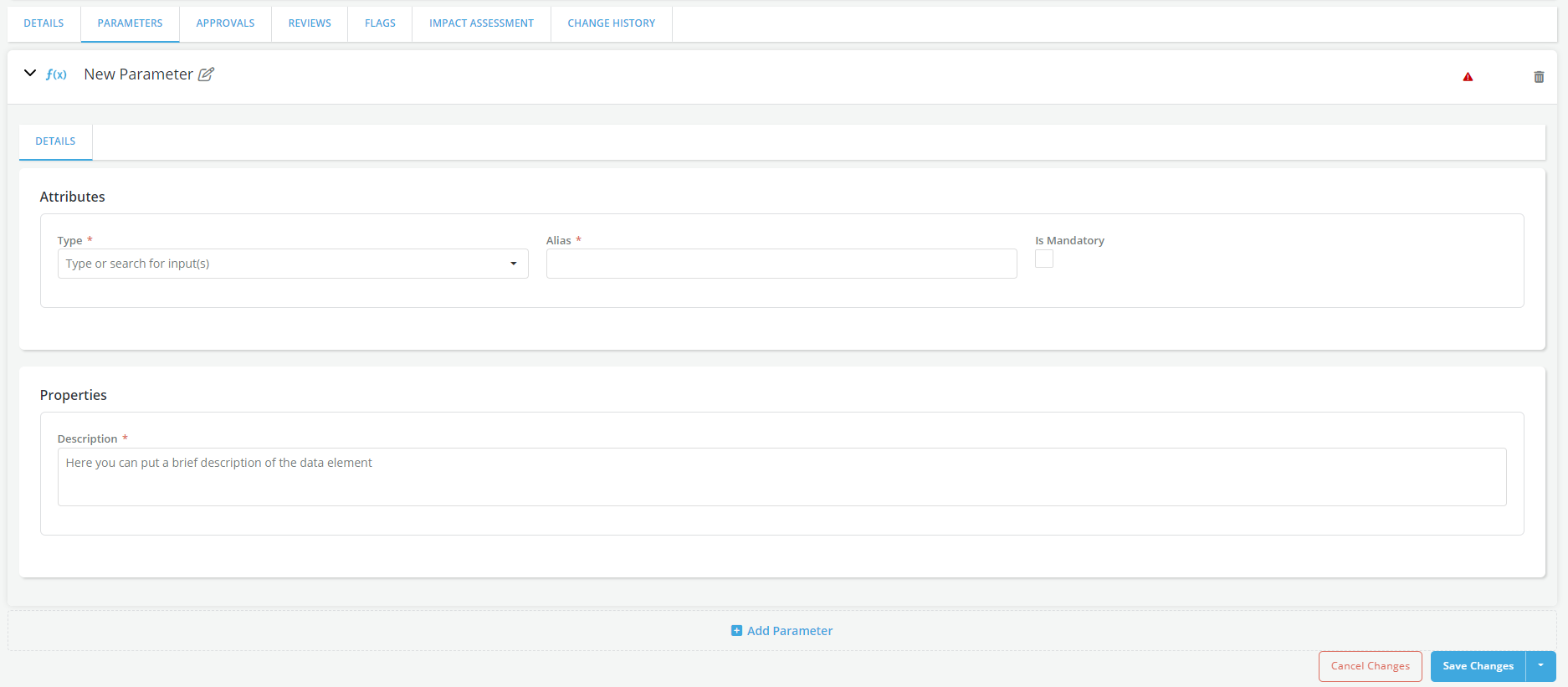
Update the PARAMETERS tab with any report input parameters
- These are parameters that your report needs that are not included in the job result output data (e.g., a cutoff)
- Select the PARAMETERS tab and Click on Edit
- Click on Add Parameter to populate report input parameters
- Enter required fields (marked with * ) and check Is Mandatory box if the report parameter is mandatory
-
A pop-up message gets displayed for successful record save
-
Send the Report for approval
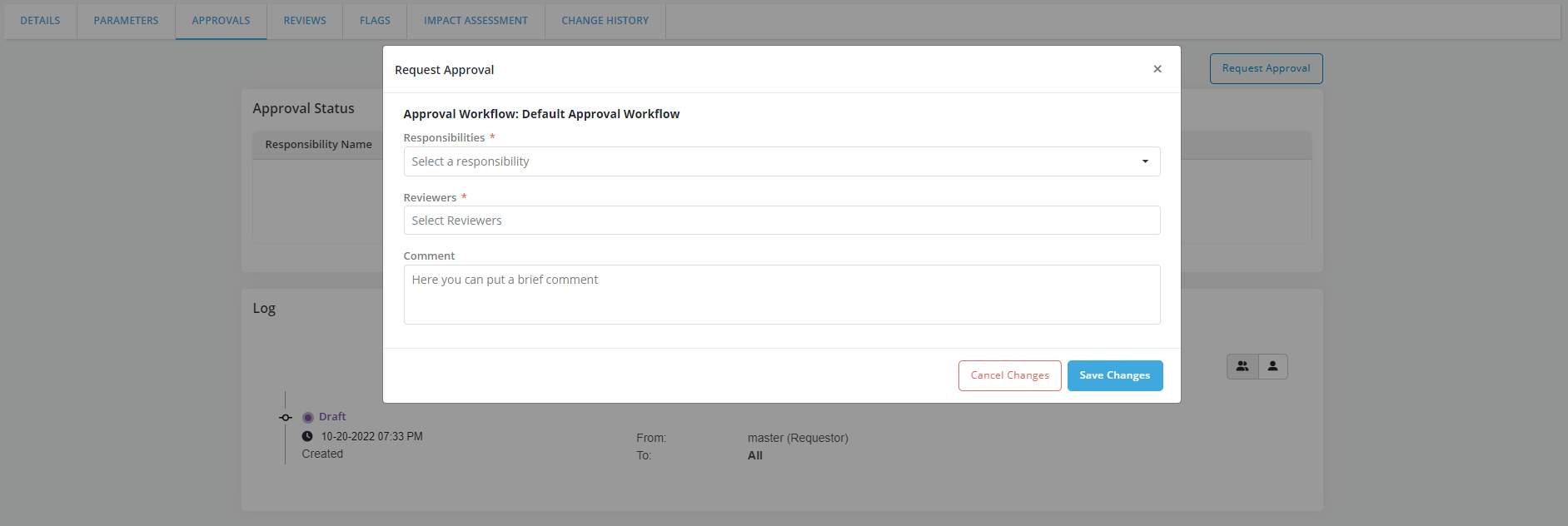
- Go to Approvals tab and click on Request Review to send the Report for approval
- A flag can be added to a Report. Refer Flags for details.
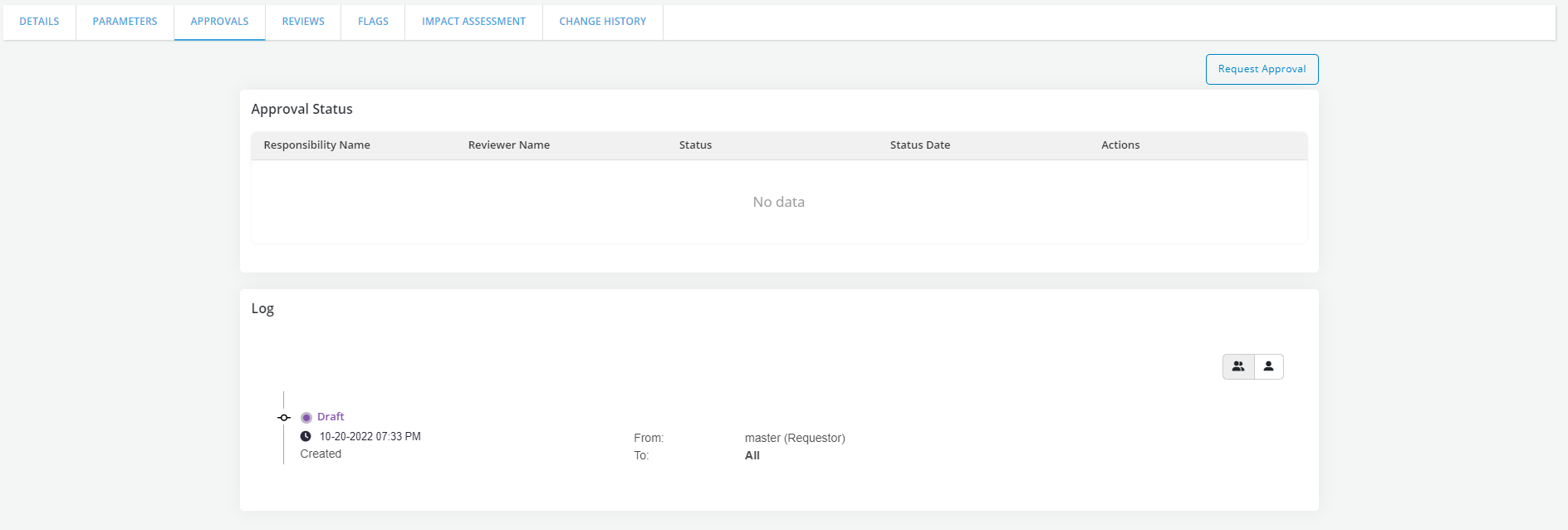
- Capture required details and click on Save Changes
- Refer Approval Workflow for details.
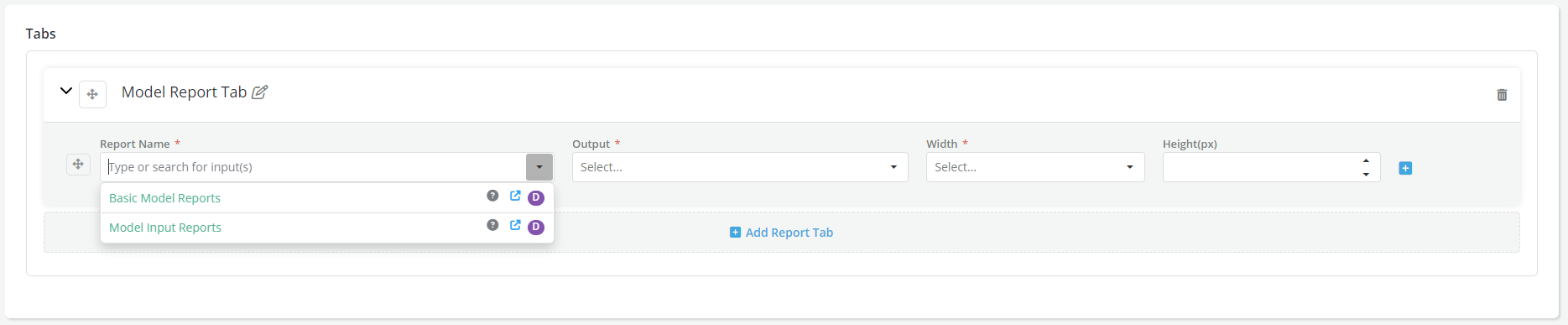
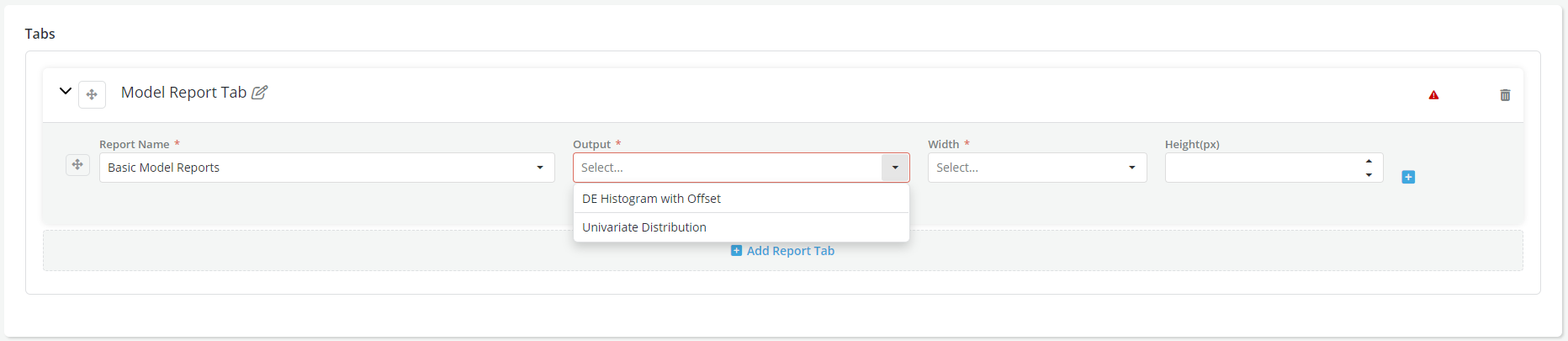
- Once a Report is defined, it becomes available to use when creating or defining a dashboard view. User can select one or more Report outputs while generating a report dashboard.
Advantage of using Reports
- Create a whole library of visualizations, with consistent design elements across platform objects
- Reports once configured, are accessible throughout the platform(DE, Feature, Model, Policy etc), also in the notebooks
- Integrated access and approval workflow control