Approval Workflow Settings
In Approval workflow set of users are defined under a workflow who collectively review and approve new objects of a certain type being registered in the platform. This Workflow is comprised of reviewers who are each assigned a specific responsibility (Note: one responsibility can be assigned to multiple reviewers). Every Workflow should have at least one responsibility * Approval workflows can be created and edited within the Settings section by users with the right authority level (mainly users with Admin and Master roles) * A responsibility can be assigned a Veto power which allows users to specify for a given responsibility in the workflow
How to create Approval Workflow
- Click on the Settings on the taskbar

- Click on Approval Workflow option
- Click on Create

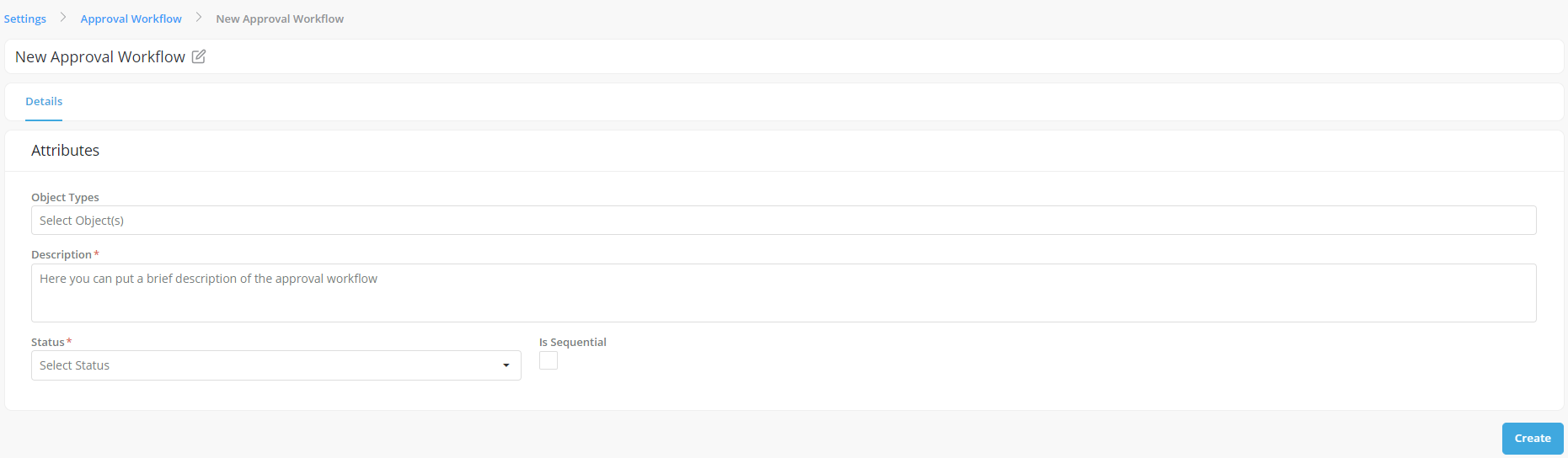
- Populate required details in Details tab
- Object Types- Select the Object types to define the objects that the Committee can approve
- Enter the description of the committee
- Select the status : Active (i.e., make workflow available for use in new approval requests) or Inactive (i.e., don't make it available for use in new approval requests)
- Check the "Is Sequential" box if you want to enforce a specific sequence in the workflow that would dictate in which order the different responsibilities will perform their reviews
Notes:
* The status of a workflow can be changed after it creation

* A workflow with an "Active" status can be changed to "Inactive" status only if it is not being used (i.e., there is no open/incomplete approval request for that workflow)
- Click on Create
- Go to Responsibilities tab to create and define the responsibilities of the Approval Workflow
- Click on Edit

-
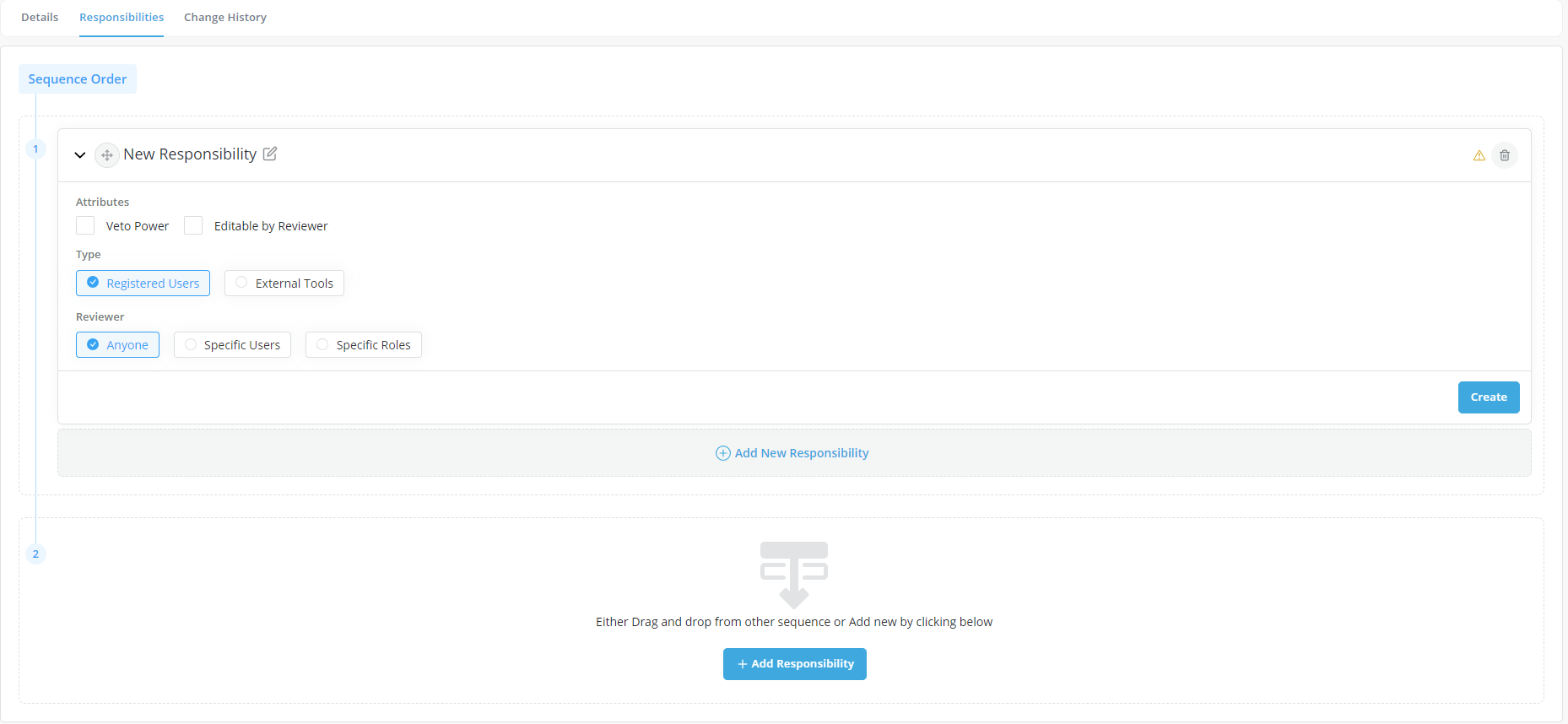
Click on Add New responsibility
-
Select the Veto option to provide Veto access to the responsibility (as applicable)
- Specify the Editable option to provide edit rights to the responsibility (as applicable)
-
Choose the appropriate radio button for defining the type of users:
-
Registered Users: Users registered on the platform with required permissions.
-
Choose the appropriate radio button for defining the Reviewer:
- Anyone- Anyone with Approval rights (as defined in Roles section) to the object types (defined in Details tab) can be a reviewer.
- Specific Users- Select one or more reviewers from list of users (only users with approval rights to the object type(s) selected in Details tab can be selected)
- Specific Roles- Select one or more roles from list of roles (only roles with approval rights to the object type(s) selected in Details tab can be selected)
-
If the workflow is sequential you can move the responsibility box up or down by dragging it with the mouse in order to specify its position in the sequence
-
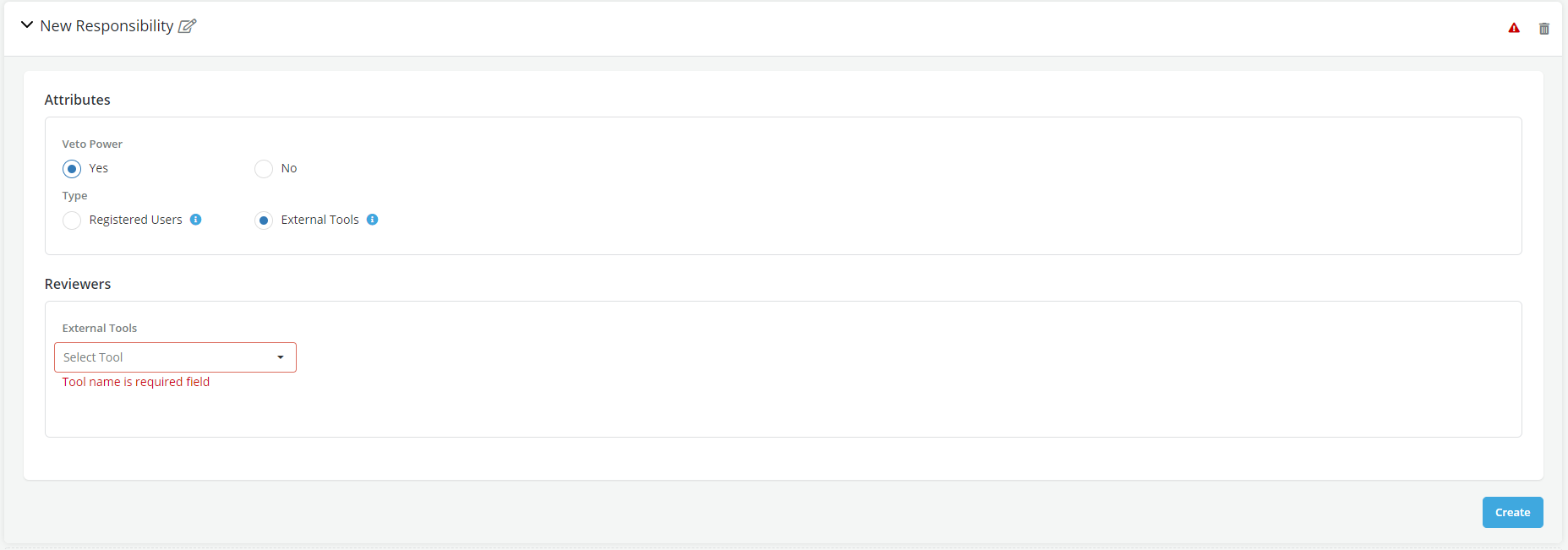
External tools: This option is visible if any third-party tools are configured on the platform and allow users to define a 3rd party application as a responsibility within an approval workflow. Select the appropriate tool.
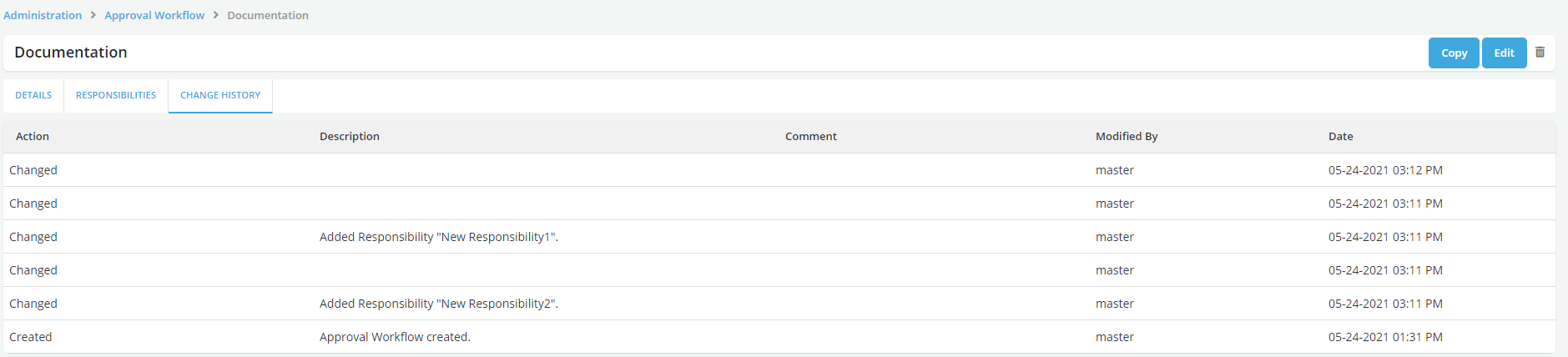
- Change History tab displays history of the changes made in Approval Workflow