Rules
Overview
Rules are logical check that leads to outputs such as Pass or Fail, Action or optimums
Creating Rules
While registering a policy, several types of rules can be written:
Single basic PASS/FAIL rule
- This consists of the comparison of two values LHS (left-hand side) and RHS (right-hand side) using an Operand.
- If the comparison is true then it’s a PASS; else, it’s a FAIL.
- User can use Strings for comparison. For example comparing grades or comparing dates (only if they are in the right format like YYYY-MM or YYYYMM, etc.)

Note: While writing rules, users can use constant values such as numbers or characters using a Python language format.
Below are some examples of rules using constants:
state == 'AZ'
id in [1,2,3]
state in ['AZ','NY']
date = '2021-11-11 00:00:00'
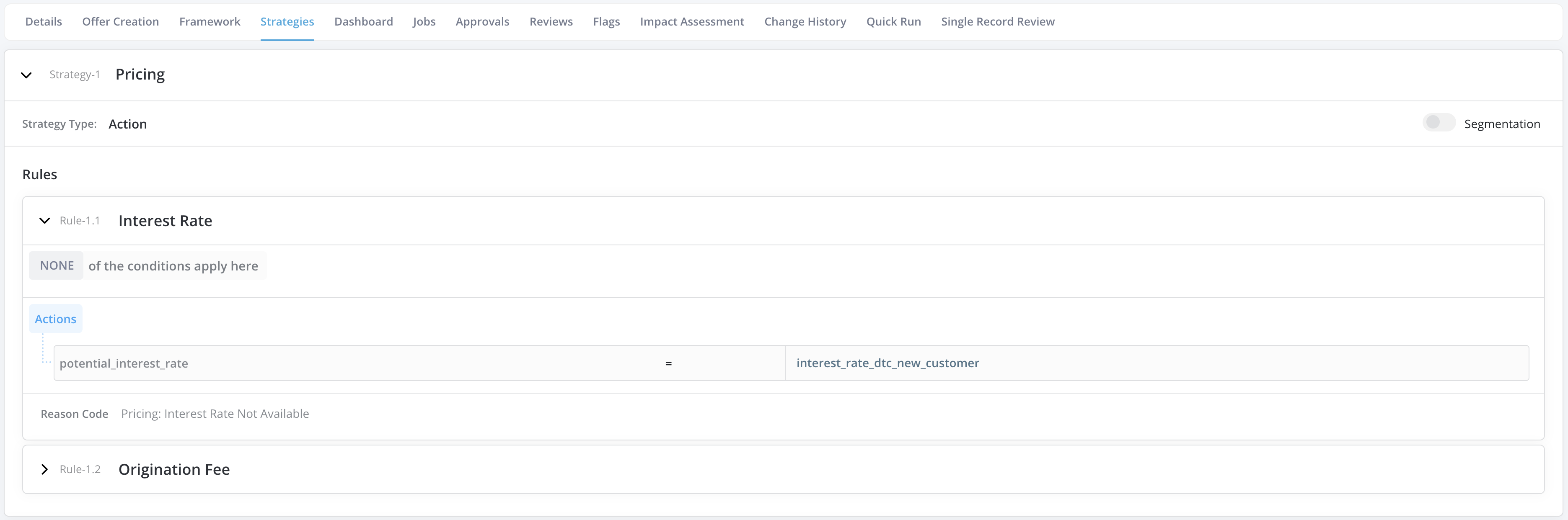
Single basic Action rule
- This consists of both in the comparison of two values LHS (left-hand side) and RHS (right-hand side) using an Operand and the specification of an Action to execute if the comparison is true.
- If the comparison is true then the action is taken; else, the action is not executed.
Grouping multiple rules
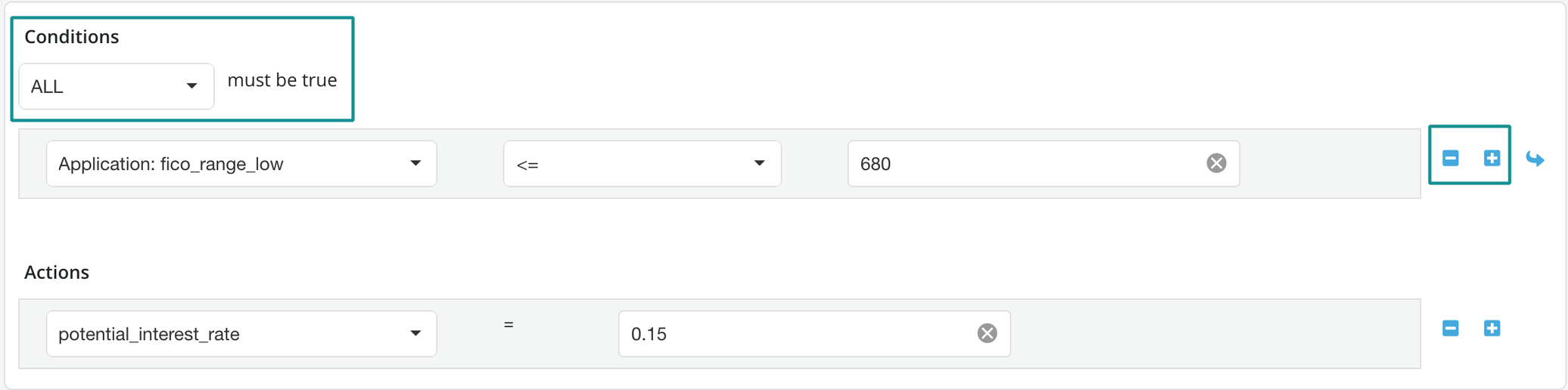
- Single rules can be grouped using an ALL condition (i.e. AND) or an ANY condition (i.e. OR).
- To add/exclude a rule to a group click the +/ button on the right side of the rule box.
Nested rule(s)
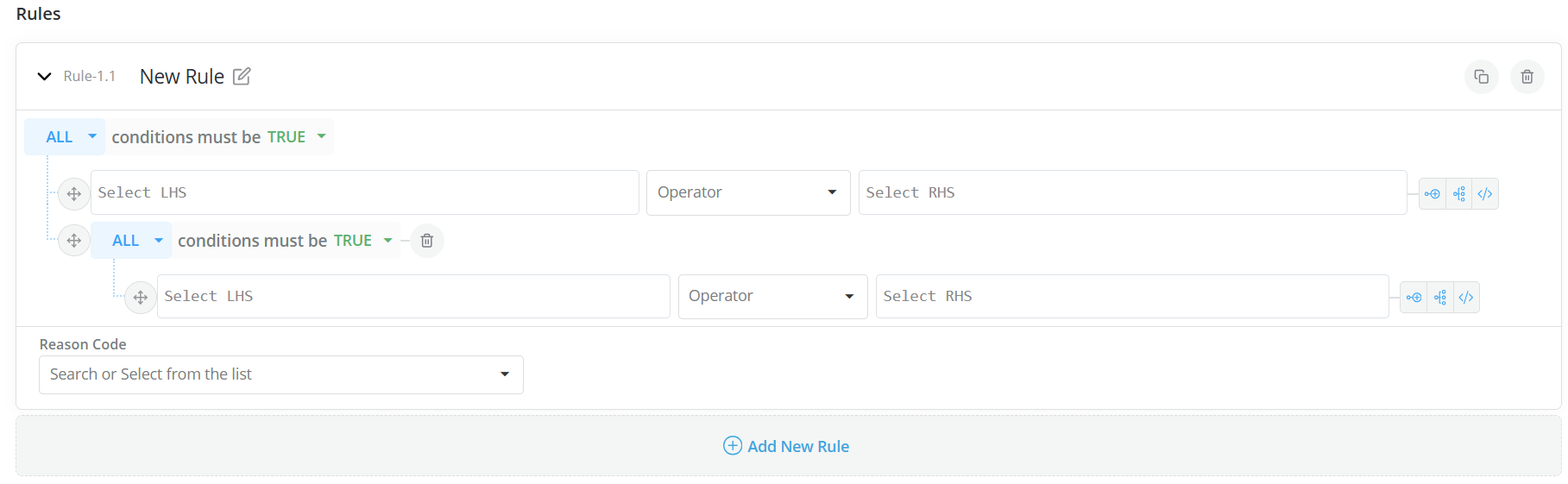
- Grouped rules can be nested within another rule or group of rules. To do so, click on the arrow on the right side of the rule box to define a nested group of rules.
- The way rules nesting logic works is that if group 2 is nested under group 1, then group1 will only consider the combined results from group 2 rather than the outcome of any single rule from that group.
Info
Do not use runtime parameters as direct inputs to policy rules.
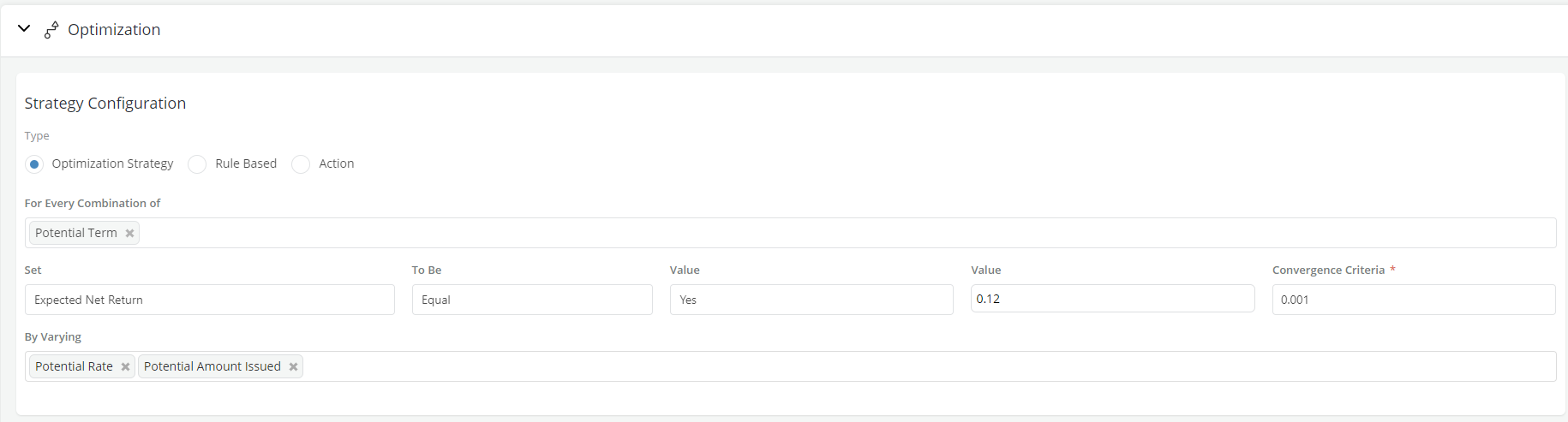
Optimization rule(s)
- A specific type of rule that is created when the strategy type optimization is selected.
- To create an optimization rule the user needs to specify the Target metric or objective function, the Goal or optimization criteria (e.g., equate, minimize or maximize) and the target value in the case of an equate.
Expressions in rules
Users can combine multiple objects into expressions that can be used as inputs to a rule (e.g., personal_income - 2*loan_amount >50000)
-
The platform currently only supports simple expressions using basics operands (BODMAS, i.e., Bracket, Order, Division, Multiplication, Addition, Subtraction) or using Global functions
-
Expressions will be written in one line though wrapping within the rule input box is possible
-
There is no need for a “return” statement at the end of expression
-
While writing expressions, users have the ability to select registered inputs through a dropdown list. The list will be shown as soon as they start typing something that is not a BODMAS operand.
-
Users can use the test syntax icon on the right to check the accuracy of the expression
-
Expression execution errors are treated as normal errors
-
Expressions in rules are allowed for all strategy types
-
Expressions are allowed in segment definition rules
-
Expressions are allowed when setting an action value in a rule

- User can do a syntax test while writing a rule by clicking on the Test syntax icon on the right

Rule in rule
Within a policy, rules are automatically assigned numbers so that they can be easily referenced later.
Previously created rules can be used as inputs to other rules within the same policy
For instance:
Rule1: FICO > 660

Then another rule can be written within the same policy by referencing Rule1 as follows:

Rule2: Rule1 == True AND Income>10000
Deleting rule
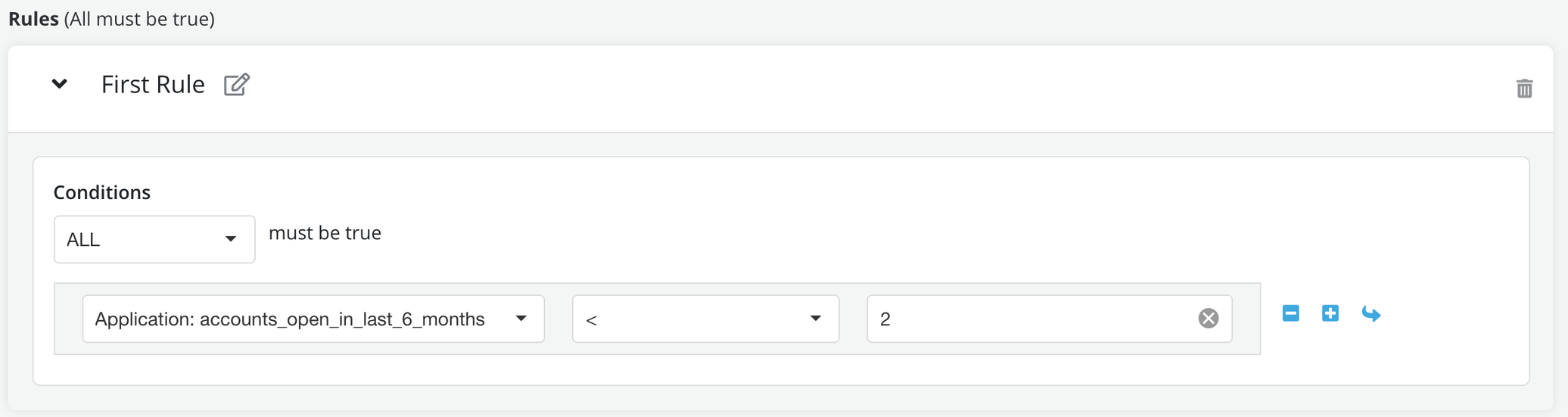
- Use the – button on the right of the screen to delete specific comparisons within a rule
- Use the bin icon on the top right of the screen to delete the whole rule.
Sorting a rule
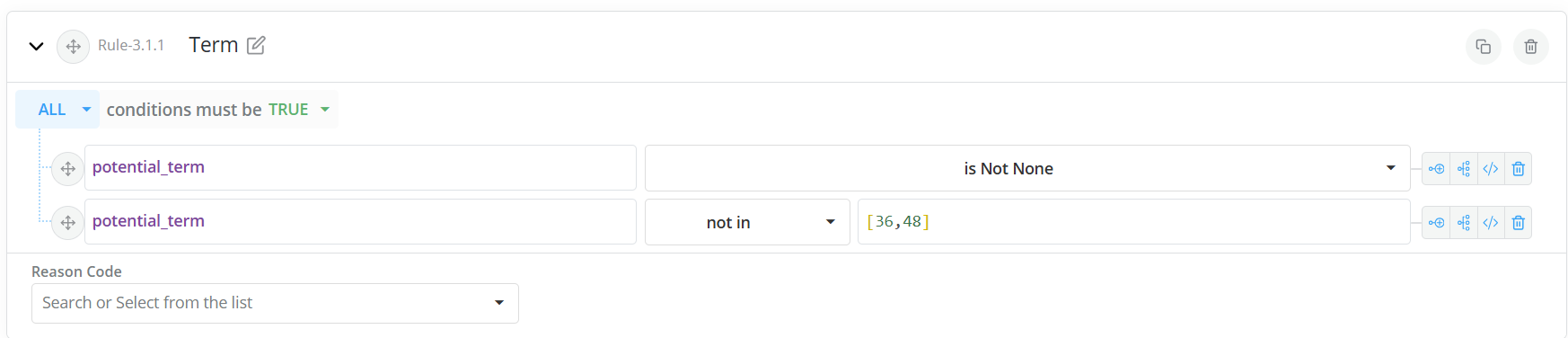
- Segment/rule conditions(LHS-OP-RHS) can be sorted using drag and drop within the same Segment/rule.
Copying of existing rule
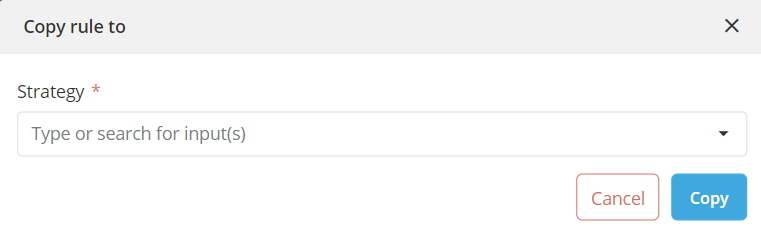
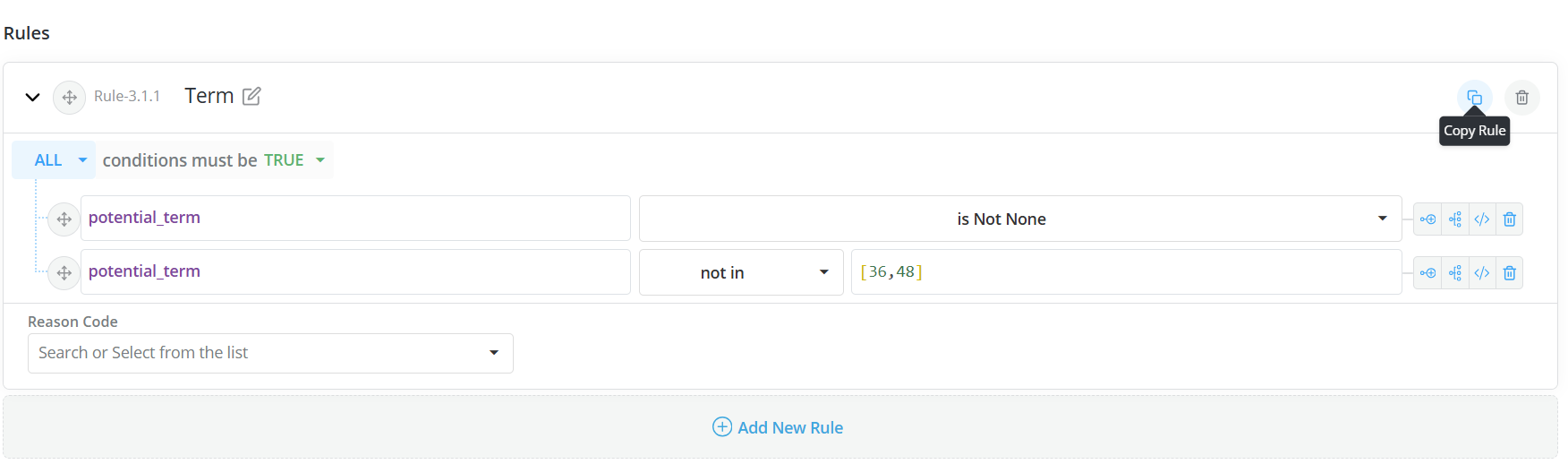
- An existing rule can be copied by clicking on the copy icon on the right (near the bin icon)
- Select the Strategy from the dropdown to copy the rule
-
Click on Copy
-