Jobs
Overview
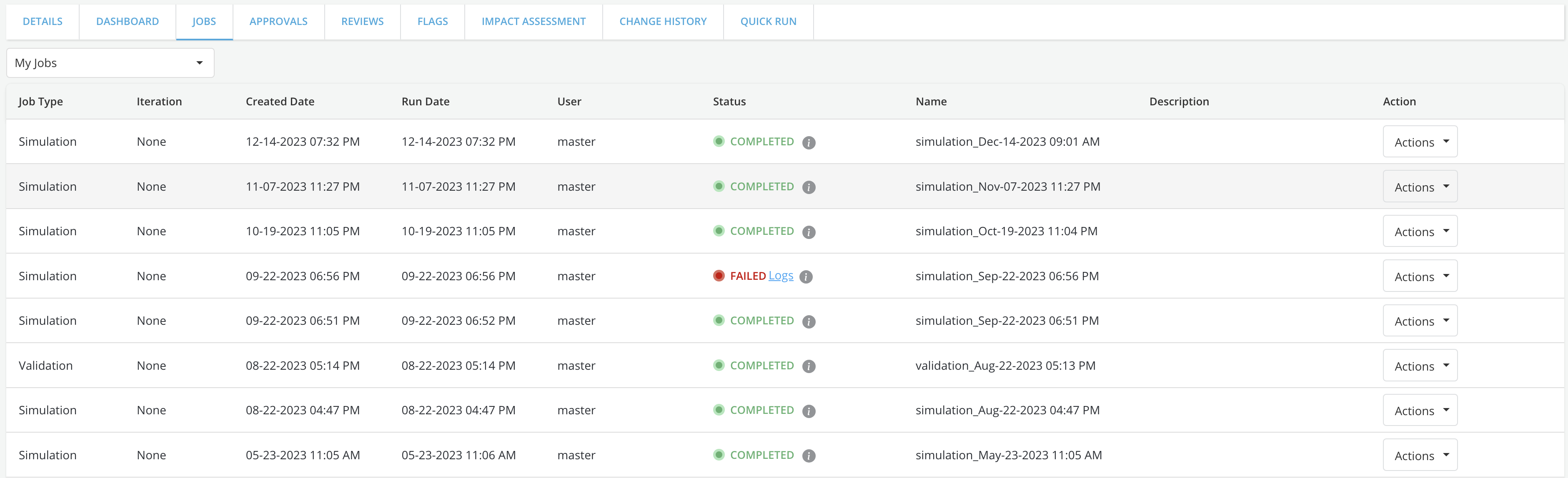
The Jobs tab displays all the historical simulations, comparisons and validations that have been run (and not deleted yet) on an object.
Where can this be accessed?
Job History can be accessed by clicking on any of the modules' registry (Data Vault, Feature Engineering or Model Studio, Underwriting and clicking on a specific object.
How is this done?
The Jobs tab is populated automatically as jobs get submitted.
Example
After the Policy is registered, Simulation History can be viewed in the Job History tab. If a policy has been approved, this tab will also display the simulation that was used to submit the request for approval with the label Verified next to it.
Who can view, save or delete the results of a job run
Any user with read access to an object can see the results of all the jobs that have been run on the object
-
Job results are visible to :
-
Shared Users: Users to which the object(Feature/Model/etc.) is shared
-
Reviewers: Users to whom the object is sent for review
-
Superusers
-
-
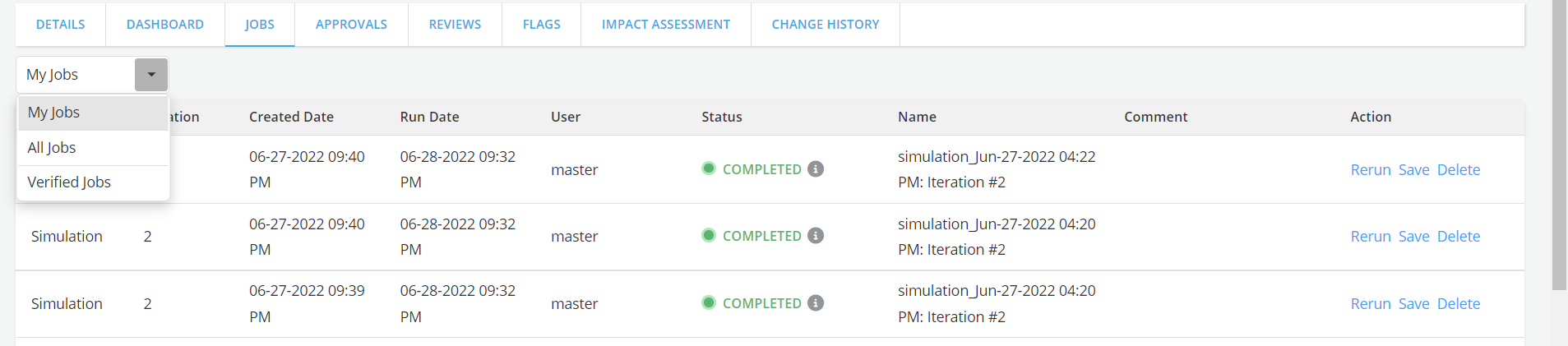
The Job page has a dropdown which has 3 items:
-
My Jobs (default option) : It will list only jobs which are created by the logged in user
-
All Jobs : It will list all the jobs
-
Verified Job:
-
It will list all the jobs which are verified
-
No verified jobs for unapproved objects
-
Shows at least 1 job for approved objects(simulation that would have attached to the review)
-
-
-
Only owner of the job can save, delete and replace the old job