Custom Fields
Overview
-
The Object registries in Corridor by default, have a set of standard fields that users can fill when registering an object.
-
The custom field capability allows users to add additional fields to the registry page
-
Custom fields can be created by Users with write access to the Settings module.
-
Based on where the values of the fields are provided - they are divided into 2:
-
Managed within Corridor: These Fields which are managed by users on Corridor itself
-
Managed by External System: Allow Fields to be driven from an External System - which could be integrated via API integration or other means
-
The Properties that can be assigned to a custom fields are the following:
Field Types: This denotes the type of values that the custom field can take
-
Short Text: Allows users to enter any combination of letters and numbers (Value Type: Number, String)
-
Long Text: Allows users to enter up to 255 characters on separate lines
-
Single Select: Allows users to select a value from a list.
- Fields: Options(use ±) to add options or Enter values with each value separated by a new line
-
Multi Select: Allows users to select multiple values from a list.
-
Single File: Allows users to select a single File
-
Multiple Files: Allows users to select multiple Files
-
DateTime : Allows user to select the date and time .
Alias: This the alias of the custom field (same as for other objects)
Default Value: Adding a default value will auto-fill the custom field with the value when creating an object (optional)
Placeholder Text : Text added in this field will be the placeholder text for that custom field (optional)
Help Text : This text will show in tooltip to users understand how to use the custom field (optional)
Sort Order: If there are multiple custom fields for a single object, this will be used to sort them (optional)
Searchable: Checking the searchable box will allow the user to search object by using custom fields' value
Creating a Custom field
Steps to create a custom field:
-
Click on the Settings on the taskbar
-
Click on Custom Fields
-
Click on "Create" button
-
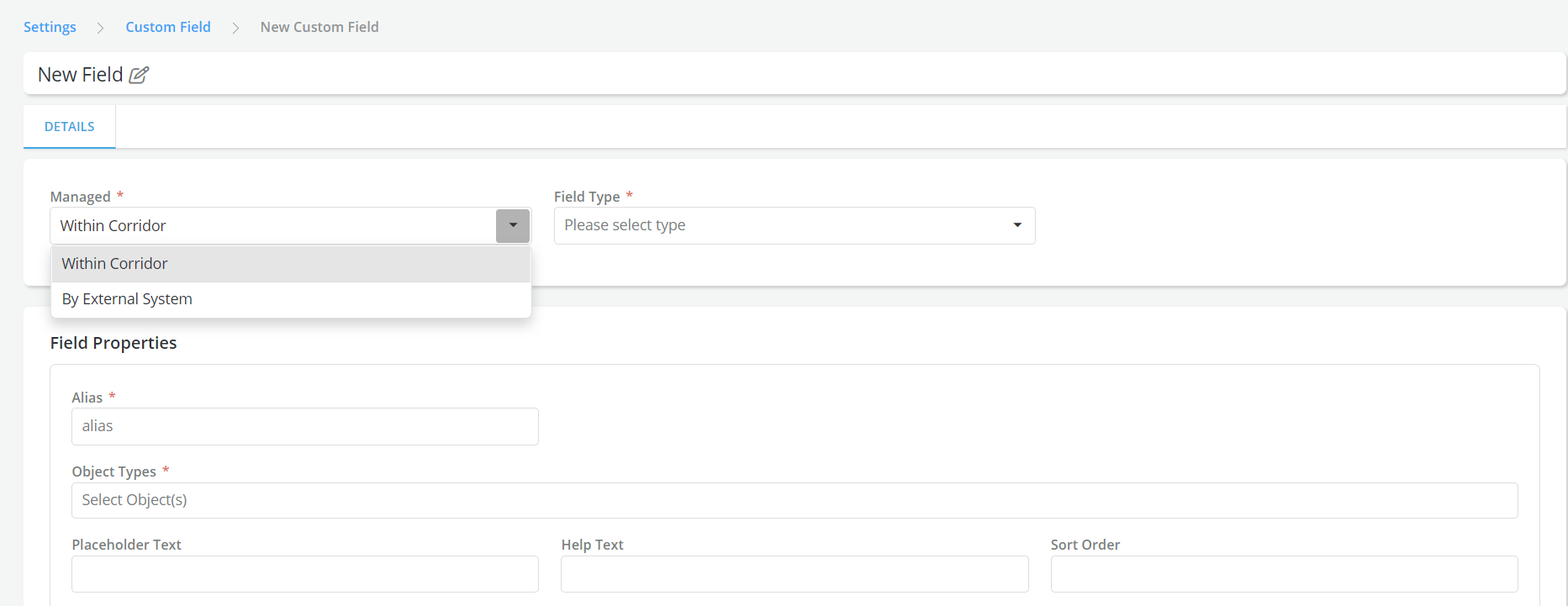
Select Managed field as Within corridor if the value of the field has to be provided by a user on Corridor while creating/editing the object. Or select By External system if the value of the field should be fetched from an external system (For more details on the technical integration with the External System - please refer to the Technology Manual)
-
Fill the form by specifying the Name, Field Types, Objects Types, Placeholder Text, Help Text,Sort order And Description for which this field will be shown
-
Check the mandatory box if you want the field to be mandatory
-
Check the Searchable box if you want the field to be Searchable
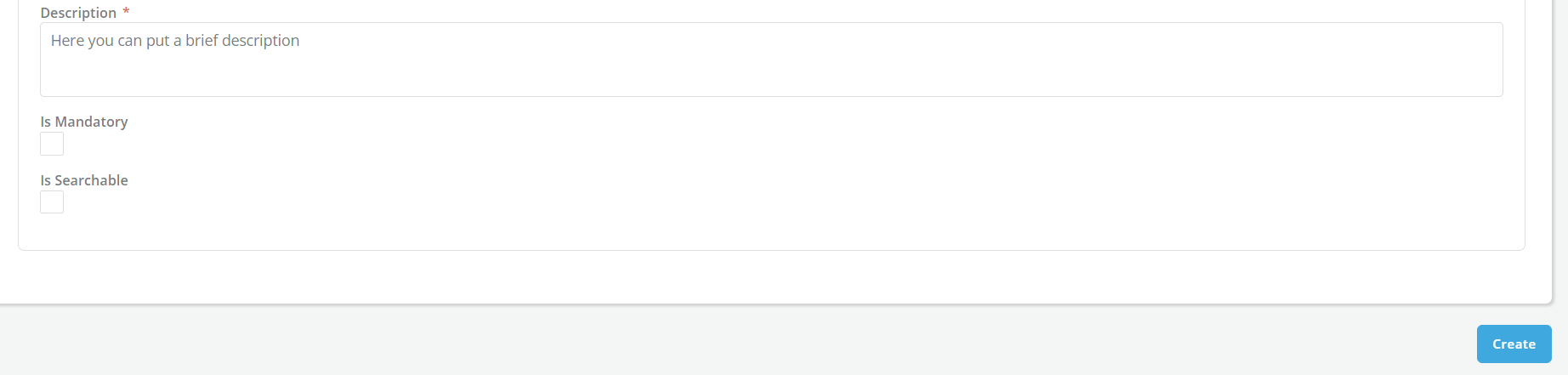
- Once created, the custom field will show up in the registry page of the type of objects selected above.
Where it is used?
The created custom fields will be appear in the registry page of the object type for which it was created, under additional information section.
Sample:
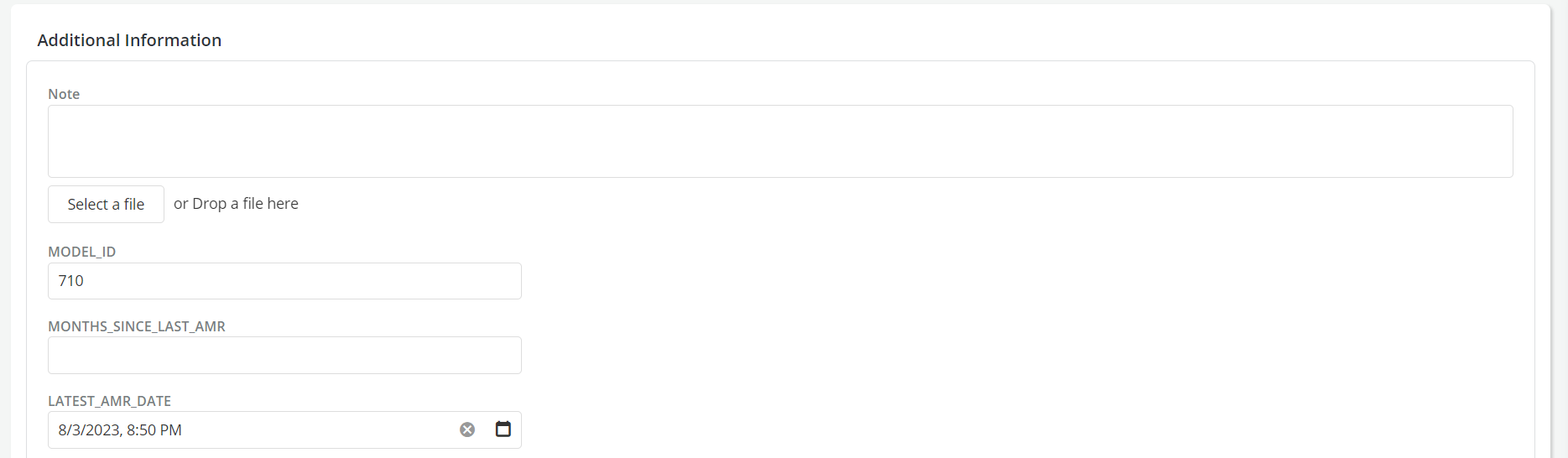
External Fields appear in a separate section at the end of the object's "Details" page. They cannot be edited when you edit the object in Corridor.
