Rules (In Quality Check Rules)
Overview
A rule is an ensemble of data quality check rules that the user wants to consistently run on a given dataset, i.e. check data format, check identify outliers, identify missing values, etc.). It is a set of logical comparisons that is comprised of a left-hand side (LHS), a right-hand side (RHS) and an Operator in the middle. For instance: annual income>0 is a logical comparison.
Users can write as many logical comparisons as they want by clicking on the + button to add a new logical comparison
How to create Rules
Rules can be written while creating the Quality check procedure
-
Enter the procedure’s custom quality check rules, if any, in the Rule section
-
Click on Edit to update or create a Rule and scroll down to the Rules section
- Click on New Rule to enter the name of the rule
- Click on the arrow next to the name of the rule to expand the rule box and start writing the logic of the rule.
- Select Conditions as appropriate from the dropdown. ALL condition is equivalent to an AND condition. It means that all the conditions must be true for the rule output to be a PASS, while ANY is equivalent to an OR condition. It means if anyone of the conditions is true then the rule output will be a PASS
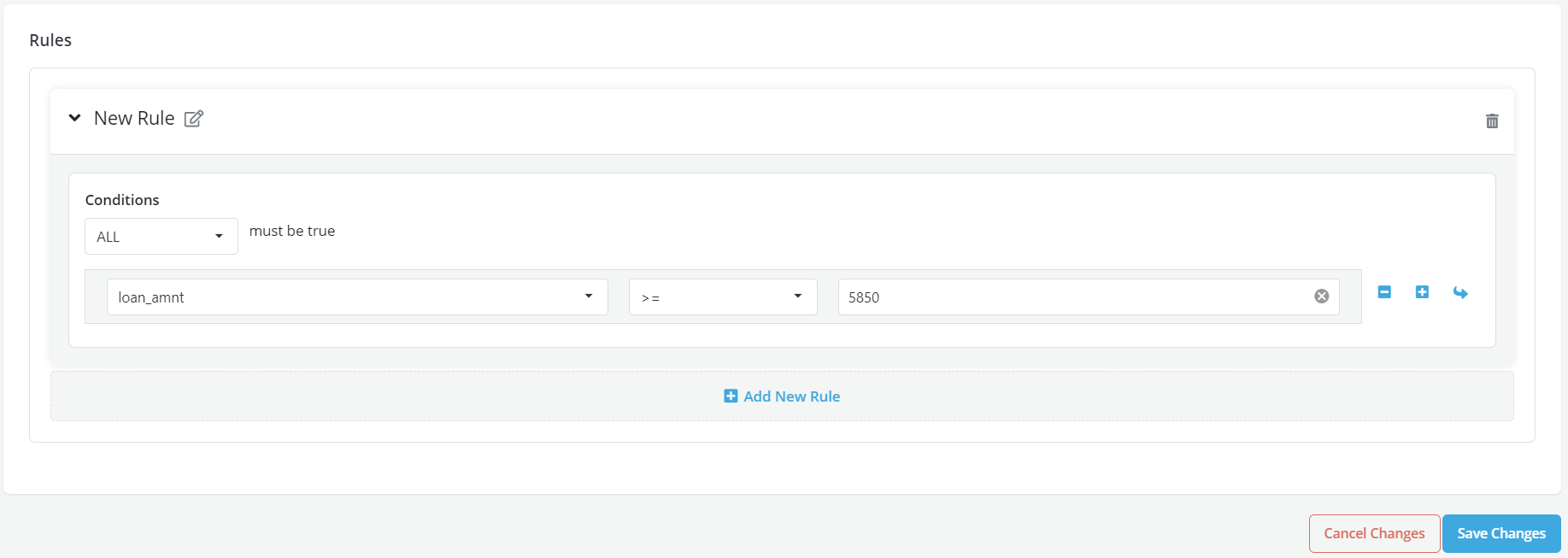
- Users can write as many logical comparisons as they want by clicking on the + Add New Rule link to add a new logical comparison
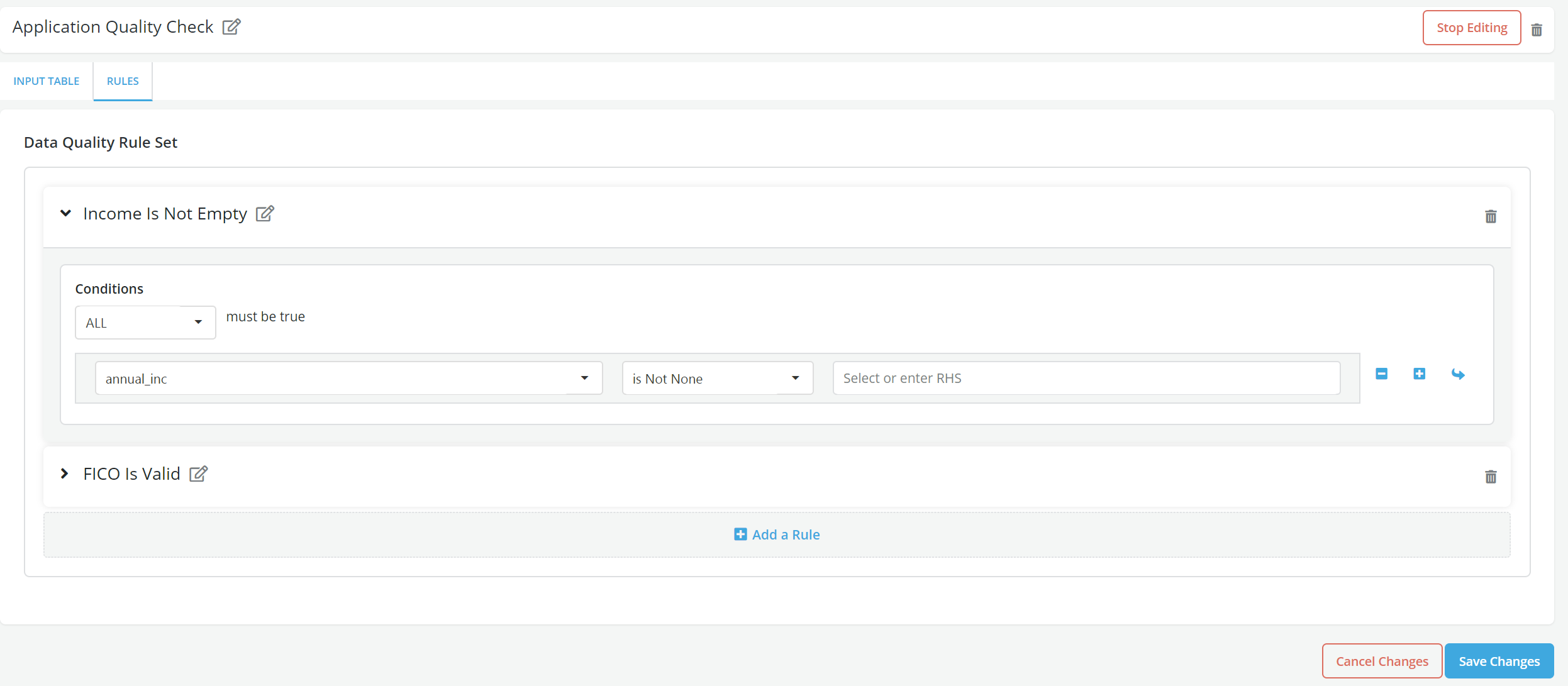
- Click on Save Changes to save the rules.
- Click on Stop editing to go back to the procedure’s main page
- A pop-up message is displayed for the successful saving of the new rules
Example
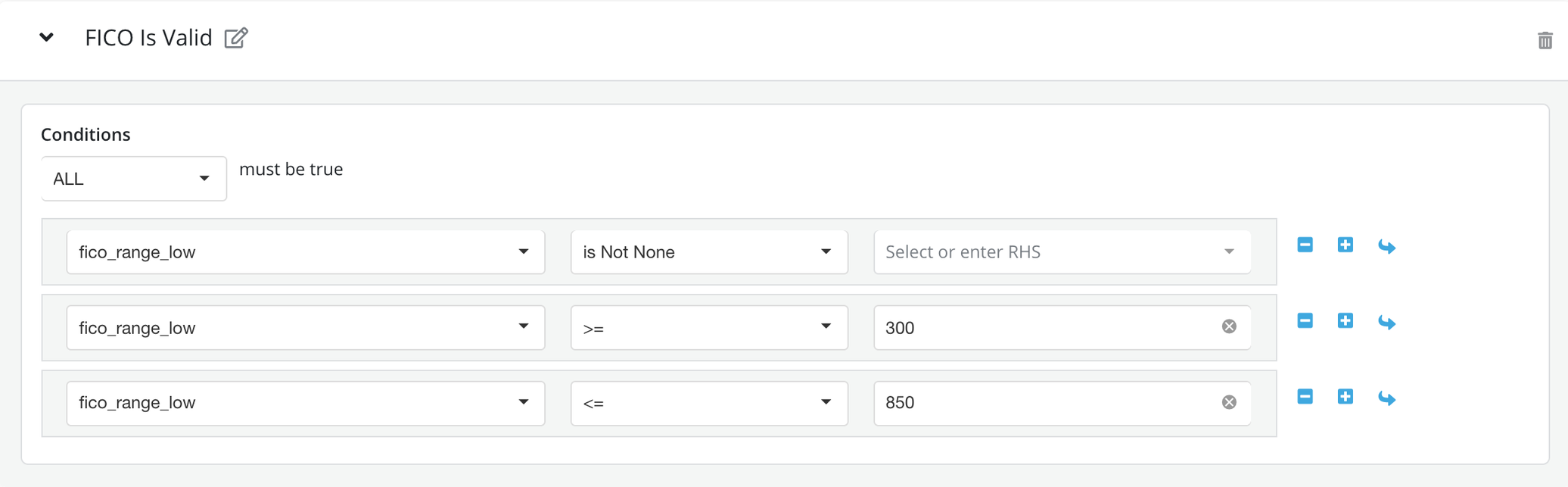
(FICO IS NOT MISSING) AND
(FICO >=300) AND
(FICO <=850)