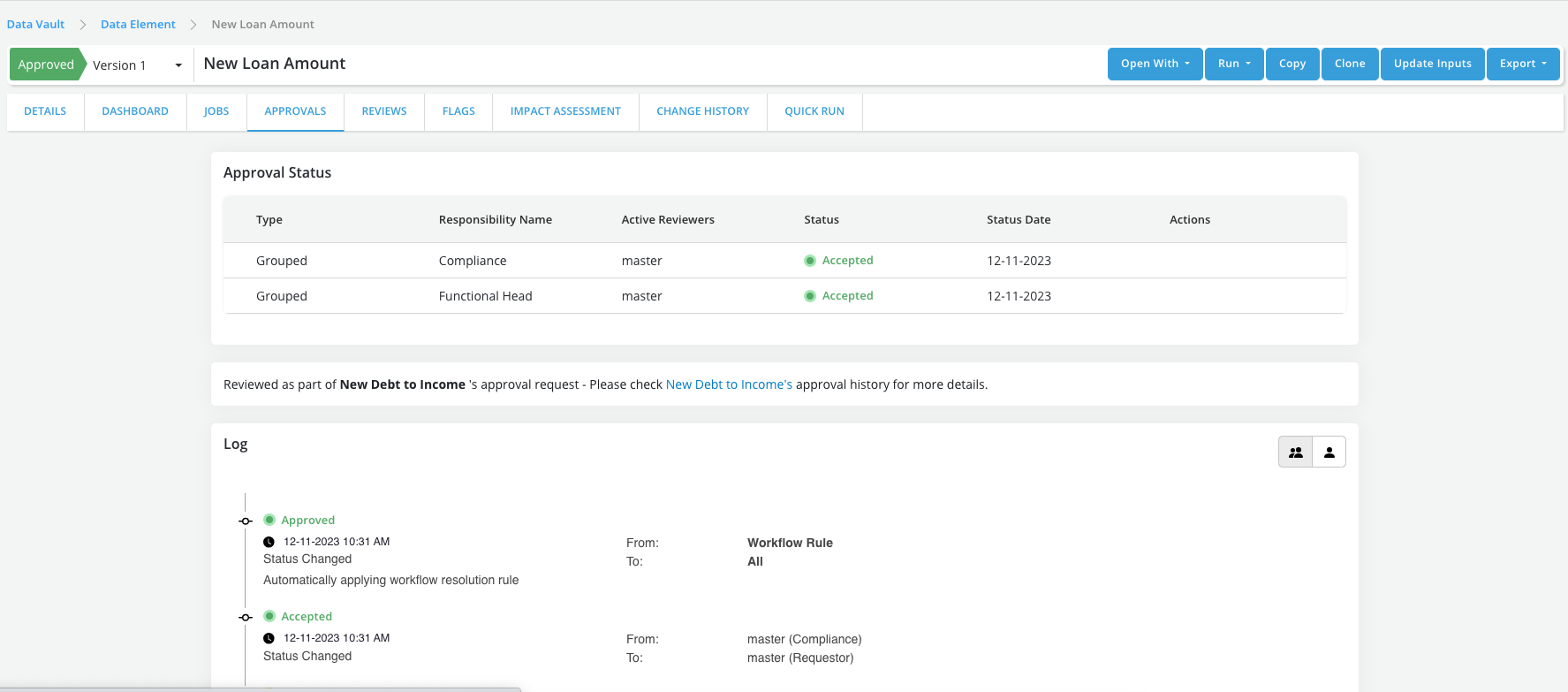
Request Approval
Once an Object is registered it can be sent for review and approval for further use in the platform
Info
When the mode Publish Drafts is enabled, draft can be used by other objects prior to being approved. Otherwise, only approved or chared objects can be used as inputs to other objects. By default, a simulation must be appended to the request for approval. This requirement to attach a simulation can be changed in Settings by a user with the right approval authority"
Requesting an approval
-
Go to Approvals tab
-
Click on Request Approval button
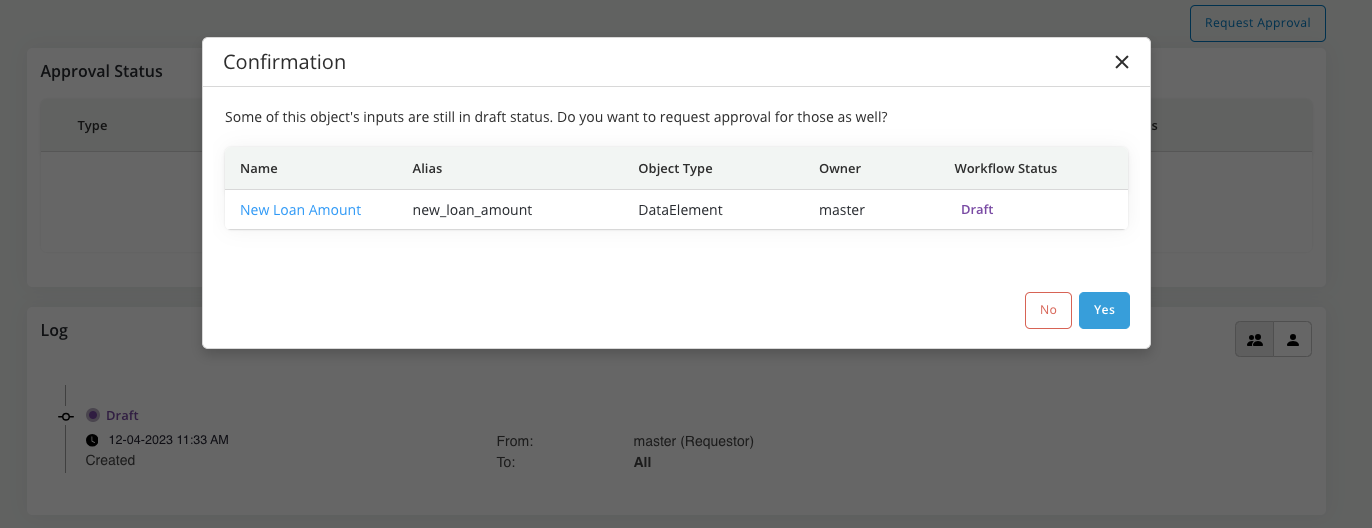
** Case 1: If the object has inputs that are in draft status then you will be prompted to confirm that they also want to include the draft inputs in the approval request
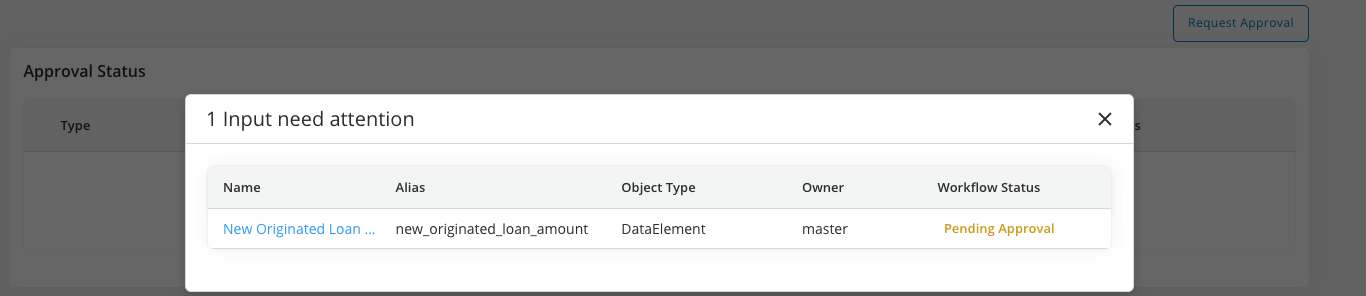
** Case 2: If the object has inputs that are in pending approval status then you will be prompted to complete or cancel the approval request of the pending approval inputs before submitting the request
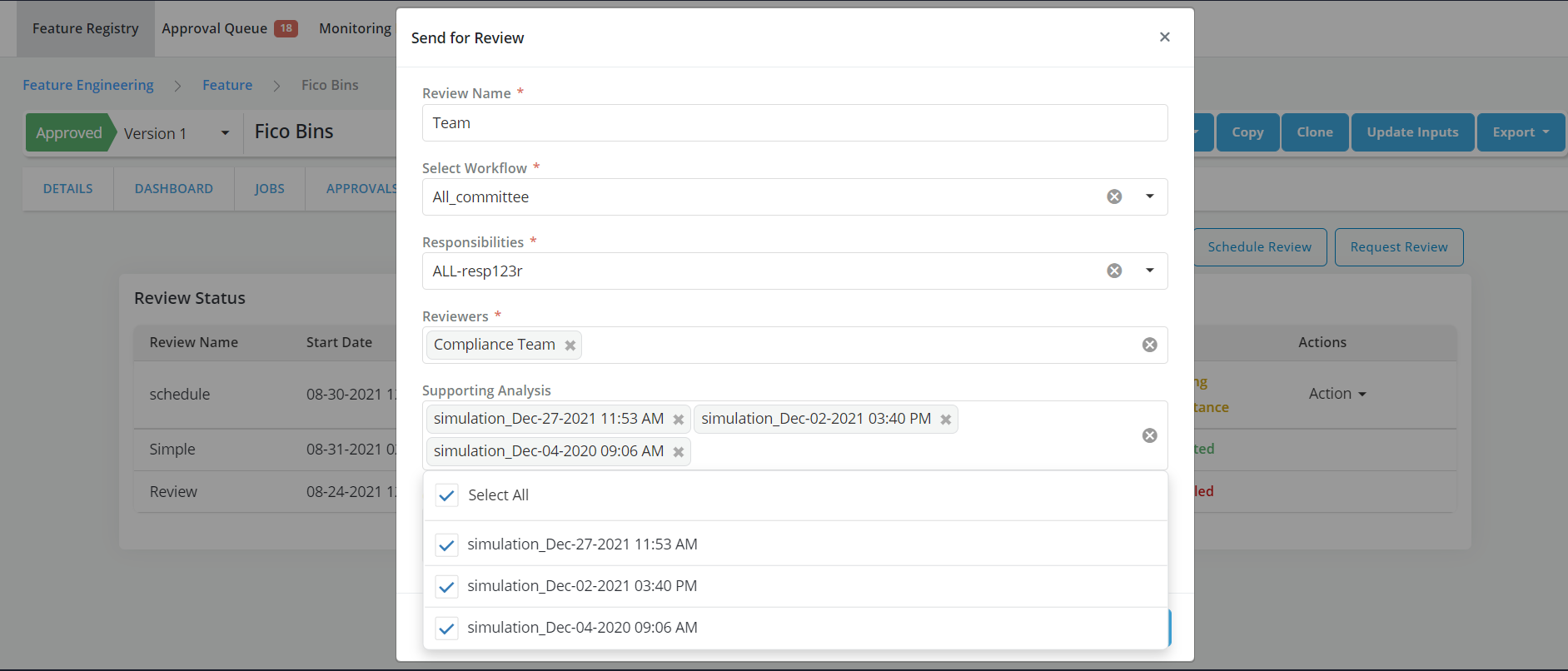
** If the object all the inputs of the object are in approved status or Case 1 or Case 2 have been resolved then you will be prompted to fill the approval request form
-
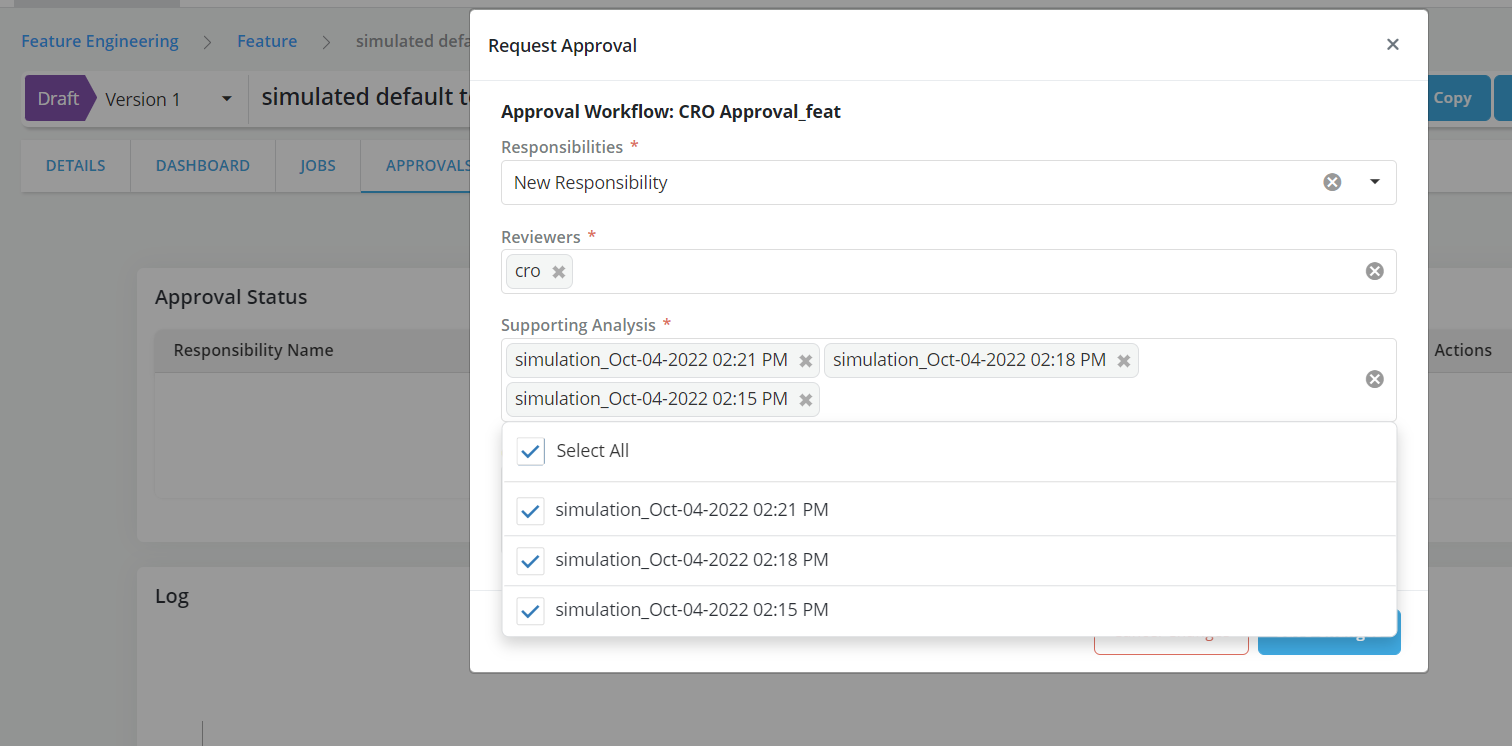
Fill the request form
** Selecting multiple job results for supporting Analysis is allowed ** Refer Approval Workflow for details
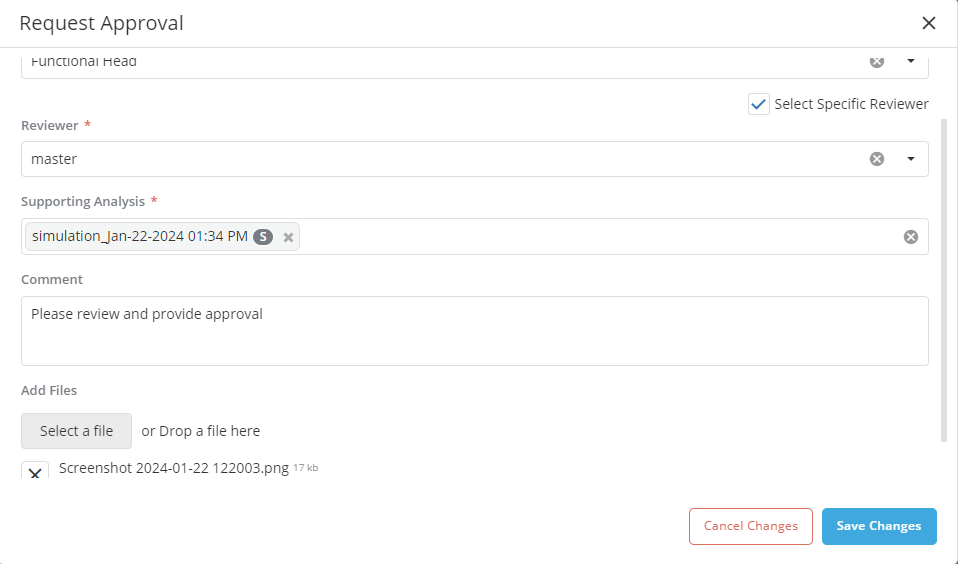
** Add comments and attach files
-
Click on Save Changes
Requesting group approval
-
While requesting the approval of an object (a.k.a., main object) you can request of any of its inputs that are still in draft this process is called group approval request and works as follows:
** Step#1: Request approval for the main object (i.e., the object that is in draft and which definition includes draft inputs)
** Step#2: When prompted confirm that the you want to include the draft inputs in the request
- If the group approval request is confirmed the main object's approval history page will show in the summary section the list of input including in the request
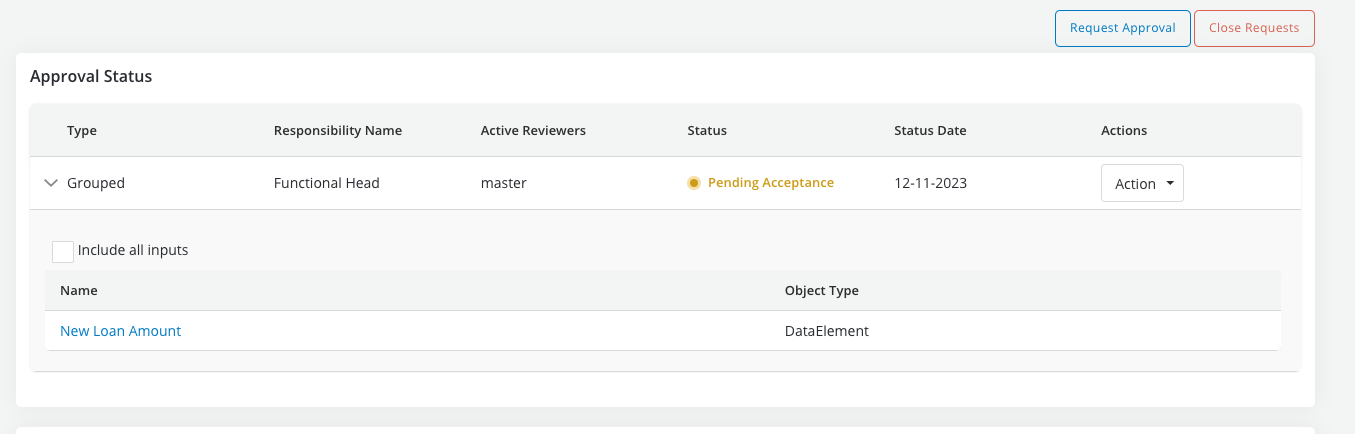
** Step#3: Have reviewers review all objects and make their decision on the approval page of the main object
-
All decisions made on the main object will apply to the input objects
-
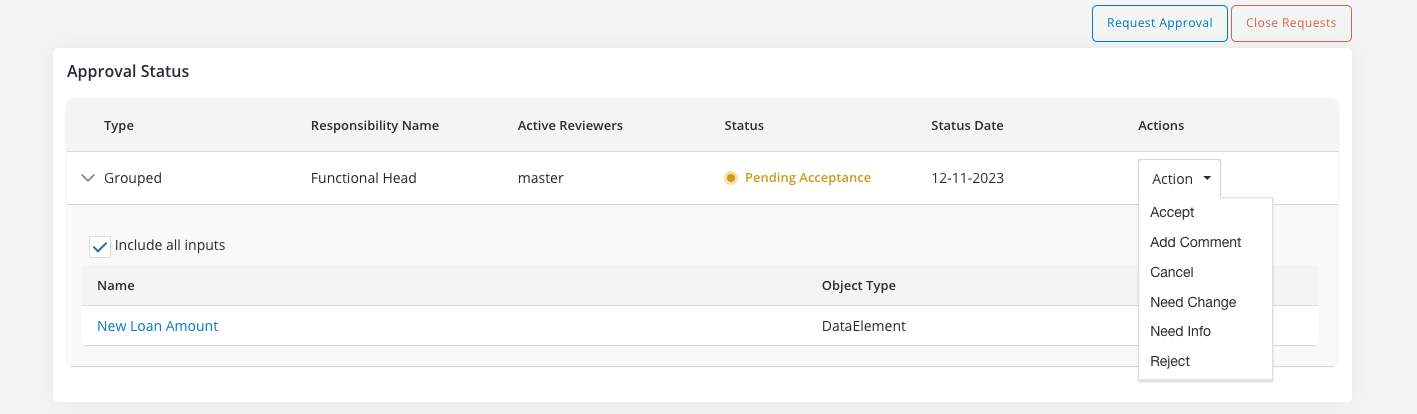
However decisions cannot be made without checking the checkbox of each input as shown below:
-
If any input is left unchecked the user will get an error when trying to take an action
-
The main object's approval history page will record all the details of the approval process as per usual
-
A reference link to the main object's approval history page will be shown in the approval history page of each input object
During the review

And post approval