Overview
Overview
A quick run is a small simulation job that executes the analytics contained in the definition of an object that has been registered in the platform. For instance doing a quick run on a registered Data Element means executing the definition of that data element on a sample of data to be manually specified while creating the quick run job. Similarly doing a quick run on a feature means executing the analytical definition of the feature on a small sample of data to be provided by the user.
Quick runs are intended for users to run small tests on their analytics using small samples of data of their choosing. They are designed for speed and flexibility
The main differences between a quick run and a simulation are:
-
Quick runs use data that has to be manually provide by the user while simulations use data from tables registered on the platform
-
Quick runs are of small size while simulations can be as large as needed
Where is this done?
A quick run can be done once an object is created by clicking on the Quick Run tab.

How is this done?
- Open the registry page of the object that you want to do a quick run on (e.g., a Feature)
- Click on the Quick Run tab
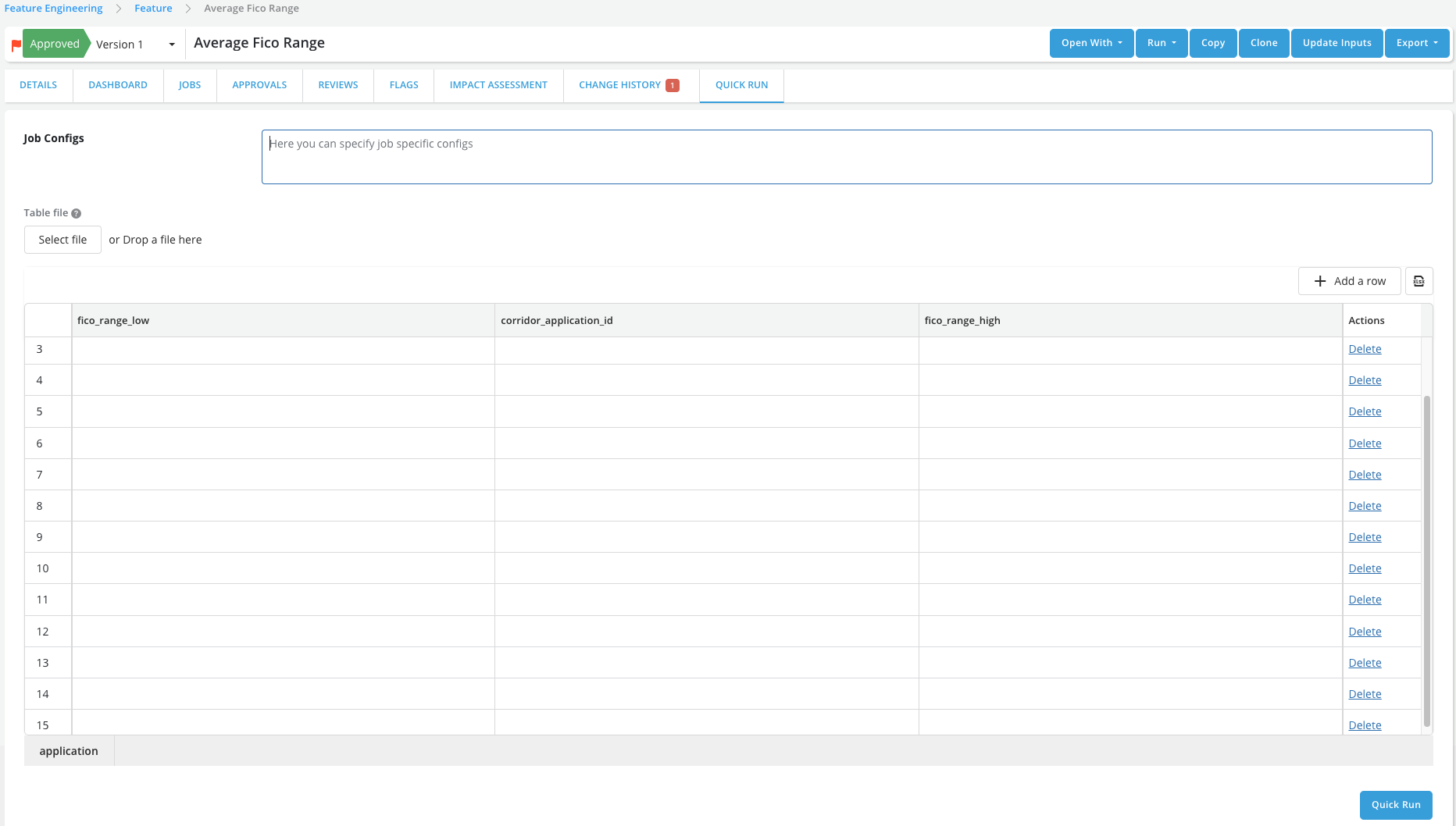
- A full quick run form will appear
-
Fill the form to specify the parameters for the job:
-
Job Configs - This can be used to specify the execution environment, specific to this job. The configs are used to create a custom spark session, which will execute the user's logic. Job configs could include, but not limited to, specifying the resources for the job like
yarn queue,driver memory,executor memory,executor instancesand so on. The user can also provide any specific library version, which might be required for the job. For example, if a model needs a specific version ofscikit-learn - 0.24.2, but the version available in spark cluster (which runs all the jobs for ALL the users) is1.1.1, then the user can providescikit-learn=0.24.2in theJob Configs. The user can leave this field blank and the job will be executed in the default environment. -
Table file - Use to upload a file that contains the data needed to do the quick run. The table must be in the same format as that tabular sheet displayed below this section
-
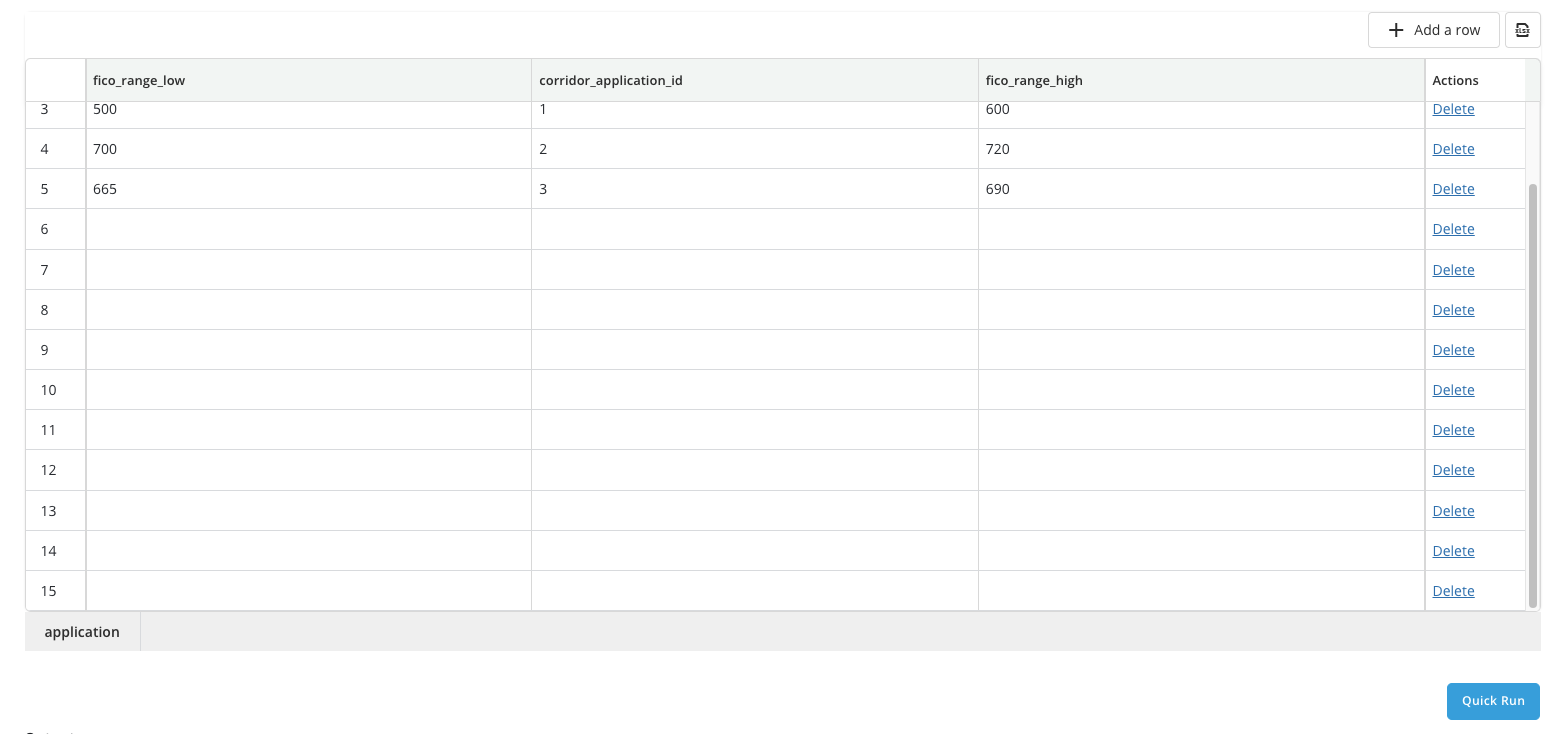
Tabular sheet for manual data entry - Instead of uploading a file, the user can manually fill this tabular spreadsheet and use it to do a quick run
- The spreadsheet may have several tabs depending on the object to run:
- A tab for each of the entities (e.g., application, loan, ...) used to create the object
- A tab for each of the bridge tables that allows matching of entity keys (e.g., application-to-loan bridge table)
- The spreadsheet may have several tabs depending on the object to run:
-
-
Click on Quick Run button
-
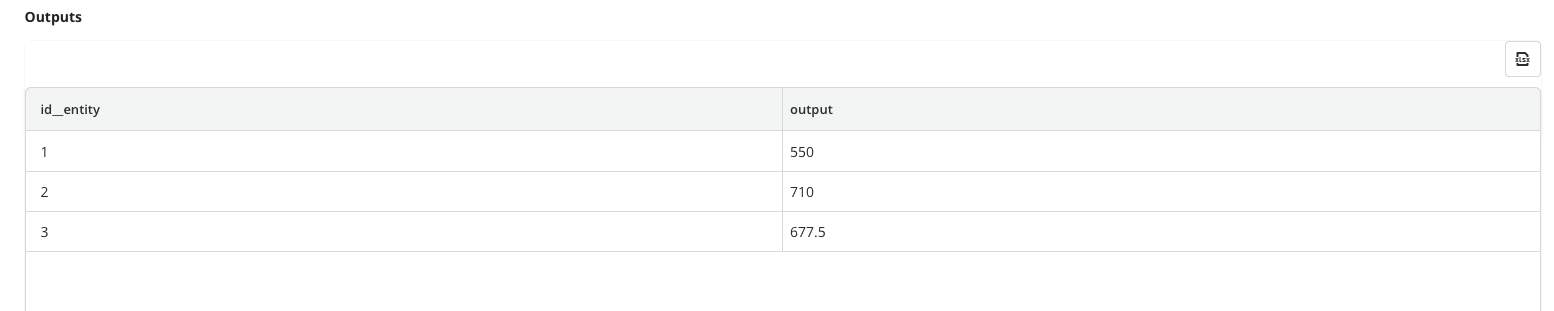
Review output - Once the quick run job completes, a table containing the output for each entity Id will be displayed below the manual entry spreadsheet. Users can at that point:
-
Review the results online
-
Download the results in an Excel spreadsheet
-
Modify the data and do another quick run
-