Registering a Data Element
Overview
A data element must be registered in order to be used anywhere in the platform.
Info
"Some definitions to remember"
-
A data element is an information or set of information received from external parties or systems (i.e. application data, credit bureau data).
-
An aggregated data element is a data element that has been created by aggregating multiple single data elements. For instance, if Monthly Payment is a data element that is sent to the platform by the Client’s Accounts Receivable system, then the sum of all payments received in a month is an aggregated data element.
-
A registered data element is a data element that the User deems ready to use after review, cleaning, formatting documentation and approval by the organization.
Where is this done?
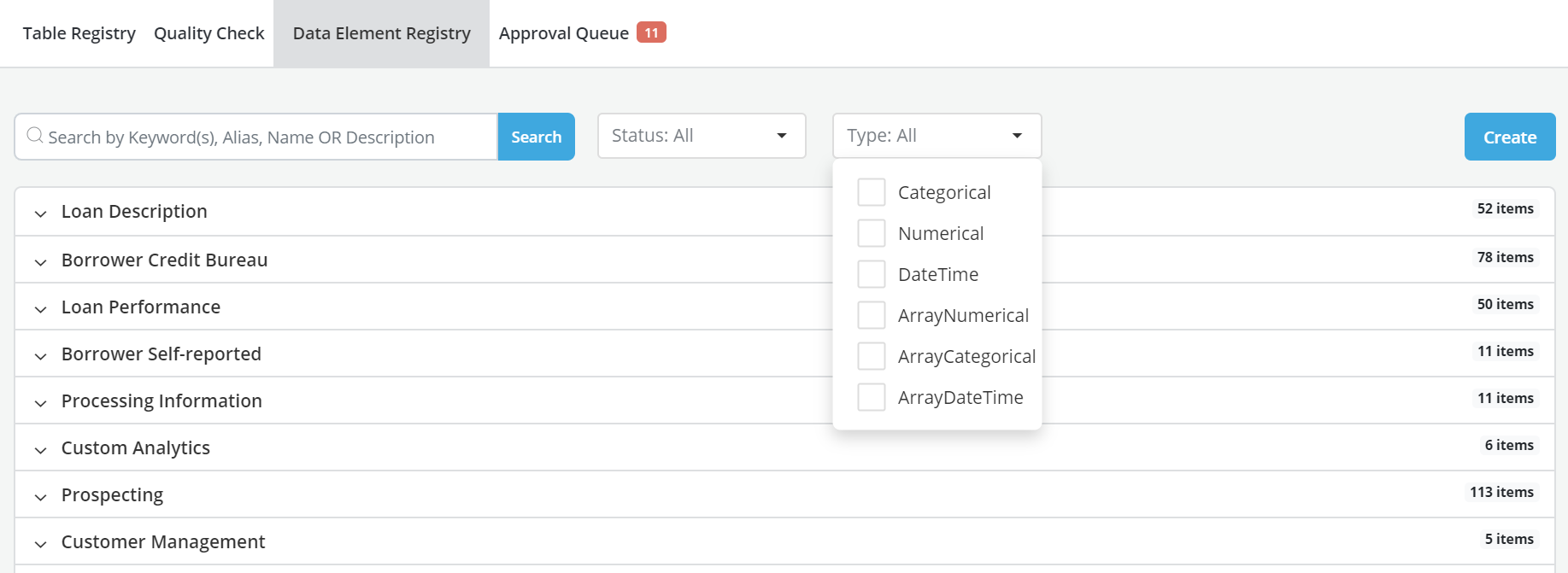
This is done using the Data Vault >Data Element Registry option
Create a Data Element
Creating Data Element
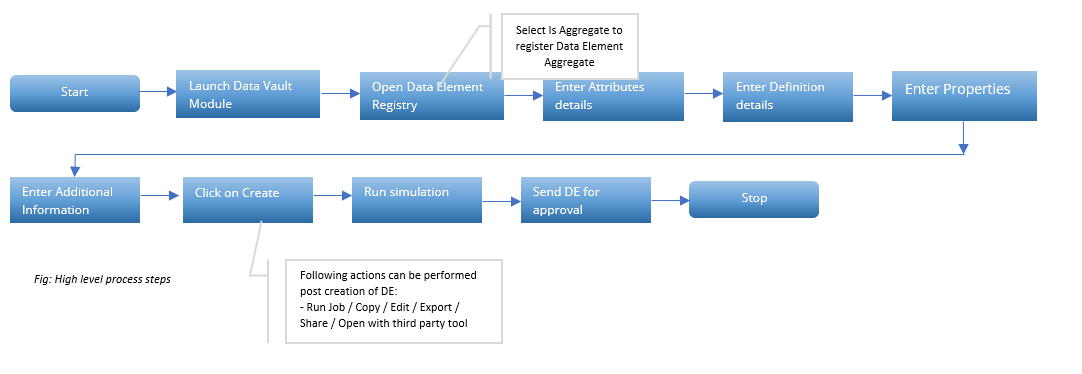
Process Flow
-
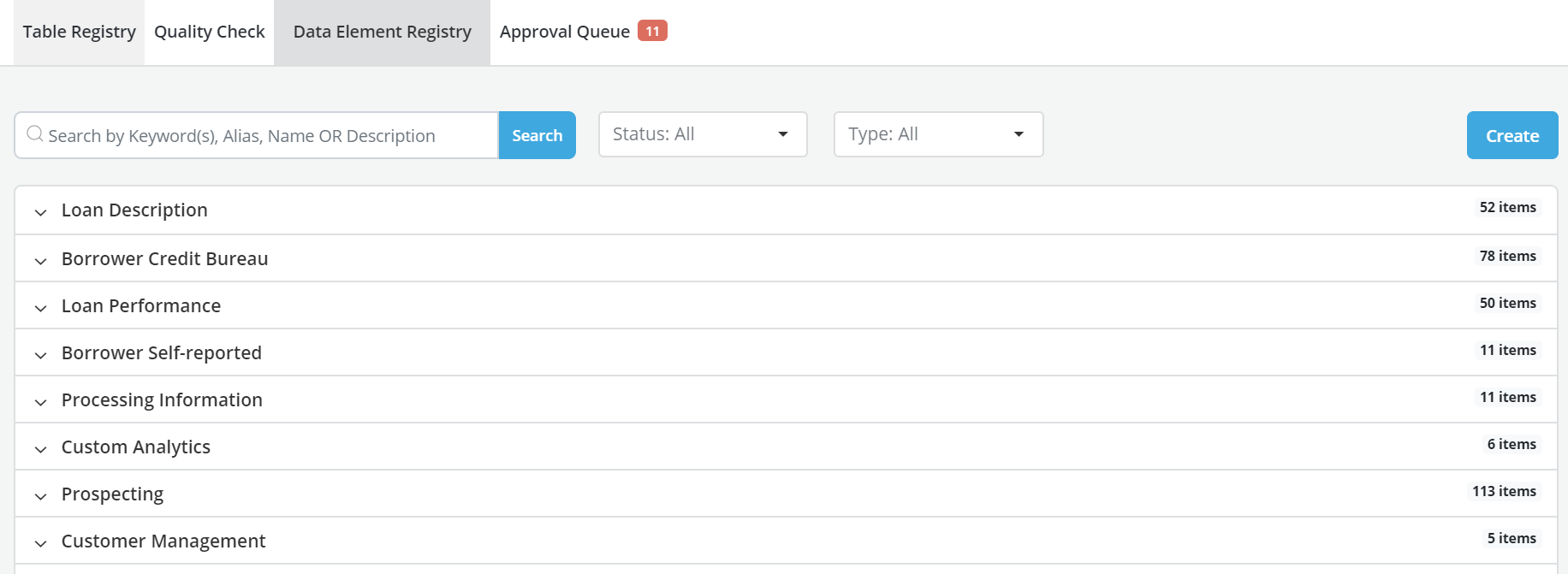
To create the Data Element, click on the Data Element Registry tab within Data Vault
-
Click on the Create button
-
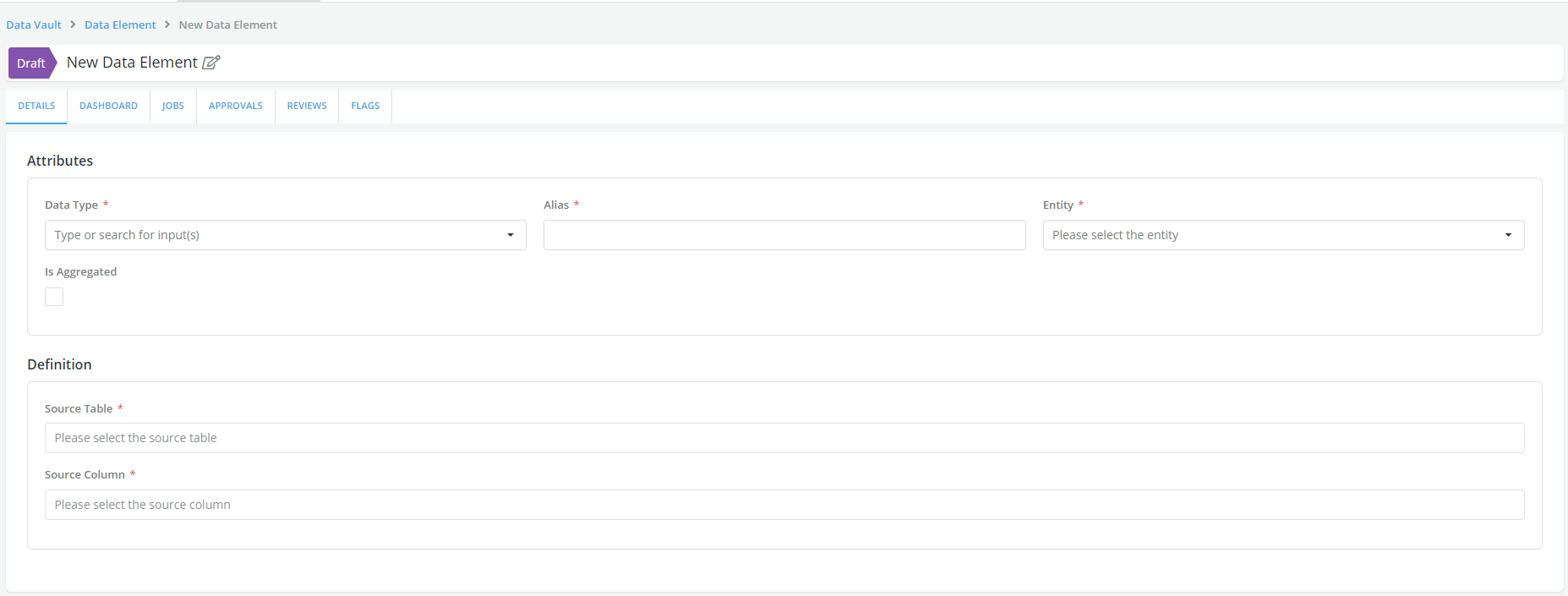
Data Registry page is displayed which is currently in draft status
-
Enter the Name of the New Data Element.This is in a free format that is intelligible
-
Click on ✔
-
Complete all the sections on the creation page
-
Enter details in Attributes sections with Data Type, Alias, Entity and Is Aggregate option
-
Enter the required details in Definitionsection with Source Column, Source Table and Aggregate Definition
-
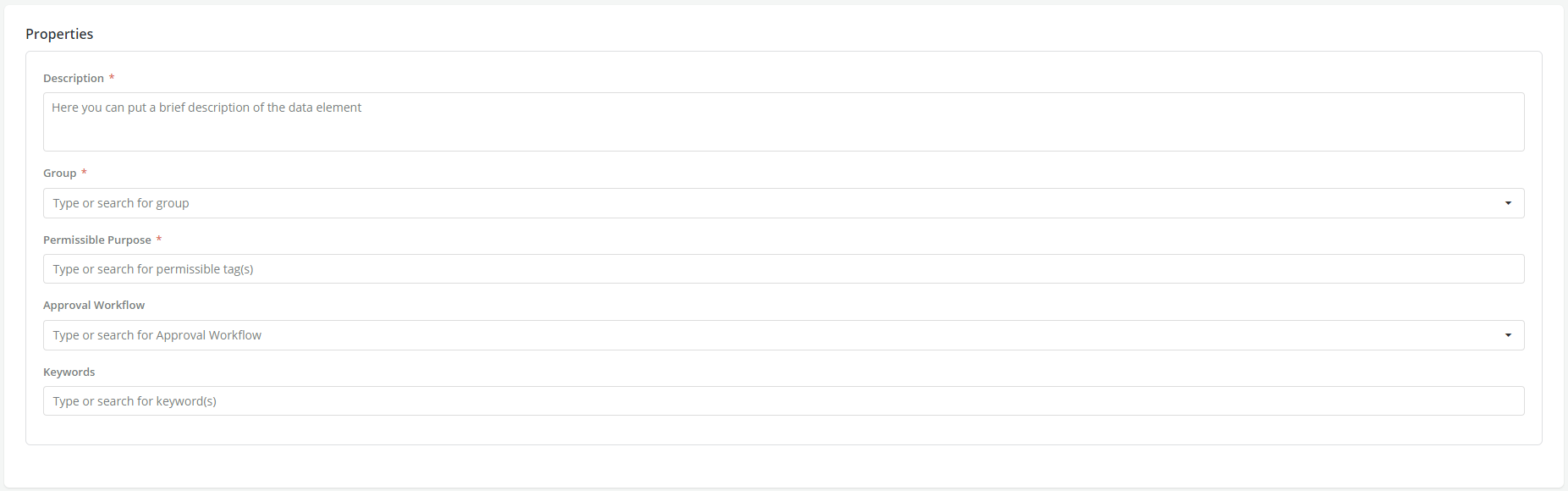
Enter details in Properties Section with Description (free-flow format), Group, Permissible Purpose), Approval Workflow and Keywords
-
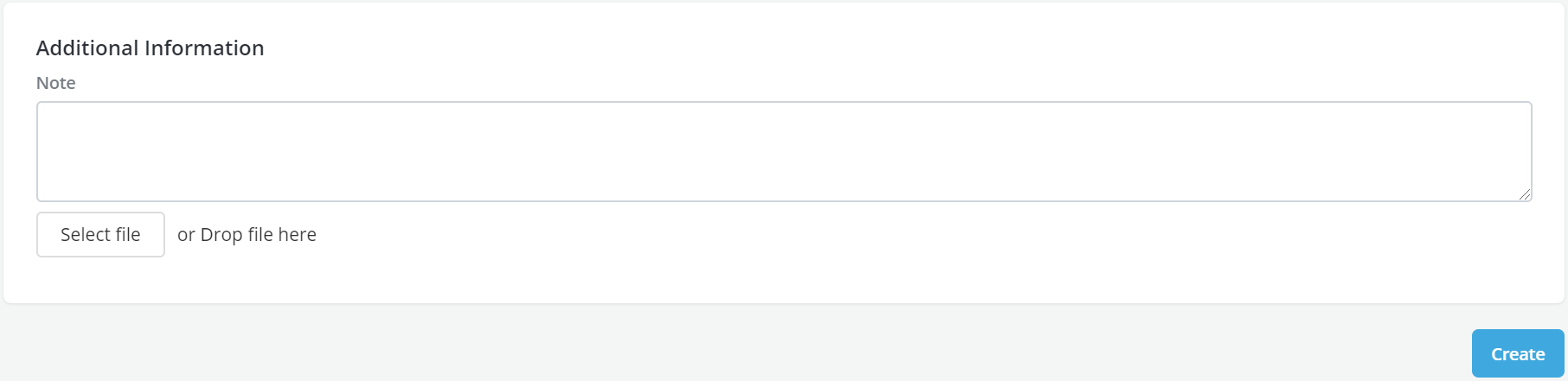
Complete the Additional Information section. This section is used to provide additional information related to the data element that will be presented for approval. Also, a relevant file can be attached pertaining to additional information
-
After completing all the above information, click on the Create button at the bottom of the page to save a draft of the Data Element that has just been created
-
A pop-up message is displayed for the successful saving of the Data Element
-
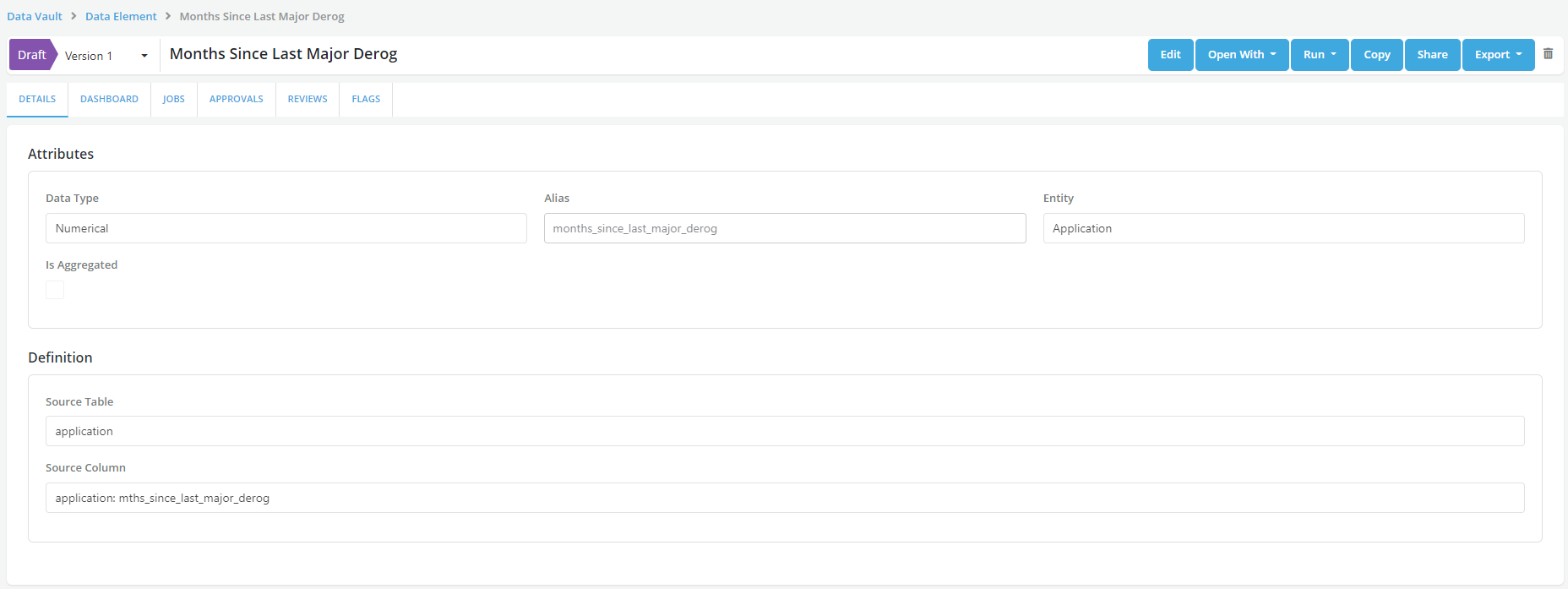
The Data element is now created with all the information captured
- Scroll down and review the Lineage
Editing Data Element
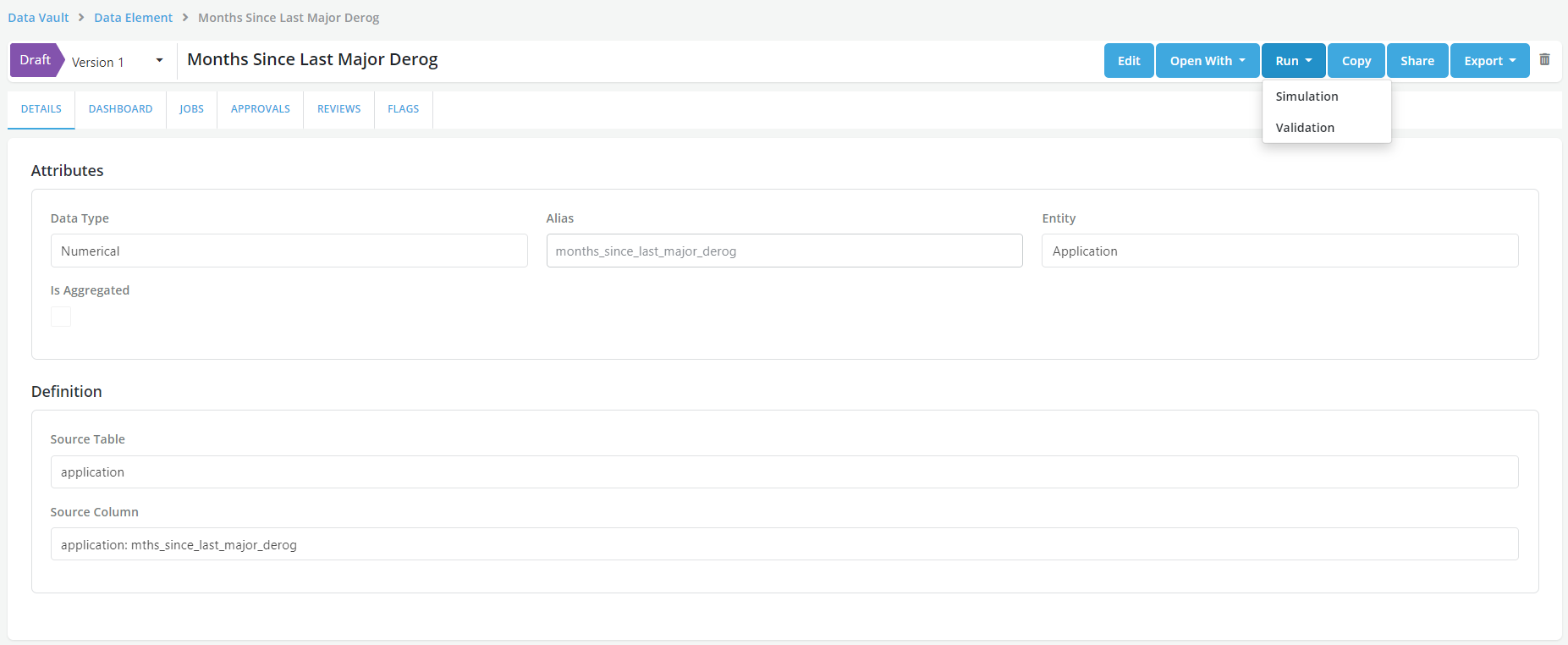
- Once a Data Element is created, it can be edited before it is approved, using the Edit option
Send Data Element for Approval
-
Send the Data Element for Approval
-
Post-approval, a Data Element cannot be changed, to make the changes in the Data Element, Cloning option can be used.
- On the main page, Data Elements can be accessed basis their Status
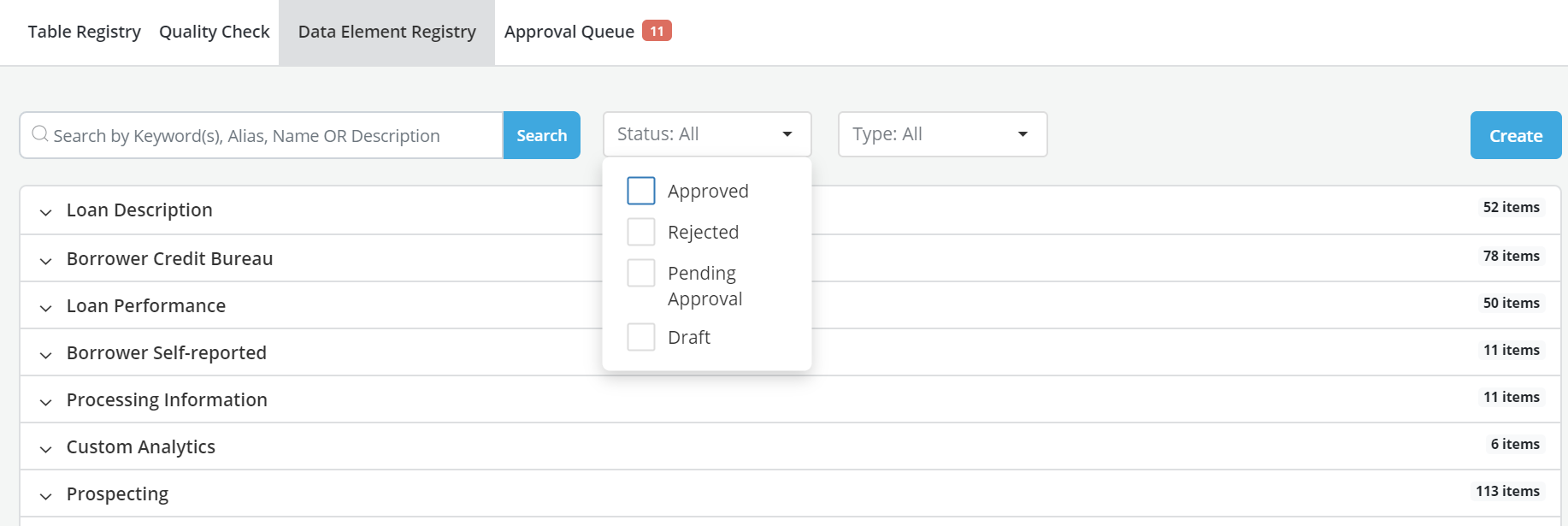
- Data Elements can also be accessed basis their Type