Registering a Dataset
Overview
The Datasets option allows Users to create datasets that can be used to build models or generate business reports within the platform.
This is the second step of the inbuilt guided model development flow after creating Algorithms. Once a dataset is created, it can later be used in Experiments along with the Algorithms to develop models.
Where is this done?
This is created in Model Studio.
Create Dataset
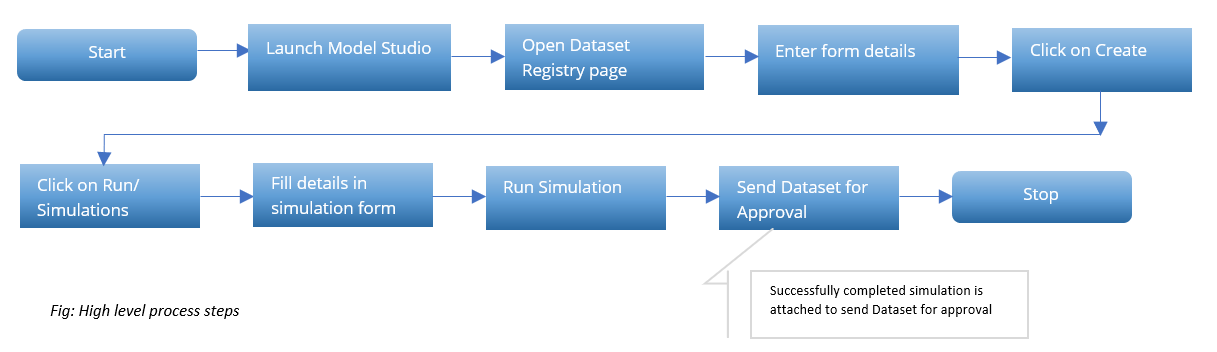
Process Flow
-
Click on the Datasets tab within the Model Studio application.
-
Datasets that are already registered on the Platform can be searched by the keywords or can be filtered by the Status

-
Click on Create button on the top right corner of the application
-
Dataset Details page will be displayed, enter all the information about the dataset
-
Click on Create (at the bottom-corner)
-
Dataset Details page will be displayed, enter all the information about the dataset
-
Dataset Name: Enter the name of the dataset in a free format
-
Dataset Alias: Enter the alias of the dataset
-
Entity: Select the entity for the dataset to register.
-
Dataset Type: There are 3 types of datasets that can be created, based on what the dataset contains.
-
Raw Data - This is used for datasets that contain tables/columns by directly pulling them from the Data Lake. Once pulled, this dataset can be reused in other places like running simulations consistently on the same sample.
-
Registered Objects - This is used for datasets which contain computed Data Elements, Features, Models, etc.
-
Algorithm Specific - When creating a dataset for the purpose of model building - use this type, which helps generate a dataset in the required schema for a specific Algorithm.
-
-
Group: The group that user wants to allocate the dataset to (e.g. Modeling Datasets, etc.)
-
Permissible purpose: The purpose for which the dataset can be used (e.g., Underwriting or Prospecting). These permissible purposes will be tracked across the platform. If a dataset is registered and later on used for a purpose other than its permissible purpose(s) the lineage will display red flags.
-
Keywords: An example of a Keyword can be a word that expresses the usage of the dataset (**modeling).
-
Approval Workflow: An Approval Workflow is a set of users who collectively review and approve new objects of a certain type being registered in the platform.
-
Description: A free format description of the dataset for documentation purposes.
- Independent Variables: Add the independent variables for model training.
- Independent variables can be added from DataElement, Feature, Model.
- Dataset Transforms registered in the Dataset will be automatically added as Independent Variables. Please refer to register a transform on how to register a transform.
- Independent Variables: Add the independent variables for model training.
-
Dataset Definition: Based on whether the type of the dataset, different information will be needed
-
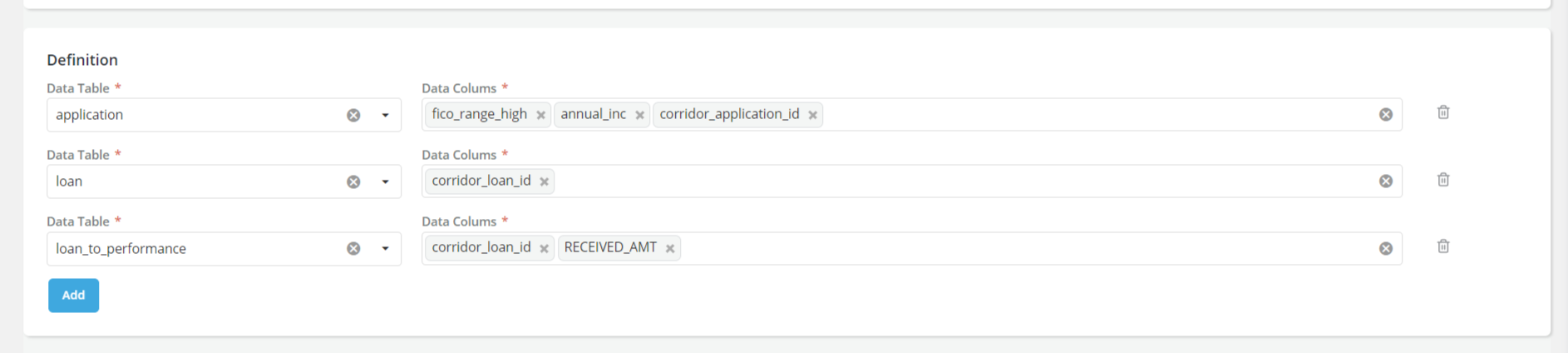
For "Raw Data" datasets - Add the Data table and data columns this dataset should contain.
-
Data Table: Select the table from the list of available tables (From Table Registry). Multiple tables can be added by clicking on ADD button
-
Data columns: Select the columns in that table which the data should be pulled for
-
- For "Registered Objects" datasets - Provide the computed objects that this dataset should contain
- Inputs: Add the input features for the dataset. Input features can be added from DataElement, Feature, and Model.

-
For "Algorithm Specific" datasets
-
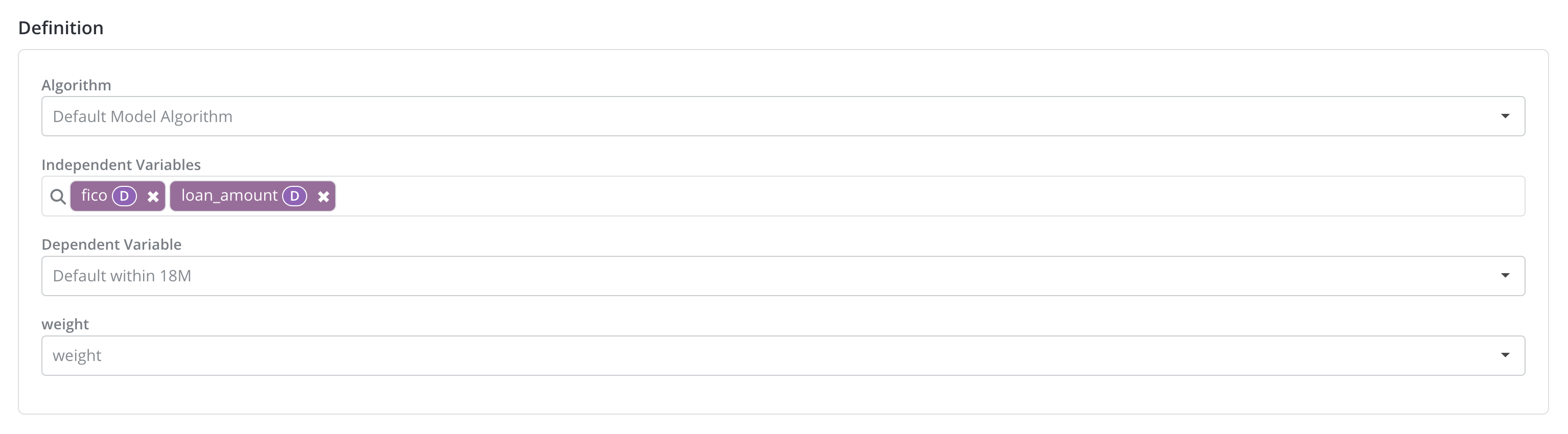
Algorithm: Link the Algorithm the dataset will be created for. Depends on the selected Algorithm, different dataset components might be needed. For instance, certain Algorithm requires weight to be present in the modeling dataset.
-
Independent Variables: Add the independent variables for model training.
- Independent variables can be added from DataElement, Feature, Model.
- Dataset Transforms registered in the Dataset will be automatically added as Independent Variables. Please refer to register a transform on how to register a transform.
-
Dependent Variable: Select the dependent variable for model training. Dependent variable can be selected from DataElement, Feature, Model.
-
Other Algorithm Specific Dataset Components: Link objects for algorithm specific dataset components. Algorithm specific dataset components can be selected from DataElement, Feature, Model.
-
-
-
-
Once the dataset has been created, the User will be able to see the Dashboard, Jobs, Approvals and Flags tab
-
To edit the Dataset, click on Edit; refer Edit section
-
Run the simulation. Click on the Run/ Simulation button on the top right of the page.
-
Update the Simulation form and run simulation

-
User can export the Artifacts even in draft mode
-
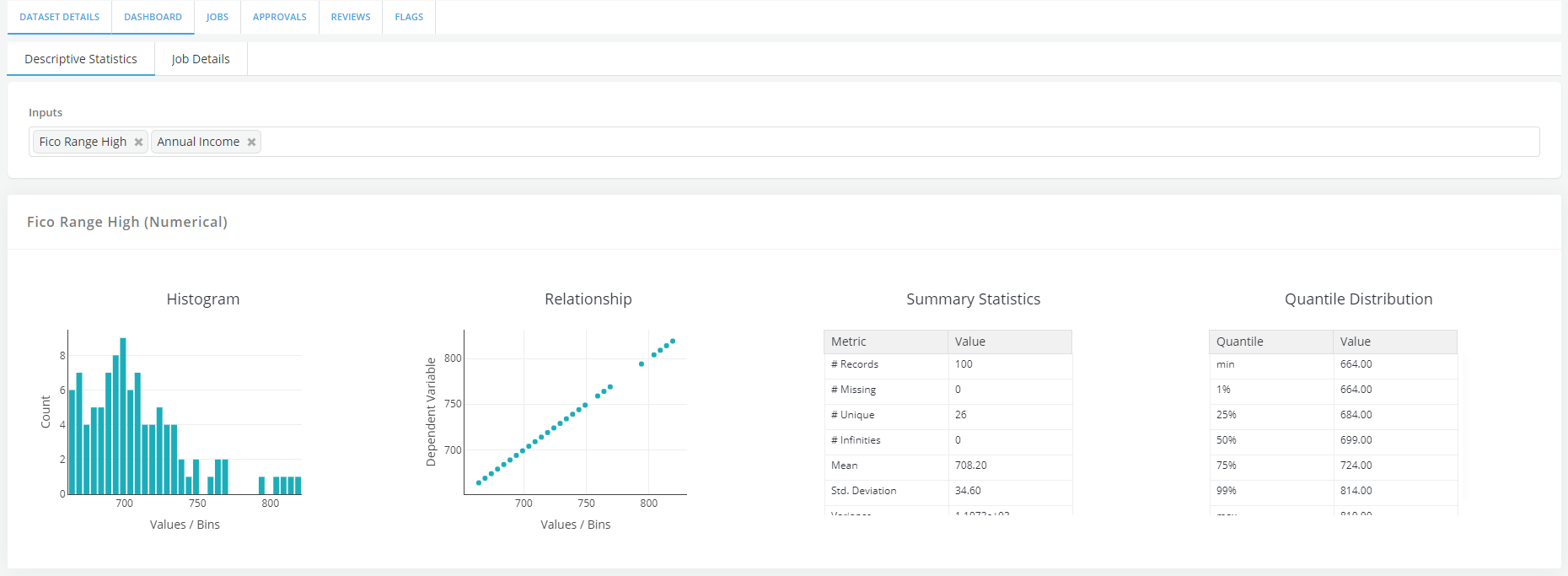
Dashboard tab shows:
-
Descriptive Statistics: This tab provides various metrics about each feature that was selected for creating the Dataset.
- Select the Input feature to see their stats.
- Job Details: This tab shows all the simulations that have been run on the dataset, along with some details about its execution.
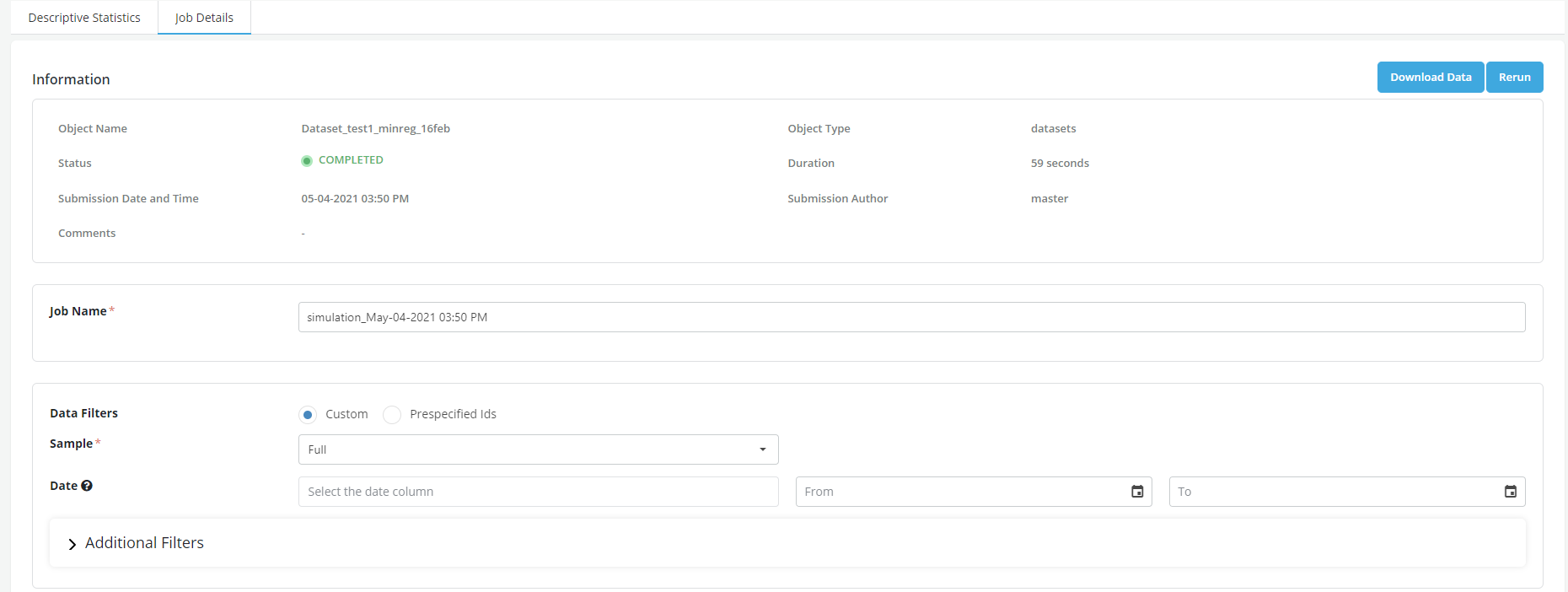
- Jobs page displays all the simulations that has been run on the Dataset

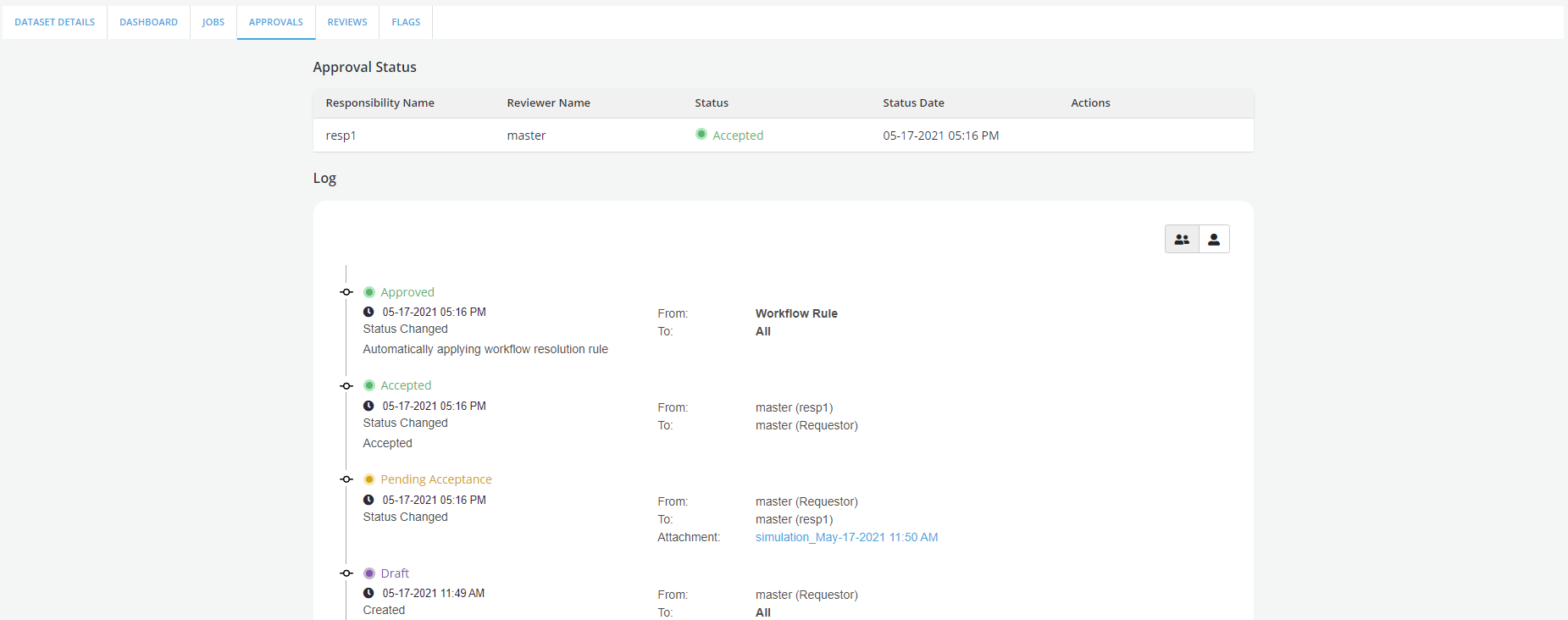
- Approvals tab shows approval workflow
-
In Flags tab user can add a Flag or tag the dataset
-
To make any changes in the Dataset post-approval it can be copied. Copying a Dataset allows a User to create a new Dataset using the information of the existing one. The new Dataset will be an exact copy of the original Dataset with a new name of the format "oldname_copyX". Refer Copy section for details
-
A Dataset can be deleted only if it is in New or Failed Status. Click on the Delete Button on the right of the respective Dataset to delete it from the Dataset Registry while it is still in New or Failed Status.
Import Dataset
-
Click on the Datasets tab within the Model Studio application
-
Click on the dataset to be updated. NOTE: Only datasets of type "Registered Objects" and "Algorithm Specific" support importing from a model
-
Click on Import button on the top right corner of the dataset details page
-
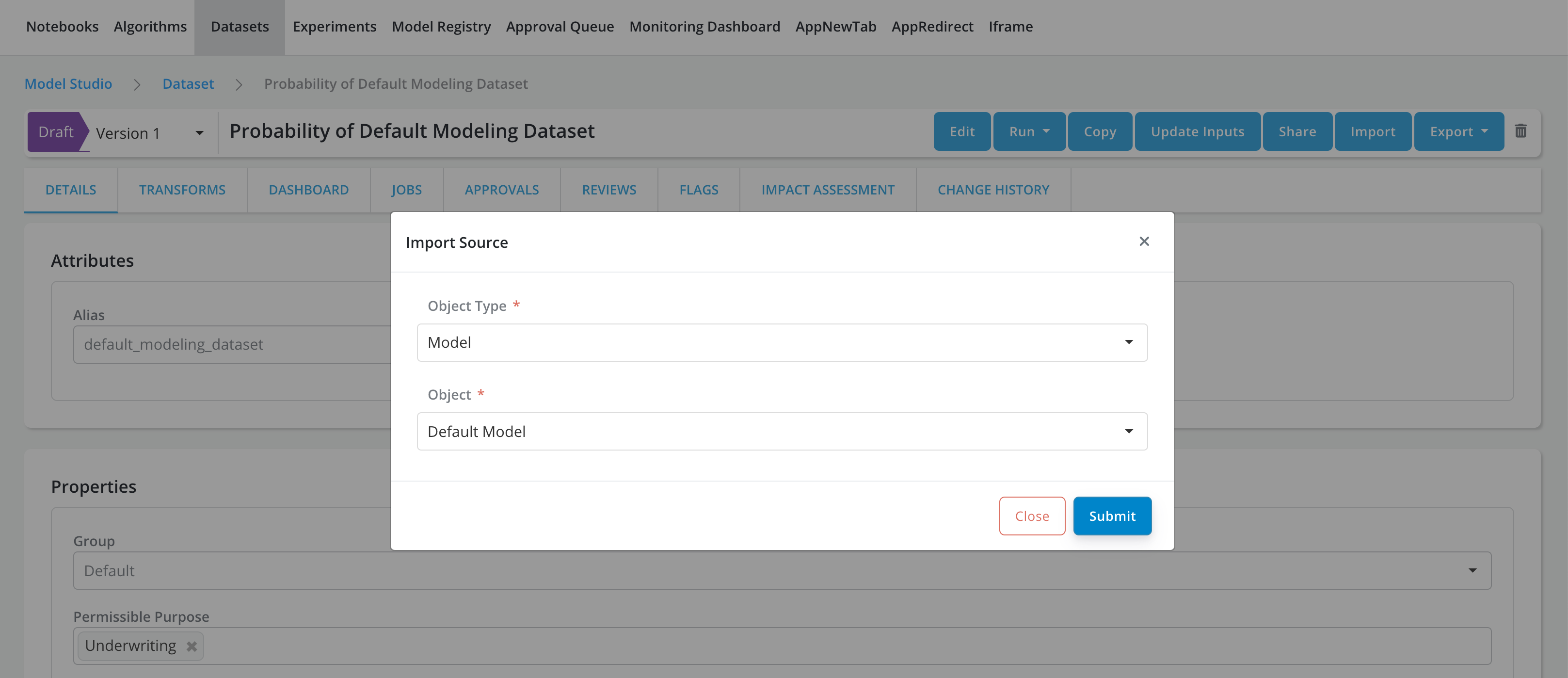
Import Source pop-up will be displayed, enter all the information about source object to be imported
-
Object Type: Choose the type of source object. Currently dataset can only be imported from model objects
-
Object: Choose the source object
-
-
Click on Submit button to start the importing process
-
Once the import is complete, the following attributes of the Dataset will be updated based on the source model. Users can click on the CHANGE HISTORY tab to view the details of the updated attributes.
-
If the type is Algorithm Specific:
-
Entity: Updated using source model Platform Entity
-
Independent Variables: Updated using source model Input
-
Dependent Variable: Updated using source model Dependent
-
-
If the type is Registered Objects is not checked:
-
Entity: Updated using source model Platform Entity
-
Inputs: Updated using source model Input
-
-