Registering a Quality Procedure
Overview
This is a capability that allows Users to review the quality of a data set before registering its fields and using them as data elements in the downstream processes. Users can define a quality check procedure, save it and simulate it at will.
The quality check procedures generate profiling metrics such as Descriptive Statistics, Outliers Count, Missing Values, Invalid Entries, Frequent Values, along with the results of custom quality check rules.
Once the User has reviewed the simulation results, they can proceed to make any necessary correction to the raw data set through the ingestion process.
Where is this done?
The quality check procedure is registered in the Data Vault.
Create Quality Procedure?
Create a Quality Procedure
Process Flow
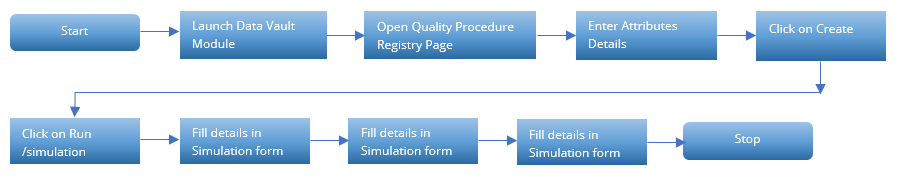
-
To create a Quality check, click on the Quality Check option within Data Vault.
-
Click on Create button located on the top right corner of the page
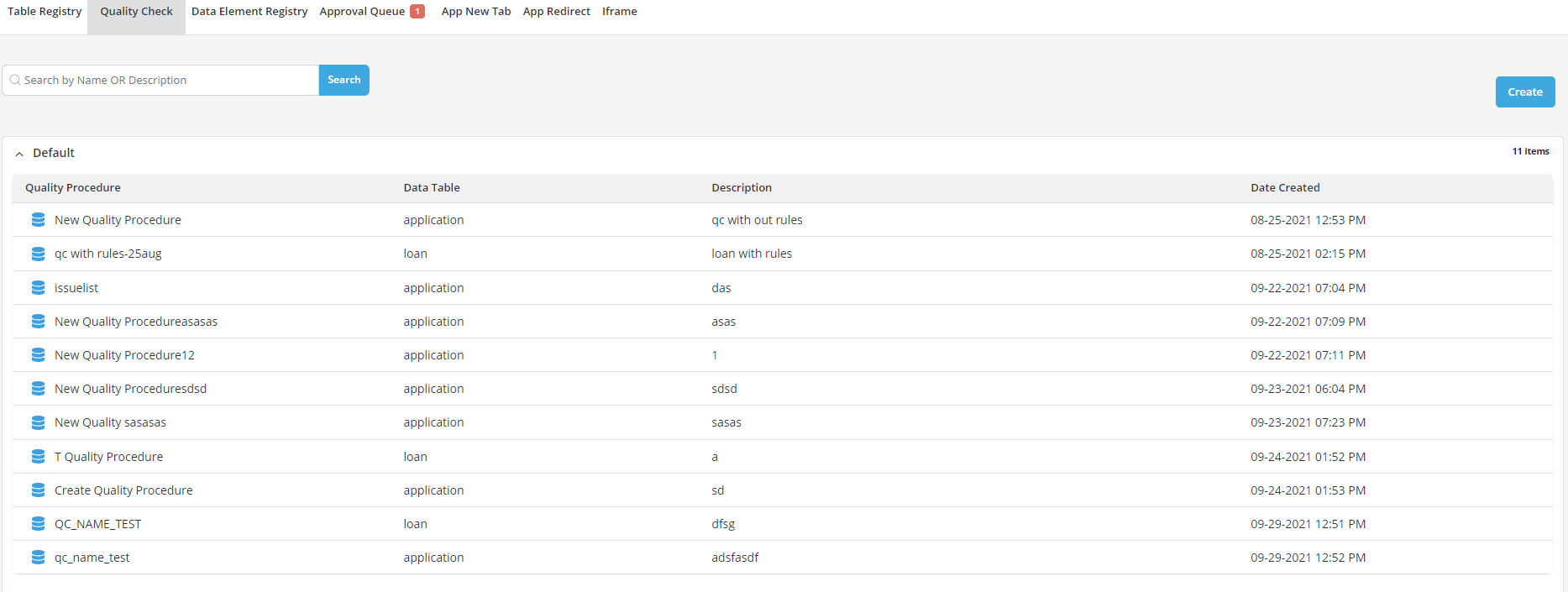
-
Enter a name for the procedure in Quality Procedure Name and click on ✔
-
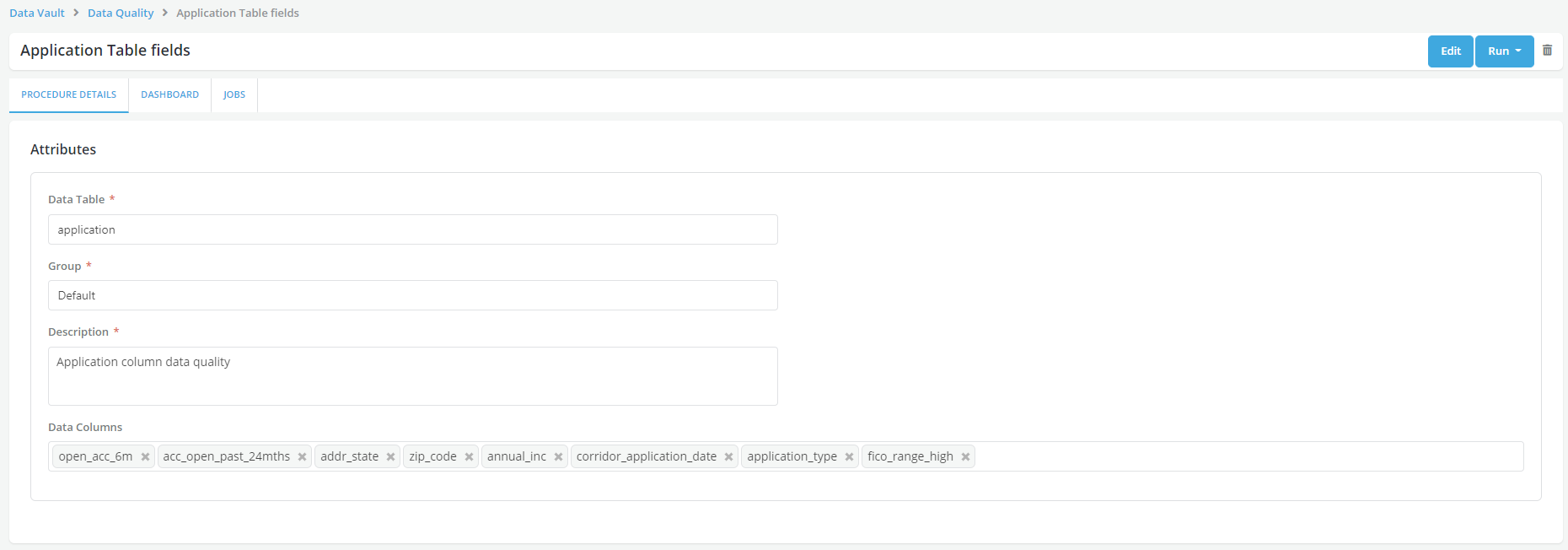
Update the details in the Procedure Details tab. In the Attributes section, select a table on which to run the quality checks. The list of tables that appears is comprised of all the tables that have been registered into the platform.
-
Add the Description
-
Select the Data Columns that you want to run a quality check on from the drop-down list. This drop-down list displays all the columns available in the table.
-
Scroll down and update the Additional Information section. It's optional to add comments and/or append this section.
-
Click on Create button
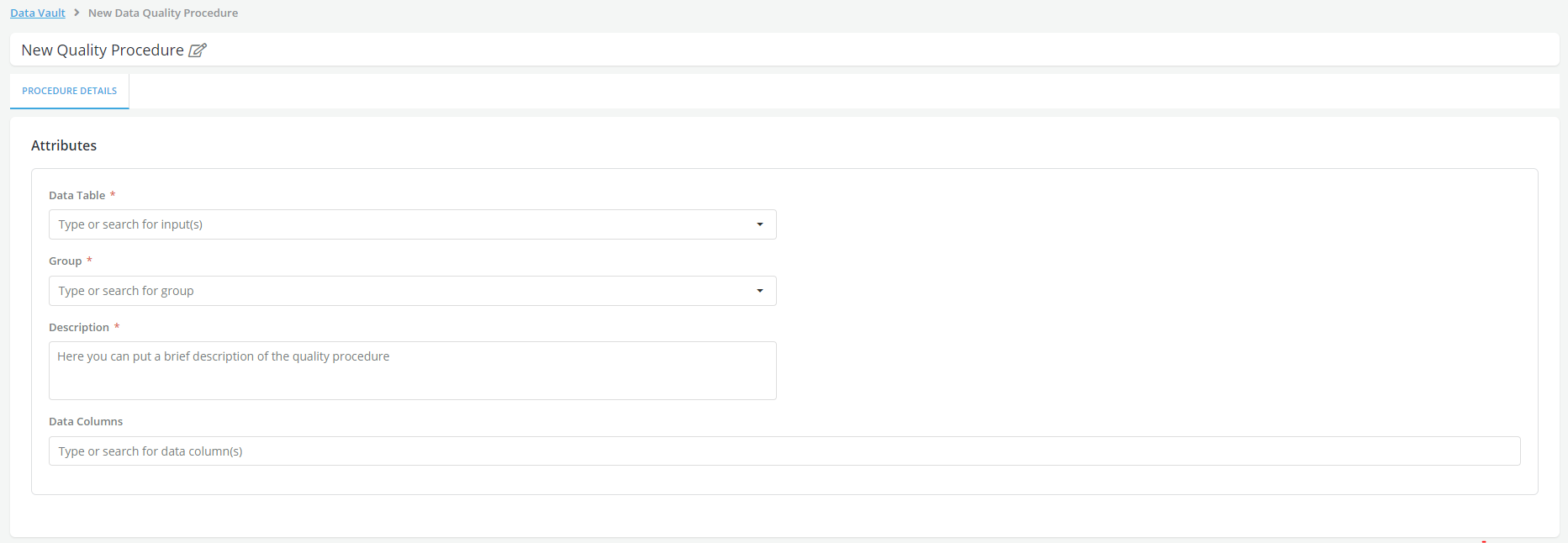
- A pop-up message is displayed for the successful creation of the New Quality Procedure
Edit the Quality Procedure
-
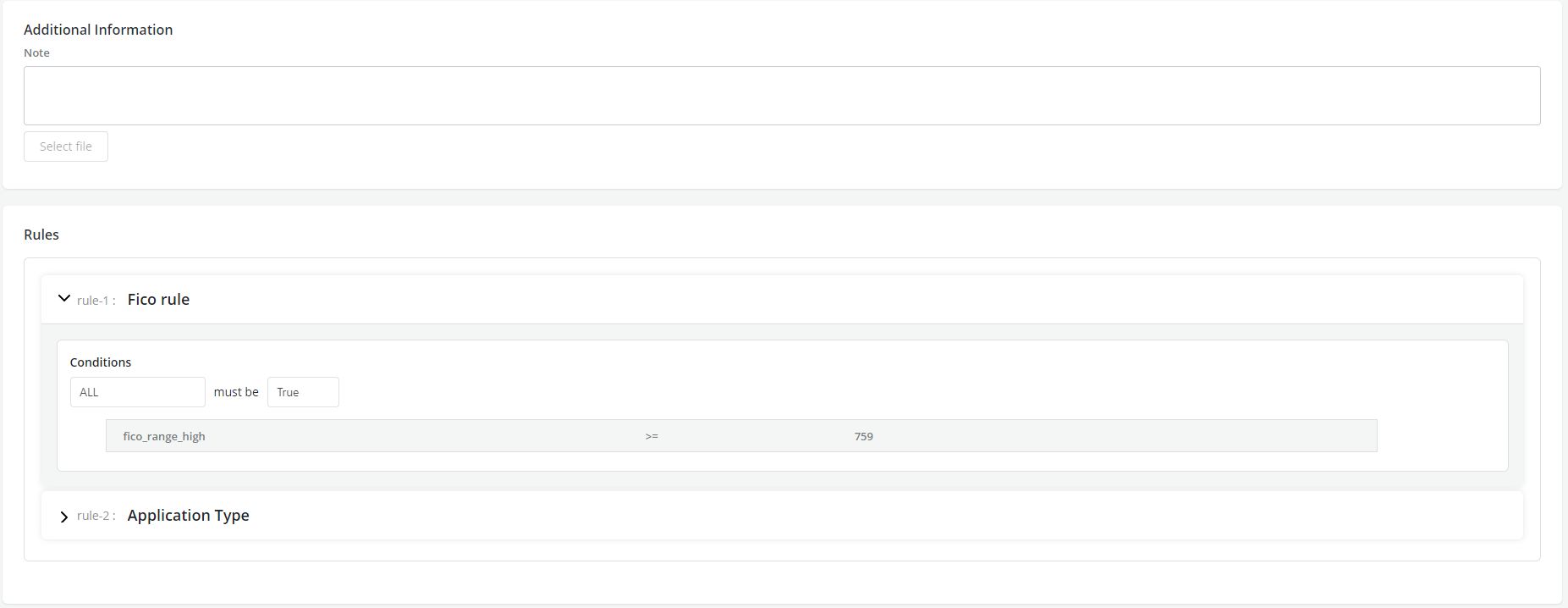
Click on Edit and scroll down to enter the procedure’s custom quality check rules, if any, in the Rule section (a rule set is an ensemble of data quality check rules that the user wants to consistently run on a given table, i.e. Check data format, check to identify outliers, identify missing values, etc.)
-
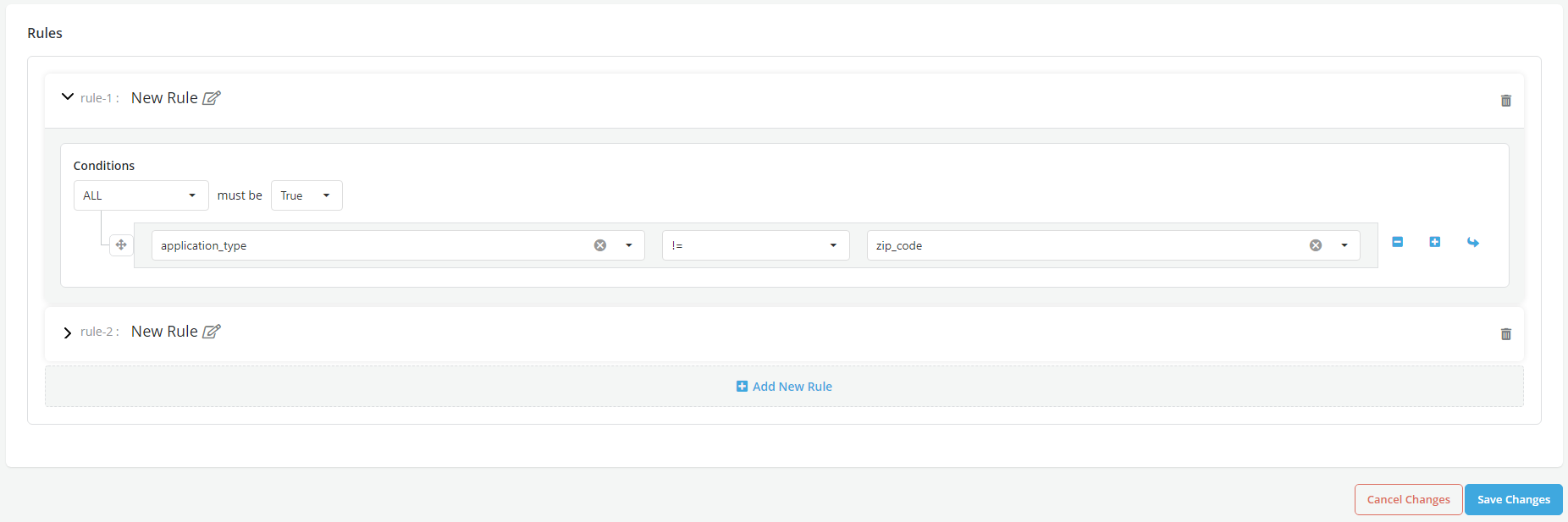
Click on the arrow next to the name of the rule to expand the rule box and start writing the logic of the rule
-
Click on New Rule to enter the name of the rule
-
Select Conditions as appropriate from the dropdown. ALL condition is equivalent to an AND condition. It means that all the conditions must be true for the rule output to be a PASS; ANY condition is equivalent to an OR condition. It means if any one of the conditions is true then the rule output will be a PASS.
-
Write the Rules
-
Click on Save Changes to save the rules.
-
Scroll up and click on Stop editing to go back to the procedure’s main page
-
A pop-up message is displayed for the successful saving of the new rules
Run Simulation
- Simulate the Quality check procedure