Overview
A User can run the following tasks in the Platform:
-
Simulations: Execution of the analytical definition of an object on a sample of records
-
Comparisons: Comparison of two objects through the execution of their respective analytical definitions on the same sample
-
Validations: Comparison of the output of the simulation of an object to a previous output of the simulation of the same object run on a different (usually older) sample.
-
Verifications: Comparison of the output of the simulation of an object to a previous output of the simulation of the same object run on a different (usually older) sample.
How to run jobs?
-
Use the job form to submit a job.
- Select an object that you want to run a job on (e.g., a Data Element).
- Click on the Run button on the top right corner and select the job type (e.g. Simulation)
- A full job submission form will appear
-
There are 6 sections in the job from. Each section specifies a unique aspect on how the job should run.
- Description: User can add descriptive information about the job. For instance keywords etc.
- Scheduling: User can configure recurring jobs.
- Dashboard Selection: User can set up the dashboard and reports to run along with the job.
- Dependencies: User can provide any dependencies required to run the job.
- Sampling: User can configure the sampling criteria to run the job.
- Data Sources: User can provide the data sources for running the job.
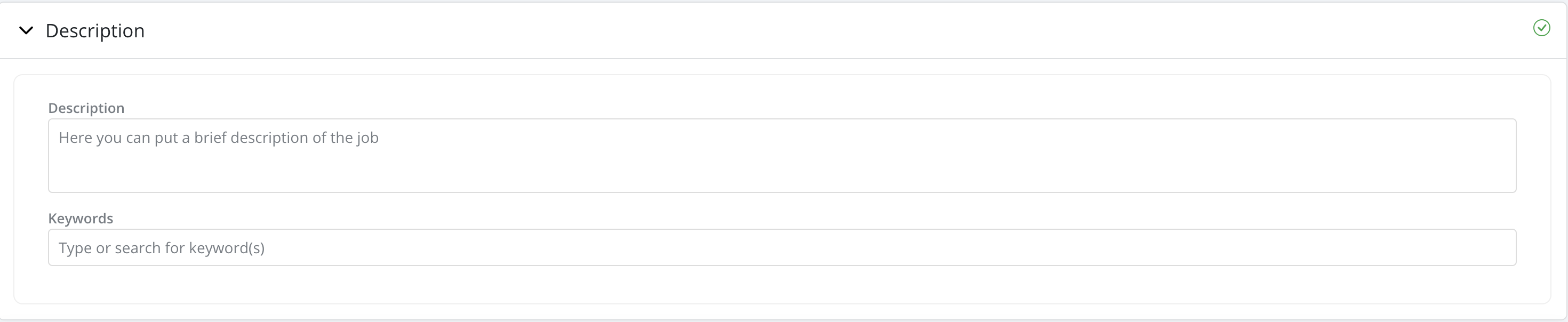
Description
- Description: Description has a free input format. User can briefly describe the job
- Keywords: Users have the ability to tag jobs with keywords to facilitate searches. These keywords are created in Settings and assigned a type called "job"(i.e., keyword to be used to tag jobs):
Scheduling
-
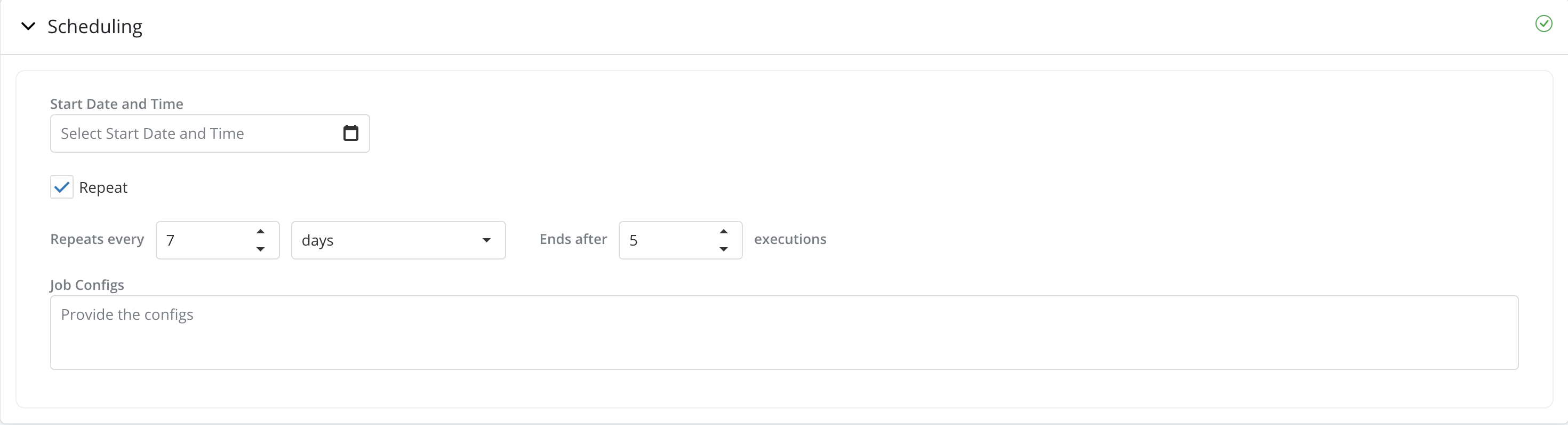
Start Date and Time: If specified, the job will run at the date and time specified. If not the job will start running as soon as the user clicks on Run Job.
-
Repeat: User can schedule the job to run multiple times over time and set alerts for when a quality metric breaches a threshold by checking the Repeat checkbox and fill in the scheduling details. By default the Repeat option is unchecked.
-
Job Configs: This can be used to specify the execution environment specific to this job. The configs are used to create a custom spark session, which will execute the user's logic. Job configs could include, but not limited to, specifying the resources for the job like
yarn queue,driver memory,executor memory,executor instancesand so on. The user can also provide any specific library version, which might be required for the job. For example, if a model needs a specific version ofscikit-learn - 0.24.2, but the version available in spark cluster (which runs all the jobs for ALL the users) is1.1.1, then the user can providescikit-learn=0.24.2in theJob Configs.The user can leave this field blank and the job will be executed in the default environment. While the
Job Configsprovide a lot of flexibility as to what can be customised for execution environment, it is thePlatform Adminwho controls what configurations are allowed and what are not. It is advised to get in touch with thePlatform Adminto confirm the list of allowed configurations and the format in which it needs to be entered.
Dashboard Selection
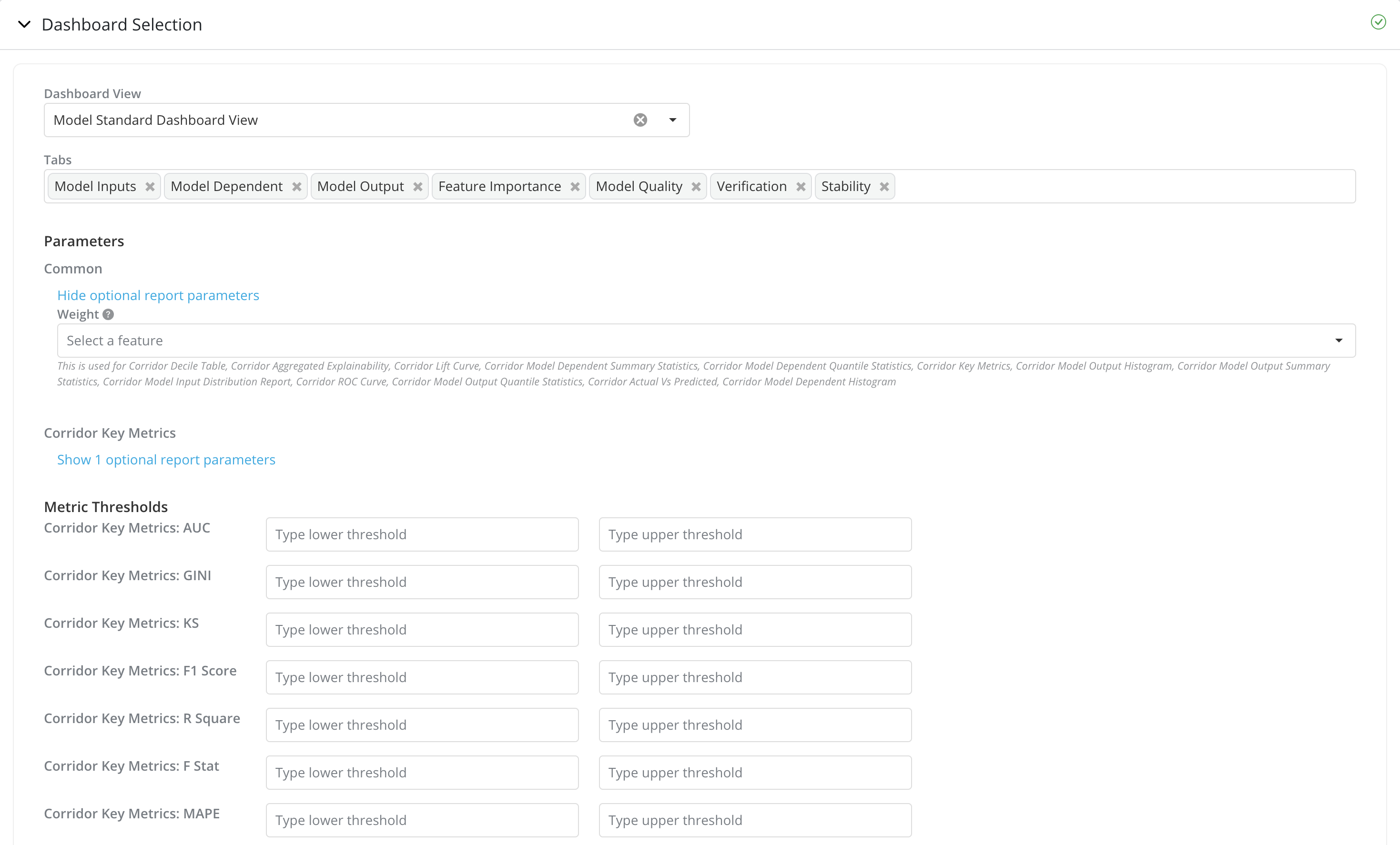
- Dashboard View: This enables the users to select a set of reports from the list of registered Dashboard Views, by default this field will be auto populated with the admin configured, default dashboard view for the object
-
Run Additional Dashboard(s): Additional dashboards for the inputs in lineage for the objects can also be included to run along with the job. There are 3 options:
- None: (Default Option) No additional dashboards will be run.
- All Inputs: After the job finishes, the platform will add and run additional jobs for all the lineage inputs of the current object. For all the jobs for the lineage inputs, the default dashboard set up in Settings will be used.
- Draft Inputs: Similarly to the All Inputs option, the platform will add and run additional jobs for the lineage inputs. Instead of running jobs for all inputs, Draft Inputs option will run job only for inputs that are in draft mode.
Note: Run Additional Dashboard(s) is only available for running simulations. You can find more details in simulation

-
Tabs: User can choose the set of Tabs from the Dashboard View to be run
-
Parameters: The set of report parameters that can be provided for the reports. Report parameters required by the report will be shown by default and marked with
*. You can also view the set of optional report parameters by clicking onShow optional report parametersReport parameters are grouped by reports. Common report parameters that have been used in multiple reports are under the
Commongroup. -
Metric Thresholds: If you have configured to run a recurring job in the
Schedulingsection, you can also see the Metric Thresholds section.You can provide the lower and upper thresholds for each of the Metrics to be reported. The thresholds will be shown in the Tracking Report for the Metrics if provided.
Dependencies
-
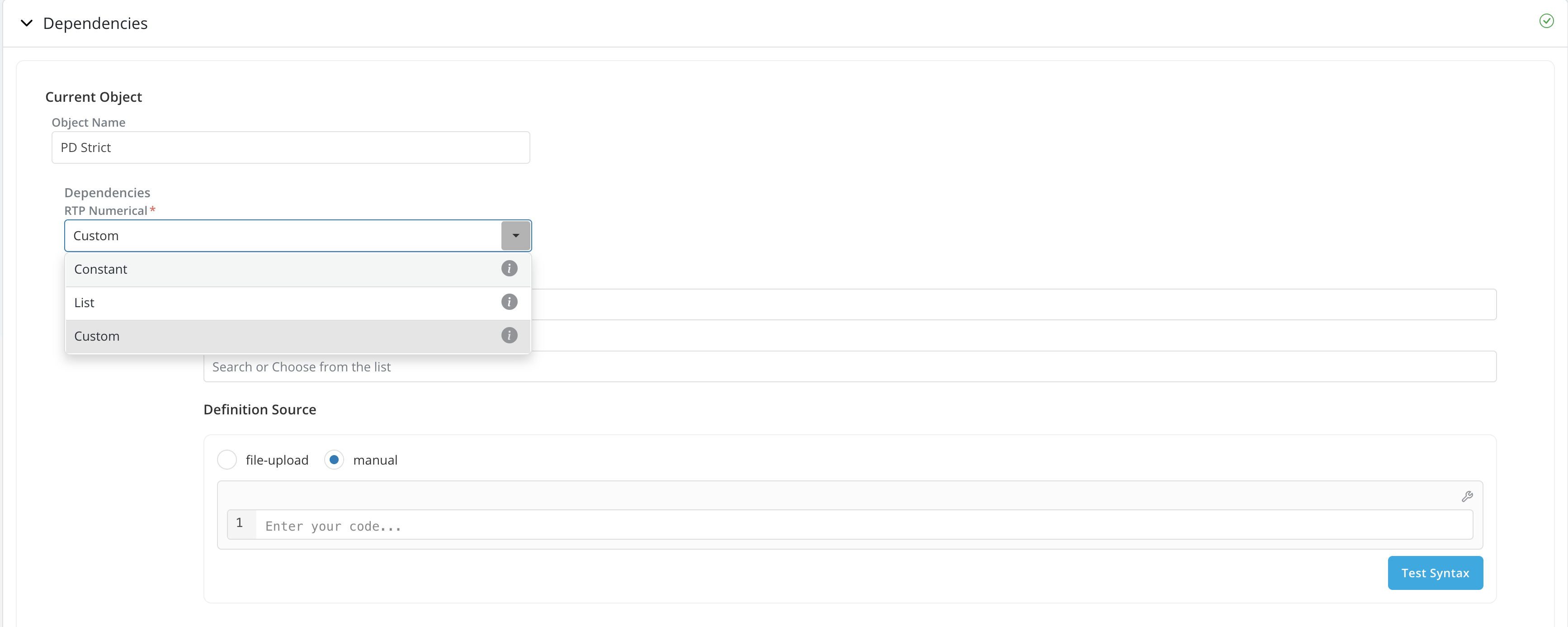
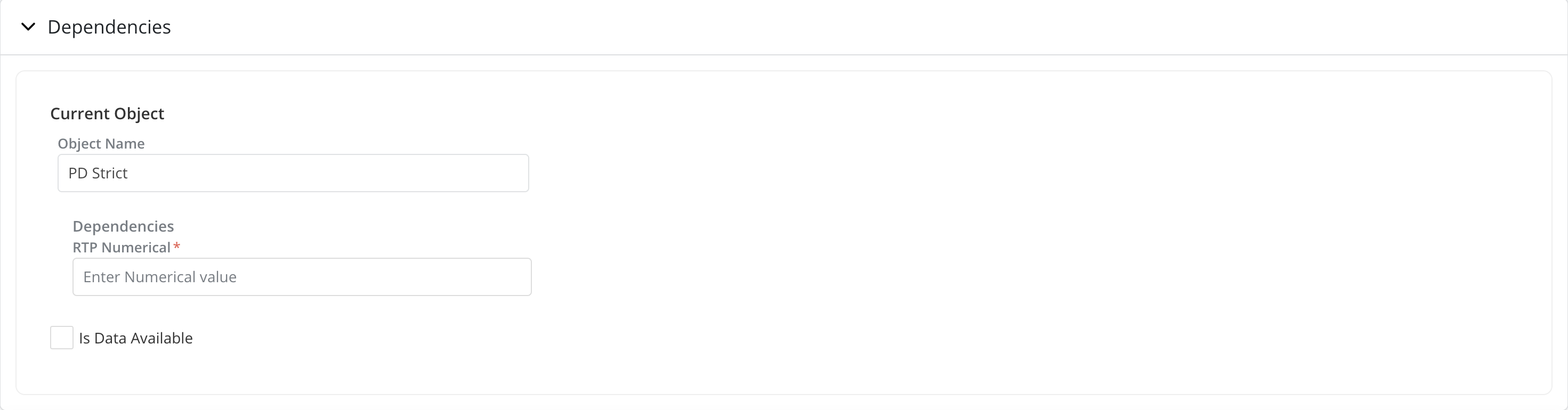
Dependencies: When running a job on an object that requires an unknown variable such as a potential product feature, a global variable or a runtime parameter, the platform will ask for these dependencies to be resolved by requiring the user to specify a value for each unknown parameter. The unknown parameters are referred to as Dependencies on the platform.
Dependencies are grouped by objects(current, challengers, etc.) and user can provide dependencies required for each of the objects accordingly.
-
If the report parameters provided in the
Dashboard Selectionsection requires any dependencies, the required dependency will be available under Current Object. -
If you have configured to run a recurring job in the
Schedulingsection, instead of providing 1 value/object etc. for the dependencies, you can also configure the dependencies separately for each run. There are 3 ways to configure the dependencies for each run:- Constant: All runs take 1 constant value for the dependency.
- List: User can specify a list of dependency value to be used, each value in the list corresponds to each run in the recurring job.
- Custom: User can create custom logic to dynamically assign the dependency value for each run based on the Iteration Number and Date for each run.
-
-
Is Data Available: Is Data Available checkbox controls what data source to be used for running the job.
-
By default, Is Data Available is unchecked, this tells the platform that there is no data available to run the object's logic directly. Instead, the platform will take the source data registered in the Table Registry, apply any sampling criteria specified in the
Samplingsection, create all inputs required to run the object and then run the object. -
If is data available is checked. This tells the platform that there is data available to run the object's logic directly. The platform will assume that the data provided in the
Data Sourcessection contains all the direct inputs required to run the object and no Sampling will be applied. (Therefore theSamplingsection will be disabled.) -
Due to the fact that when is data available is checked, the platform will only run the object's logic registered in the definition. Is data available can be used as a way to reduce job runtime. For instance, users can opt to use existing job results as the data source for a new job.
-
Sampling
-
Data Filters - By default the Custom option is selected. This enables users to use “Sample”, “Date” and “Other Optional Rule Filters” to specify the population on which they want to run the job .
-
Sample Size - When using Custom Data filters, Users should indicate whether they want to run the simulation on the full population or just a sample. Users should specify the sample size or sample ratio if the user is choosing to run the simulation on a sample. User can use sampling type as Limit or Random. Limit option, selects the first 'n' rows of the table, Random option selects 'n' rows spread across the table.

-
Optional Filter Properties - Users can also provide optional filters by click on the
Show Optional Filter Propertieslink. Date and Rule filters can be specified under optional filter properties. Add Rule filters by clicking on the Add Additional Rules button. User may indicate whether any other filters should be applied by adding relevant rules (e.g., FICO>=680)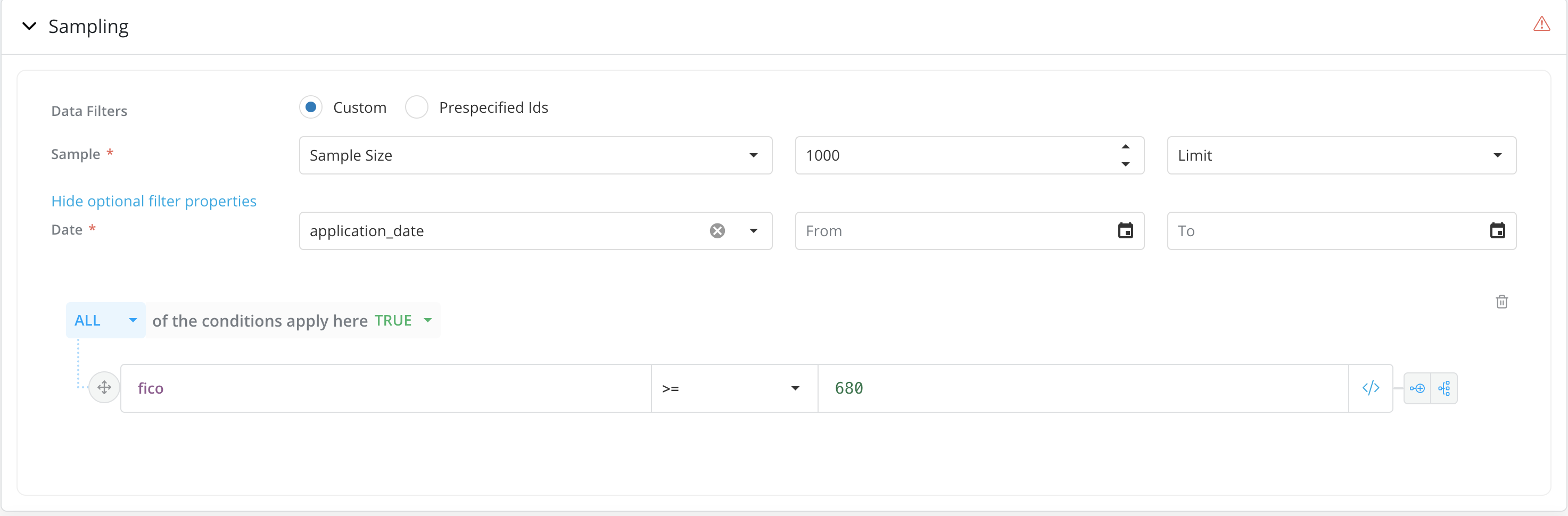
-
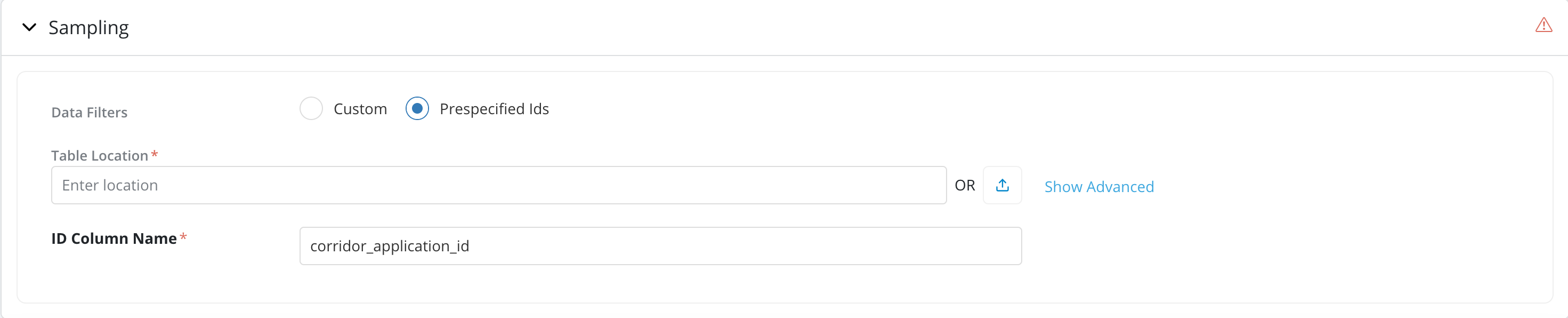
Prespecified Ids: If the job is required to run on specific set of records Ids then select the Pre-specified Ids option
- Users can provide the table contains the pre-specified ids by providing the location or upload the data directly in Excel or CSV format from a local drive.
- The pre-specified id table should have 1 ID column containing the IDs to be used for filtering. By default, the ID column name should be the same as the column name for the entity of the object. If not - a custom ID column name can be provided in the "Advanced" section
-
Note: If Is Data Available is checked in the
Dependenciessection. Sampling section will be disabled.
Data Sources
-
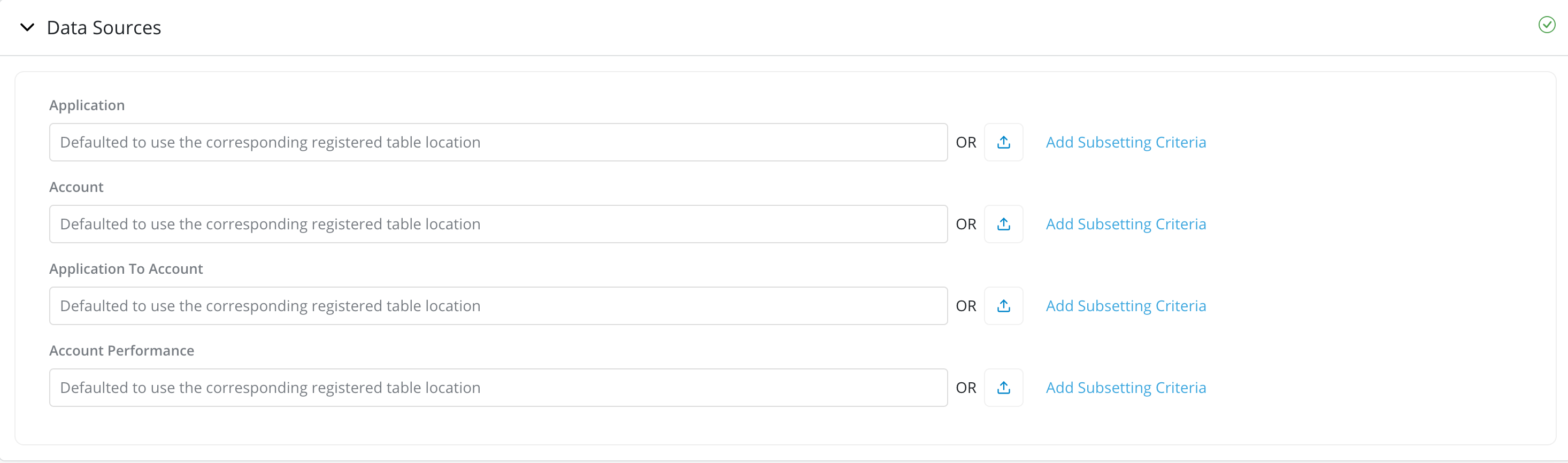
Data Sources: By default, the platform will use the data location registered under Data Vault -> Data Table. Users can also provide external table location by providing the location or upload the data directly in Excel or CSV format from a local drive. External table should have same column names and type in order to run the job.
-
Provide location for the data source
-
Upload data directly in Excel or CSV format for the data source
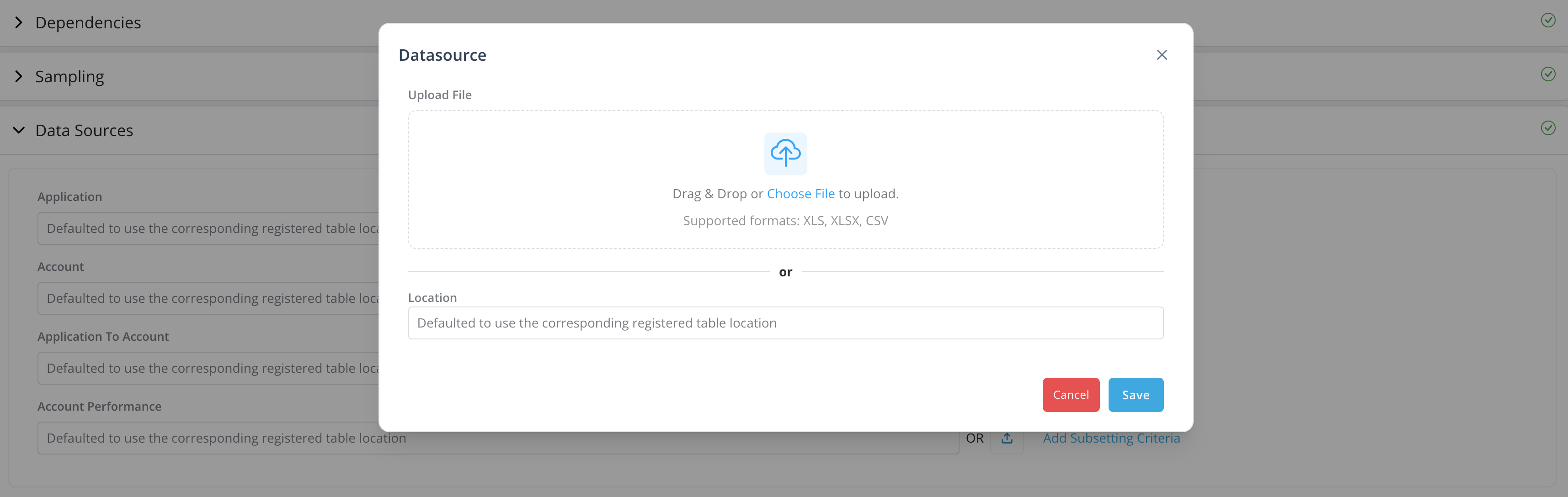
-
-
Add Subsetting Criteria: For very large data source tables, either registered or external, users can run the job only on a subset of the data rather than running it on all available data (default option). Running the job on a subset of the data can significantly reduce the time it takes to complete the job.
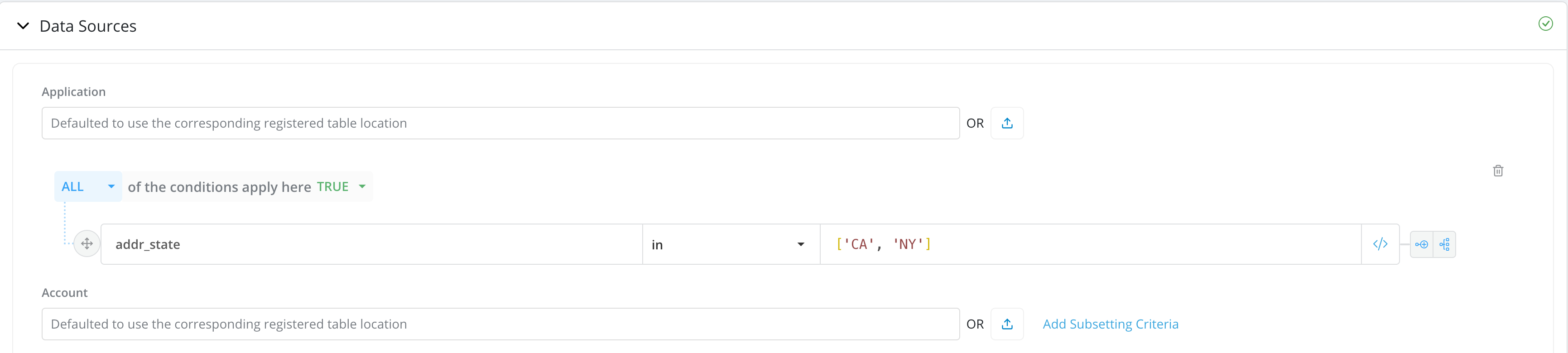
-
Use Existing Data As Data Source: If Is Data Available is checked in the
Dependenciessection. Users can provide data source either from existing job or from external data file.-
From existing job: The reuse job data option is not limited to objects of the same type as long as the existing job's data contains the required information to run the new job. For instance, we can re-use an existing Feature job as data source for a DataElement job as long as the Feature job contains data required to run the DataElement job. To reuse existing job, select the Object Type and Object where the existing job is from and select the job to be reused.

-
From external data file: You can also provide the location of the external data file to be used. The external data should contain all the direct inputs for the objects to run the job.
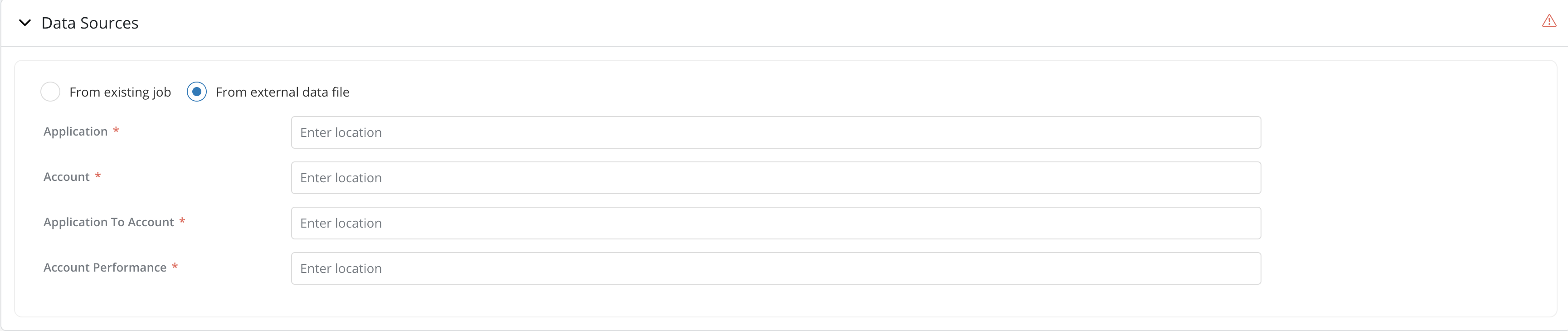
-
How to access job results
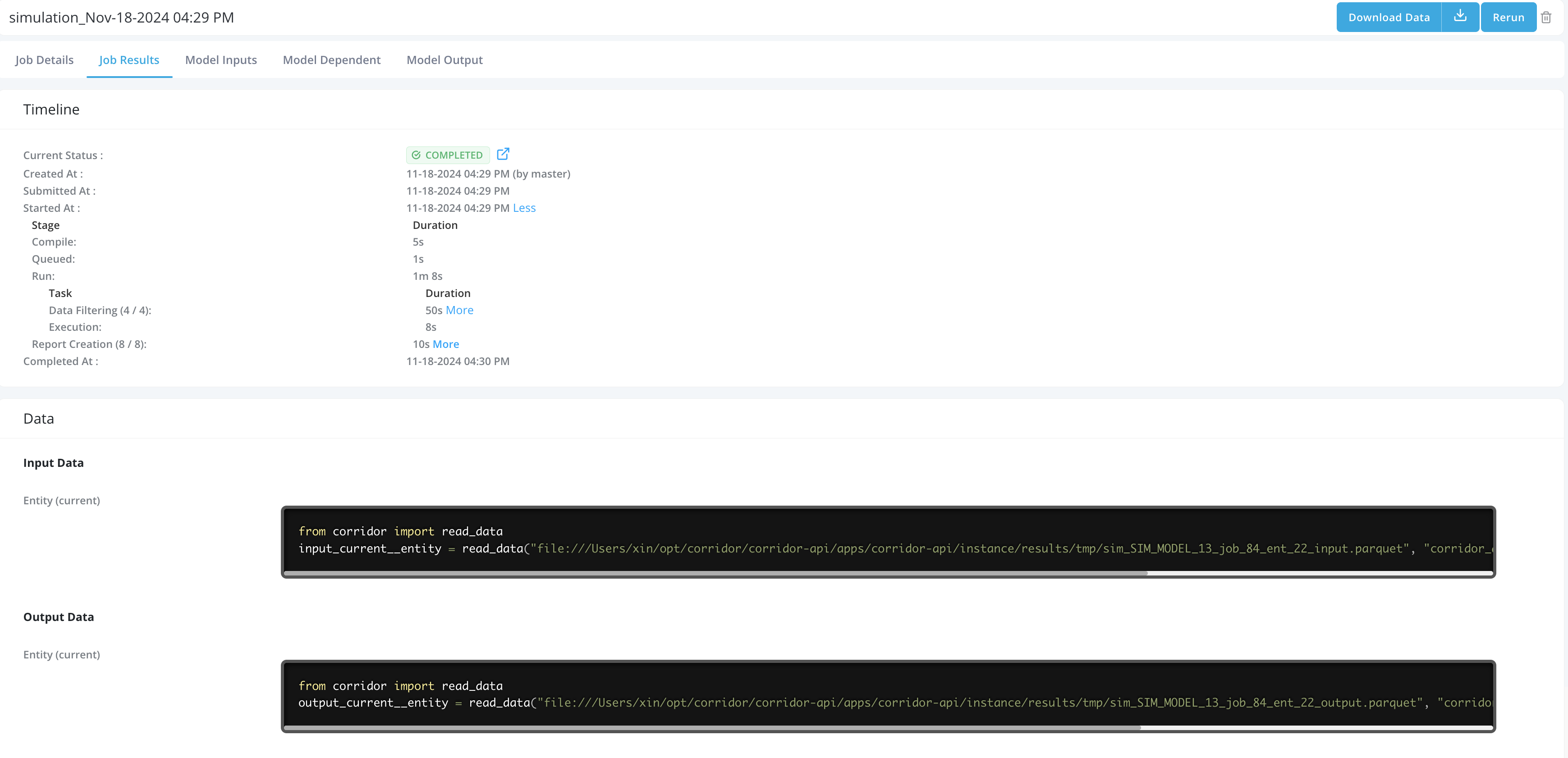
Once a simulation has been completed User can click on it to see the results. Job results contain the following tabs:
-
Job Details: Job Details tab maintains same structure as the Job submission form and contains all the information User has provided to run the job.
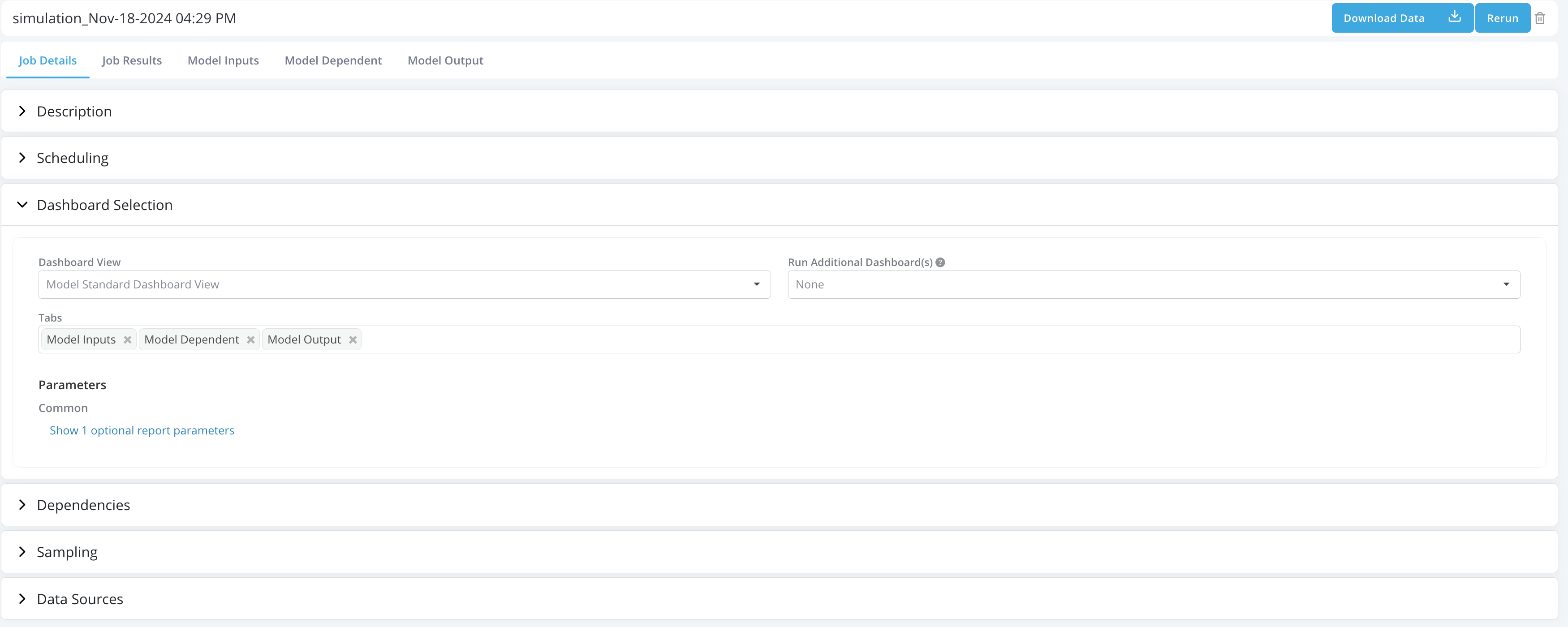
-
Job Results: Job Results tab contains all job results, including:
- Timeline: Tracks the job process and report the time taken for each tasks in the Job. User can also click on the link to the Spark UI to view a detailed breakdown of the spark tasks.
- Data: User can access the input and output for the job in the pyspark dataframe format by copying the code snippet and run it in the integrated notebook. You can find the integrated notebook under Model Studio -> Notebooks.
- Log: User can access any log generated when running the job, for instance, print statement etc.
-
Other Dashboard View Tabs: Includes all Dashboard View tabs selected to run for the job in the
DashboardView Selectionsection.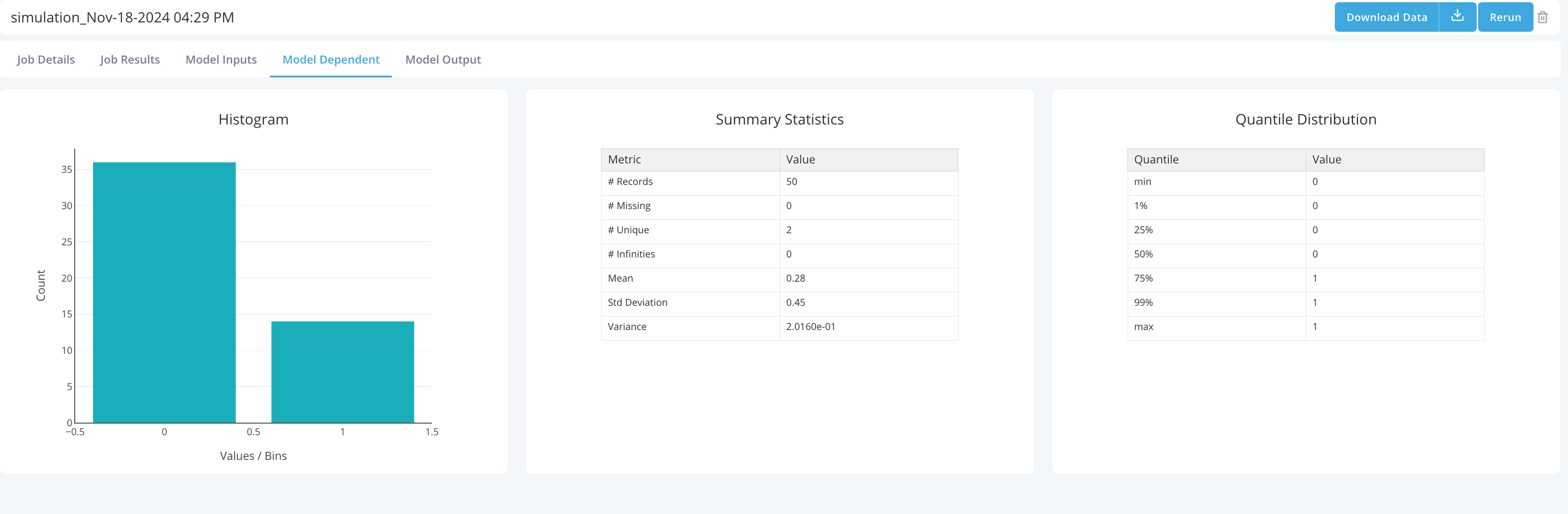
-
Users can Download the sample data by clicking on the Download Data button in top right corner.
-
Users can Rerun the job by clicking on the Rerun button in top right corner. In case of rerun, users have the option to replace the existing job which deletes the existing job or rerun as a new job.