Sharing Objects
Overview
This capability allows object owners to share draft objects that are not yet approved with another specific user or a group of users with a specific role. Sharing an object gives other users access privilege to the object. There are currently two types of accesses (Read and Write) and users are given the ability to choose what access right to grant.
-
Read- With Read access, user can
- View metadata
- Run simulations (only the submitter can see the simulation results)(1)
- Download documentation (1)
- Download artifact
- Use object as input to other objects
-
Write- With Write access, user can
- Edit
- Delete
- Send for approval and manage approval process
- Share with other users (2)
-
Lineage Share
While sharing an object that has inputs the user can also decide to share its entire lineage using the share with lineage option. To do this the user should check the lineage checkbox in the share popup form Checking the lineage checkbox will in effect cause the all lineage objects to be shared when the form is submitted
Note
- The lineage checkbox value is not persisted on the share form
- This means that once the share form is submitted, the checkbox is reset to blank even though the current object's lineage are shared
- This allows users to re-share the lineage if new objects are added to it.
- The share capability operates on the following objects: Data Elements, Feature, Model, Policy, Datasets, Global Functions, Products and Frameworks.
- When a object is shared a notification is sent to the Receiver that an object has been shared
Note
- Requires inputs to the object (including dependent for model objects), if any, to be either shared as well or already approved
- A Non-Owner will not be able to share the object if he/she has 'Read' permissions only
- Users can also share access to objects using jupyter notebook, refer Sharing Objects section for details.
Sharing Objects
- Once the object is created, click on Share button
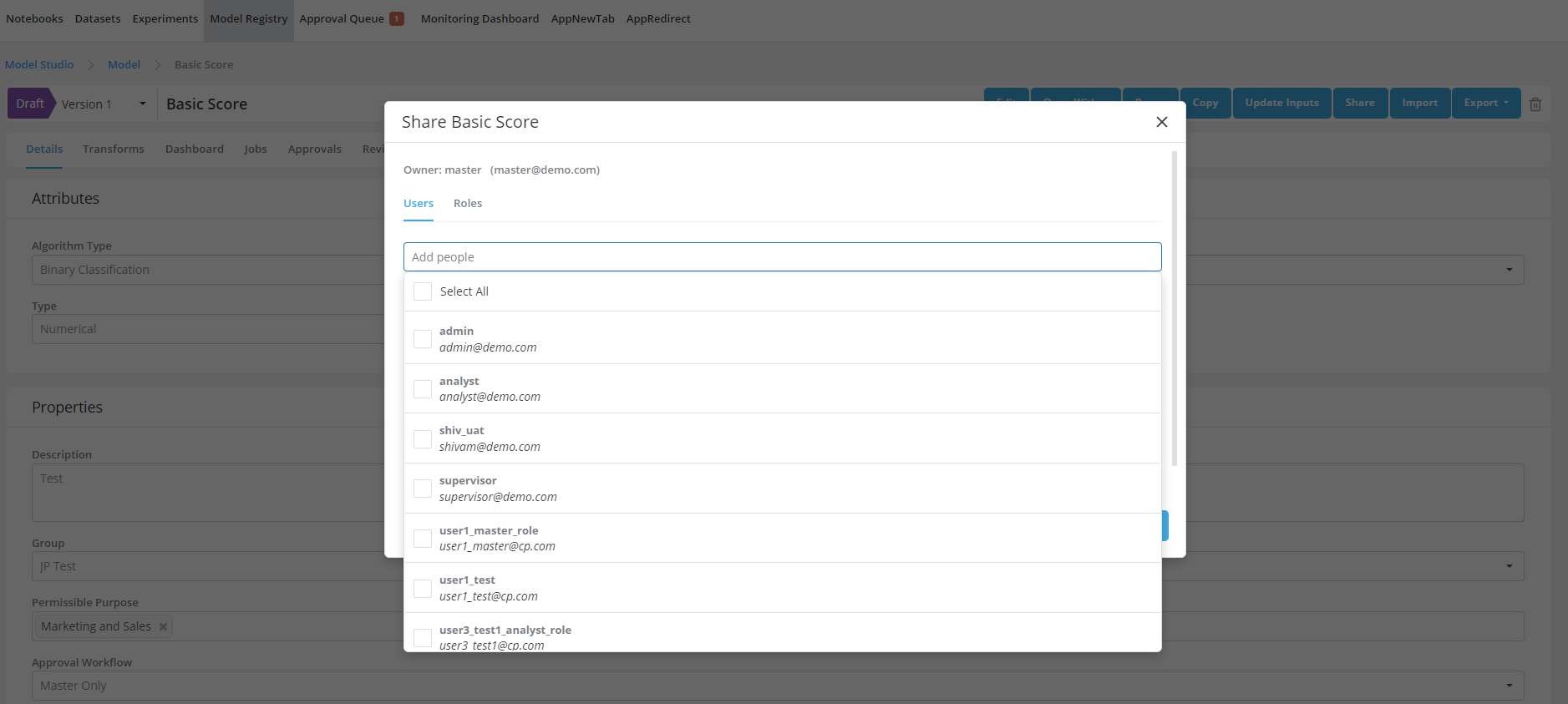
- Select the user name (or role name if sharing with roles)
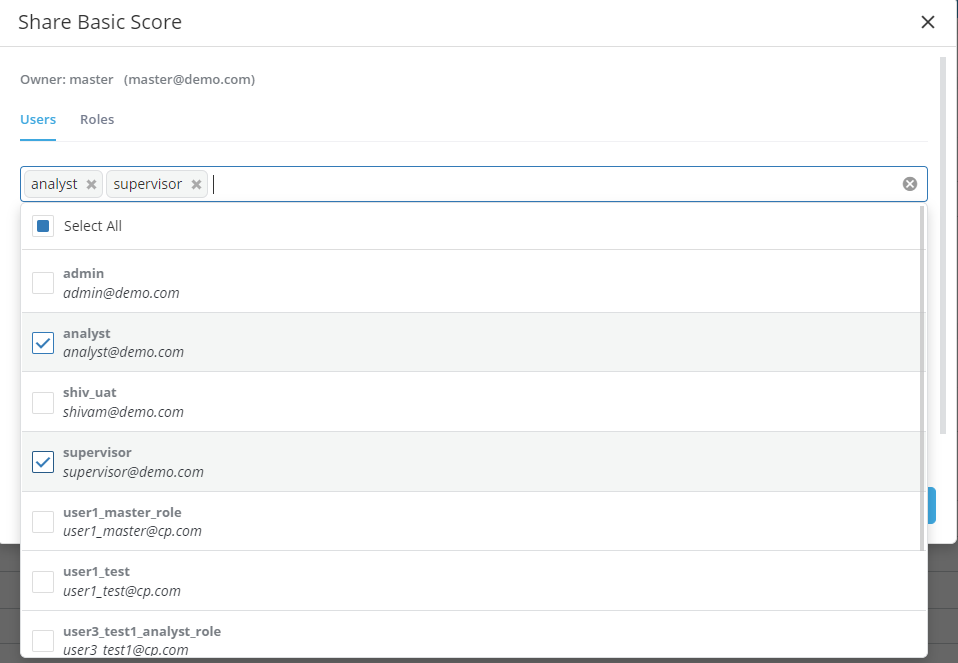
- Choose the appropriate access to be granted
- Access can be revoked by selecting "remove"
- Click on Save Changes button
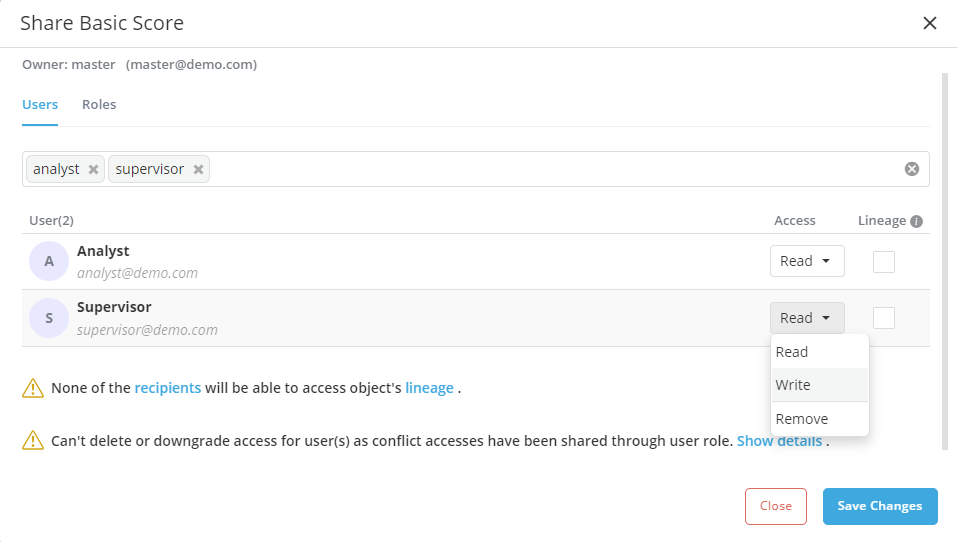
- Accesses granted through share can be changed/revoked by either the object owner or anybody with write access to the object. To do so, just click on "Share" and remove/change the user's access rights.